
Category: Photo Guides
Let’s be real for a second: as photographers, we obsess over every single pixel. We spend thousands on the essential photography gear, hours scouting the perfect location, and even longer in Lightroom making sure the highlights are just right. But then, something tragic happens. We export those massive, beautiful files and upload them to our websites, only to realize the site is loading at a snail’s pace.
Or worse, we over-correct and compress the life out of our images until they look like they were taken with a flip phone from 2004.
Finding that "Goldilocks zone" between a tiny file size and high-end image quality is a struggle every pro faces. That is exactly why we are diving into the common pitfalls of image optimization today. This post is part of our series on Pixel-Shrink.com, a tool that is honestly a game-changer for anyone who values their portfolio's speed and aesthetic. This series is proudly sponsored by our friends at proshoot.io, who know a thing or two about professional photography workflows.
Here are the seven most common mistakes you’re making with image compression and how you can fix them instantly.
1. The "Crunchy" Photo: Over-Compressing and Sacrificing Quality
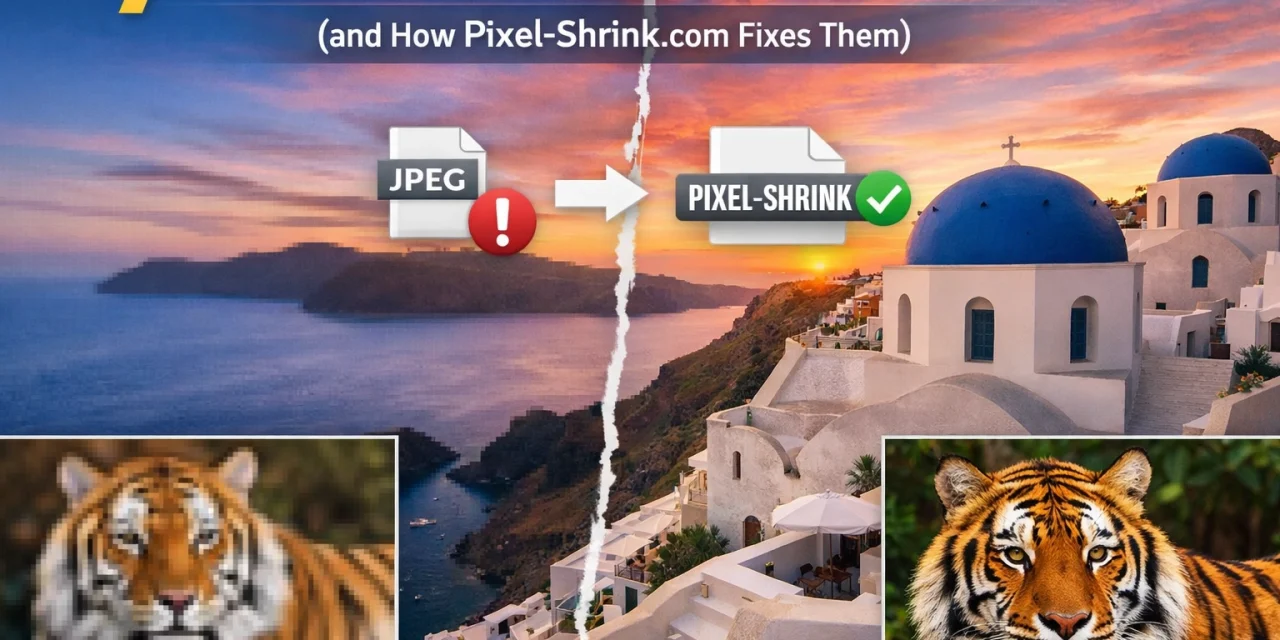
We’ve all seen it. You want your website to be lightning-fast, so you crank the JPEG quality slider down to 20%. The result? Blocky shadows, "mosquito noise" around sharp edges, and skin tones that look like a muddy mess. This is called aggressive compression, and it’s the fastest way to lose a potential client’s trust.
When you lose fine texture and detail, you’re losing the very thing that makes your work professional. If you are showcasing your work on Edin Fine Art, for example, you can’t afford to have "crunchy" artifacts in your landscapes.
How Pixel-Shrink.com Fixes It:
Pixel-Shrink uses a smart optimization algorithm. Instead of a "dumb" slider that applies the same math to every pixel, it analyzes the image data to find the exact point where file size is minimized without visible quality loss. It keeps your photos looking like the high-resolution masterpieces they are, just without the heavy data footprint.
2. Using the Wrong Image Format for the Job
This is one of the most basic mistakes, yet it happens all the time. Using a PNG for a high-detail portrait or a JPEG for a logo with a transparent background is a recipe for disaster. PNGs are "lossless," meaning they keep every bit of data, which makes them huge when used for photographs. JPEGs are "lossy," which is great for photos but terrible for graphics with text or transparency.
How Pixel-Shrink.com Fixes It:
The tool is designed to handle the heavy lifting for you. It understands the nuances of different file types. Whether you are dealing with JPEGs for your latest wedding photography insights blog or need a crisp WebP for a modern web layout, Pixel-Shrink optimizes the format to ensure you get the best performance possible.
3. Forgetting to Resize Before Compressing
If your website displays a blog image at 800 pixels wide, why are you uploading a 6000-pixel file? Even if you compress that 6000-pixel file heavily, it is still going to be larger than an uncompressed 800-pixel image. Uploading oversized images is the #1 cause of slow page speeds. It forces the user's browser to download a massive file and then manually scale it down, which wastes bandwidth and processing power.
How Pixel-Shrink.com Fixes It:
Pixel-Shrink allows you to define the dimensions before the compression happens. This "one-two punch" of resizing and then optimizing is the secret sauce to a professional photography booking experience. When your site loads instantly because the images are actually the right size, clients stay on the page longer.

4. Compressing the Same Image Multiple Times
JPEG is a "lossy" format. This means every single time you open a JPEG, make a tiny edit, and save it again, the computer throws away a little bit more data. If you do this five or six times, your image will start to look like a watercolor painting (and not the good kind). This "generational loss" is permanent.
How Pixel-Shrink.com Fixes It:
The best practice is to always compress a fresh copy of your original high-resolution export. Pixel-Shrink makes this workflow seamless. You can drag and drop your high-res originals, get your web-ready versions in seconds, and keep your master files safe and sound on your hard drive. For more tips on maintaining a clean digital workflow, check out the discussions over at Shut Your Aperture.
5. Ignoring the Power of WebP
If you are still only using JPEGs, you’re living in the past. WebP is a modern image format that provides superior lossy and lossless compression for images on the web. On average, WebP files are 25-34% smaller than comparable JPEG files at equivalent quality.
How Pixel-Shrink.com Fixes It:
Many photographers avoid WebP because it feels technical or difficult to convert. Pixel-Shrink removes that barrier. It can take your heavy JPEGs and convert them into lean, mean, WebP machines. This is essential for SEO; Google loves fast sites, and WebP is one of their preferred formats for high-performance pages.

6. Not Checking Your Work (Skipping Quality Assurance)
Automating everything is great, but blindly trusting a script can lead to issues. Sometimes a particularly noisy image or one with very fine gradients (like a sunset) needs a lighter touch with compression to avoid "banding" in the sky.
How Pixel-Shrink.com Fixes It:
The platform provides a clear look at what’s happening to your files. Because it’s built by people who understand photography, the default settings are tuned to be "reassuringly safe." You won't get those nasty surprises where a batch of 100 images comes out looking unusable. It gives you the confidence to hit "process" and know the results will be professional enough for a Miami speakeasy feature or a high-end travel guide.
7. Wasting Time on Manual, One-by-One Compression
As your business grows, your time becomes your most valuable asset. If you are manually saving "Save for Web" in Photoshop for every single image in a gallery, you are losing hours of your life every week. That’s time you could spend shooting, editing, or even just relaxing at one of those breakfast places in Cape Coral.
How Pixel-Shrink.com Fixes It:
Speed isn't just about the file size; it's about the workflow. Pixel-Shrink is built for batch processing. You can drop a whole folder of images, and it will churn through them with incredible speed. It’s the kind of efficiency we talk about constantly on the Edin Chavez Blog.

Why This Matters for Your Business
At the end of the day, image compression isn't just a technical chore: it's a fundamental part of your brand’s presentation. A slow website feels broken, and a pixelated image feels amateur. When you use a tool like Pixel-Shrink.com, you’re telling your clients that you care about the details. You’re ensuring that whether they are looking at your work on a 5K monitor or a 5G smartphone in a crowded subway, your images look exactly how you intended.
If you’re ready to stop making these mistakes and start optimizing like a pro, head over to Pixel-Shrink and give it a spin. Your website: and your visitors: will thank you. And don't forget to check out proshoot.io for more tools designed to elevate your photography business to the next level.
For more technical deep dives and reviews, feel free to browse our educational category or see what gear we’re currently testing in our 2024 camera reviews. Keep shooting, keep optimizing, and keep those pixels looking sharp!













