

As photographers, we spend hours: sometimes days: perfecting a single frame. We obsess over the color grading, the sharpness of the eyes in a portrait, and the subtle gradients of a sunset. But the moment we need to share that work online, many of us stumble at the final hurdle: image compression.
It’s a frustrating trade-off. On one hand, you want your website to load instantly because nobody likes a slow portfolio. On the other hand, you don't want your beautiful high-resolution files to look like they were taken with a toaster. Finding that "sweet spot" is often where mistakes happen.
I’ve seen it all, from blocky artifacts in the sky to file sizes so large they’d make a fiber-optic connection sweat. That’s why we’re diving into the seven most common mistakes photographers make with image compression and how Pixel-Shrink.com: proudly sponsored by our friends at proshoot.io: is changing the game by keeping your quality high and your file sizes low.
1. The "Deep-Fried" Disaster: Over-Compressing
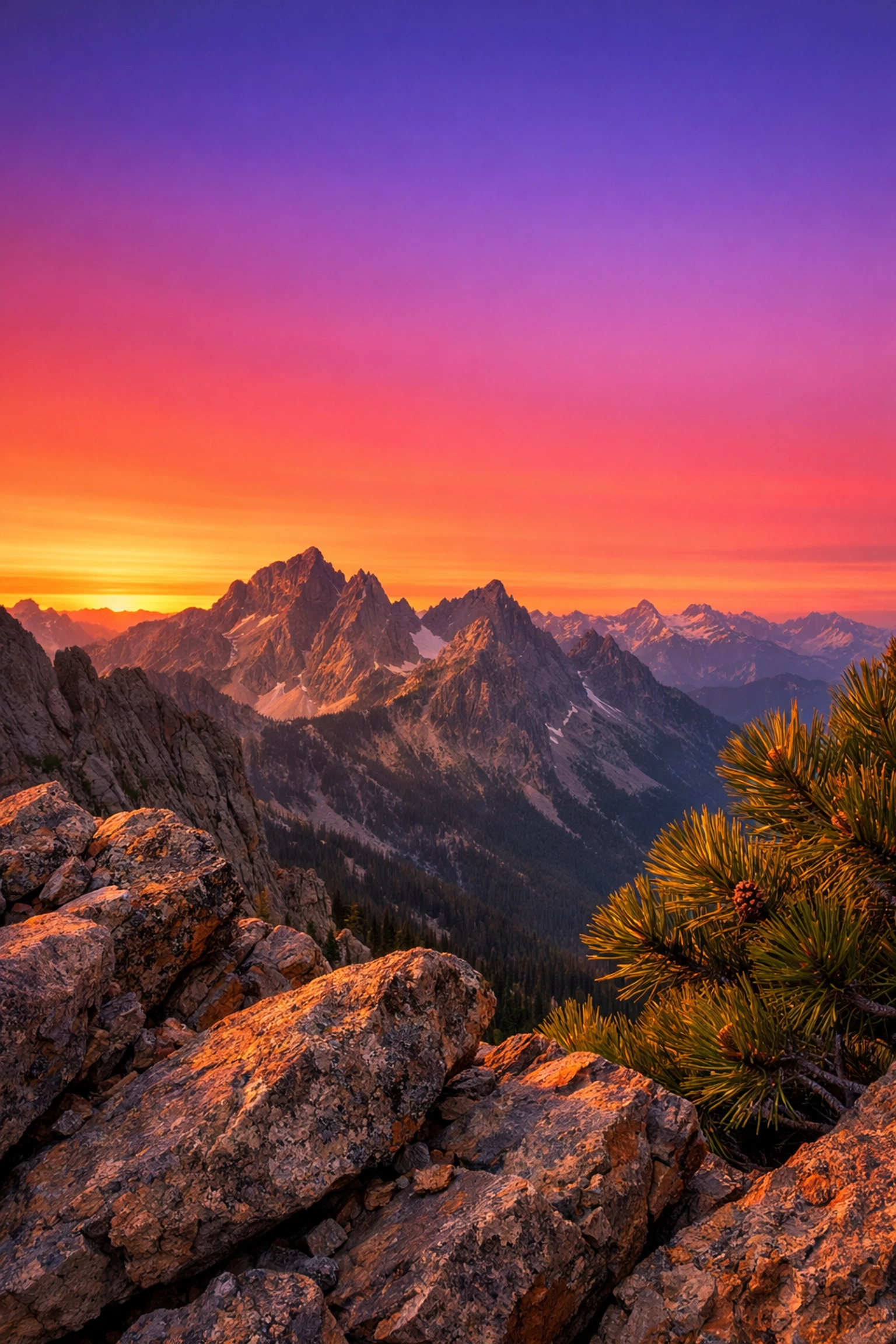
We’ve all seen it: a photo that looks "crunchy." When you push compression sliders too far in an attempt to hit a specific kilobyte target, you get artifacts. These are those weird, blocky patterns that appear in areas of flat color, like a clear blue sky or a smooth studio backdrop.
Over-compressing strips away the very detail you worked so hard to capture. It makes your work look unprofessional and, frankly, "deep-fried."
The Solution: Instead of using a blind slider in a generic editor, Pixel-Shrink.com uses an intelligent algorithm. It analyzes the specific details of your photo and applies the maximum possible compression before any visible quality loss occurs. It targets that optimal 75-85% quality range where the human eye can't tell the difference, but your server certainly can.
2. Using the Wrong File Format
This is a classic. I often see photographers saving every single export as a PNG because they heard it’s "higher quality." While PNG is a lossless format, using it for a complex photograph is a recipe for a 15MB file that should have been 200KB.
Conversely, using JPEG for a logo or a graphic with text can cause "ghosting" or blurring around the letters.
The Solution: Stick to the golden rules of formats:
- JPEG: Your bread and butter for complex photographs.
- PNG: Use this for graphics, logos, or anything requiring transparency.
- WebP: The modern standard. It offers superior compression for both photos and graphics.
If you're looking to dive deeper into the technical side of your gear before you even get to the export stage, check out our essential photography gear guide.
3. Forgetting to Resize Dimensions First
Compression and resizing are two different things, but they go hand-in-hand. If you take a 6000-pixel wide image from your Sony or Canon and run it through a compressor, it might get smaller in file size, but it’s still physically massive. If your blog's content width is only 800 pixels, you are forcing your visitor's browser to download a giant file and then scale it down anyway.
This is a massive waste of bandwidth and a huge hit to your SEO. Whether you're showcasing your work as an Atlanta event photographer or sharing travel tips, your images need to fit the screen they are on.
The Solution: Resize your images to their maximum display size before you compress them. This simple step can often reduce your file size by 80% before you even touch a compression tool.
4. The Generation Trap: Compressing Already Compressed Images
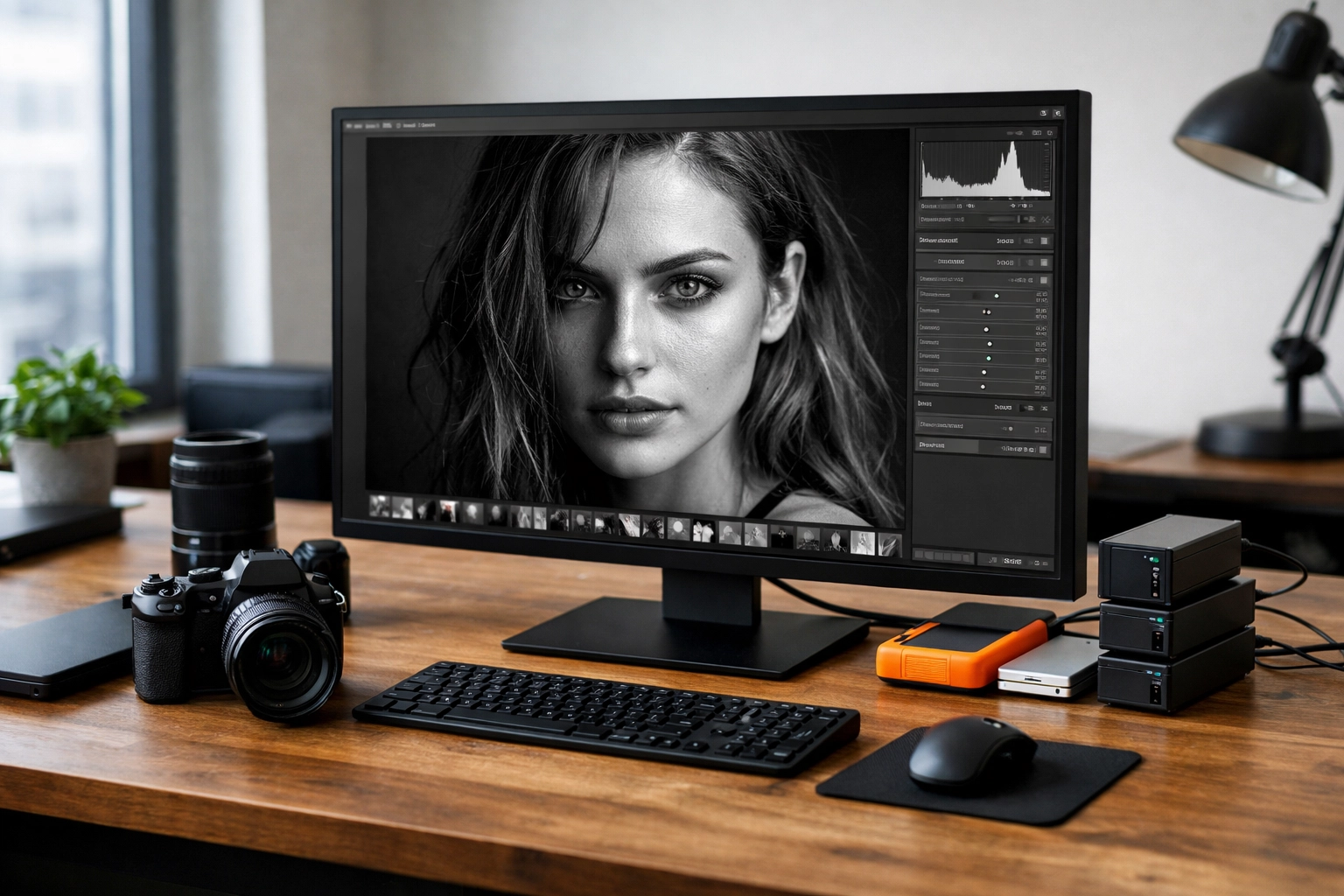
JPEG is a "lossy" format. This means every time you save a JPEG, a little bit of data is tossed into the digital trash can. If you export a photo from Lightroom at 70% quality, then run it through a web optimizer, and then your WordPress site applies its own compression plugin, you’ve entered the "Generation Trap."
By the time the viewer sees it, the image has been degraded three times. The result is a muddy, soft image that lacks the "pop" of your original edit.
The Solution: Always keep your original, uncompressed Master files (TIFF or high-quality RAW). When you need a version for the web, go back to that master file and compress it once. For more tips on maintaining a professional workflow, see our photography booking experience insights.
5. Uploading Direct-from-Camera Files
In the age of 5G, it’s tempting to think we don't need to worry about file sizes. But if you’re uploading 10MB JPEGs directly from your camera to your website, you’re killing your user experience. Search engines like Google prioritize speed. If your page takes five seconds to load because of uncompressed images, you’ll drop in the rankings faster than a dropped lens cap.
This is especially critical for portfolio sites where you might have 20-30 images on a single page. If each is 5MB, that's a 150MB page load. That’s insane.
The Solution: Use a dedicated tool like Pixel-Shrink.com. It’s designed specifically for photographers who need to maintain that professional edge while ensuring their site is lightning-fast. High-speed loading is one of the best ways to ensure a smooth photography booking experience for your clients.
6. Not Saving Originals Before Compression
This mistake is more about asset management, but it’s a painful one. I’ve heard horror stories of photographers who accidentally overwrote their high-res masters with compressed web versions. Once that data is gone, it’s gone forever. You can’t "un-compress" a JPEG to get the original quality back.
If you ever want to make a large print for something like Edin Fine Art, you’re going to need every single pixel of that original file.
The Solution: Always work on a copy. Create a dedicated "Export" folder for your web-ready images and keep your "Masters" folder locked down and backed up. It’s a simple habit that saves lives: or at least saves careers.
7. Ignoring Aspect Ratios and Crops
Sometimes, the "mistake" in compression is actually a failure to crop. If you are uploading a full 3:2 landscape photo but only displaying a small square thumbnail, you are making the user download data they will never see.
Furthermore, incorrect dimensions can lead to "browser-side scaling," which can sometimes make your images look blurry or jagged, regardless of how well you compressed them.
The Solution: Crop your images to the specific aspect ratio required by your website's layout. This ensures that every pixel being downloaded is actually being used to show off your talent.
Why We Recommend Pixel-Shrink.com
At Photoguides, we’re all about making the technical side of photography easier so you can focus on the creative side. We’ve tested plenty of tools, but Pixel-Shrink.com stands out because it was built with the photographer’s eye in mind.
Sponsored by proshoot.io, this tool understands that "small" isn't enough: it has to be "small and beautiful." Here is why it’s become a staple in our workflow:
- Intelligent Compression: It doesn't just slash bits; it looks at textures, edges, and gradients to ensure the soul of the photo remains intact.
- Blazing Speed: Time is money. You can drop a batch of photos and have them ready for your blog in seconds.
- No Software to Install: It’s all web-based, meaning you can optimize your shots whether you’re at your desk or editing on a laptop at one of the restaurants in downtown Golden.
- Privacy Focused: Your images are processed and then cleared, keeping your intellectual property safe.
Quality Matters (Even When It's Small)
Whether you are reviewing the camera reviews 2024 list or checking out shutyouraperture.com for the latest community gear talk, the goal is always the same: excellence.
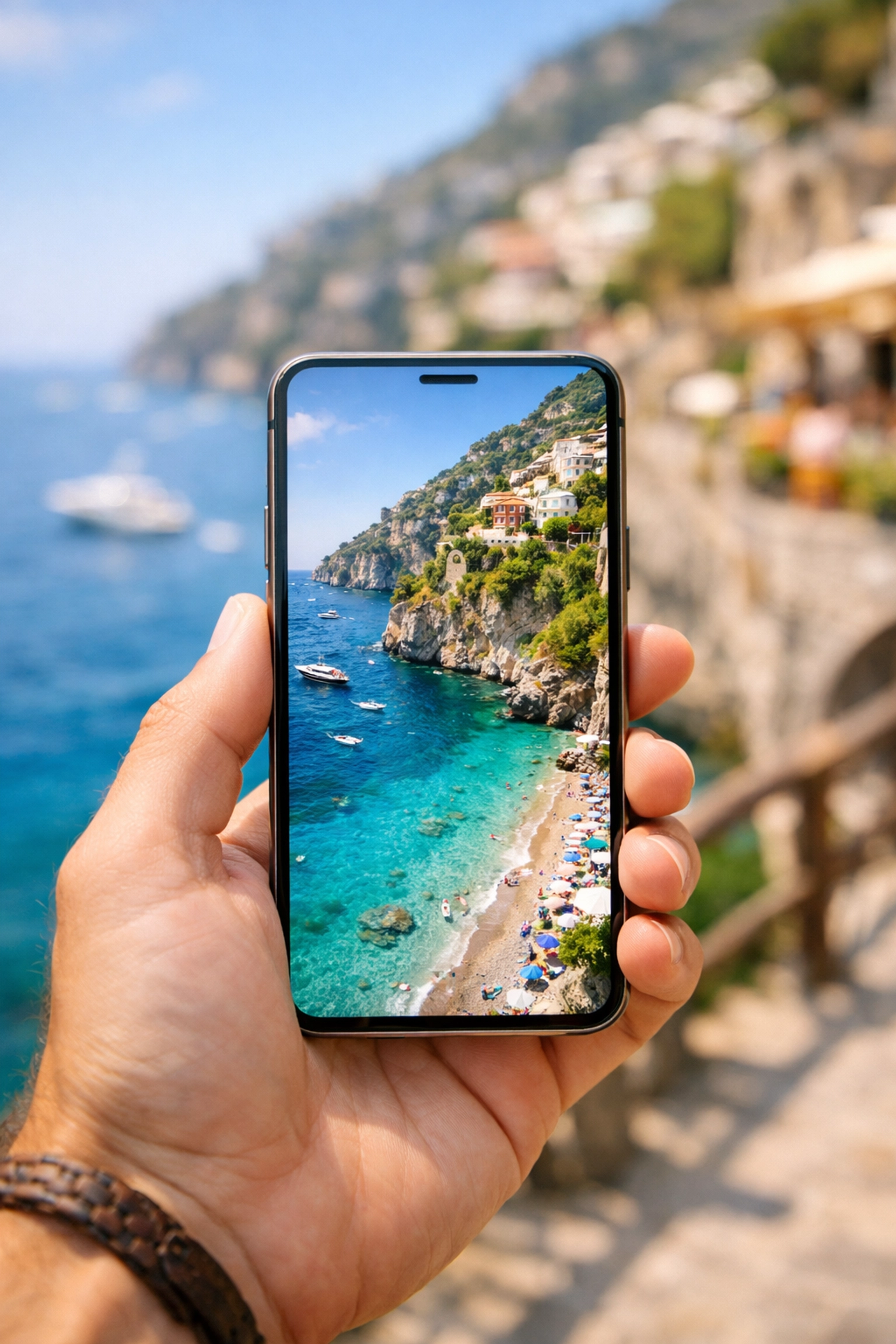
Don't let poor compression habits hold your work back. By avoiding these seven mistakes and utilizing professional tools like Pixel-Shrink, you ensure that your portfolio looks as stunning on a smartphone screen as it did on your calibrated monitor.
If you're looking for more ways to level up your photography game, feel free to explore our educational category for more deep dives into the craft. And if you’re just starting out and need some inspiration, check out Edin Chavez’s blog for some incredible stories from the field.

Final Checklist for Your Next Upload:
- Did I resize the dimensions to match my website?
- Am I using the correct format (JPEG for photos, PNG for logos)?
- Did I compress from the original file, not a previously compressed one?
- Did I run it through Pixel-Shrink.com to get the best size-to-quality ratio?
- Is my original file safely backed up?
Mastering image compression is one of those "invisible" skills that separates the amateurs from the pros. It’s not as glamorous as buying a new module 8 lens adapter, but it’s just as important for your digital presence. Keep your quality high, your load times low, and let your photos speak for themselves.













