
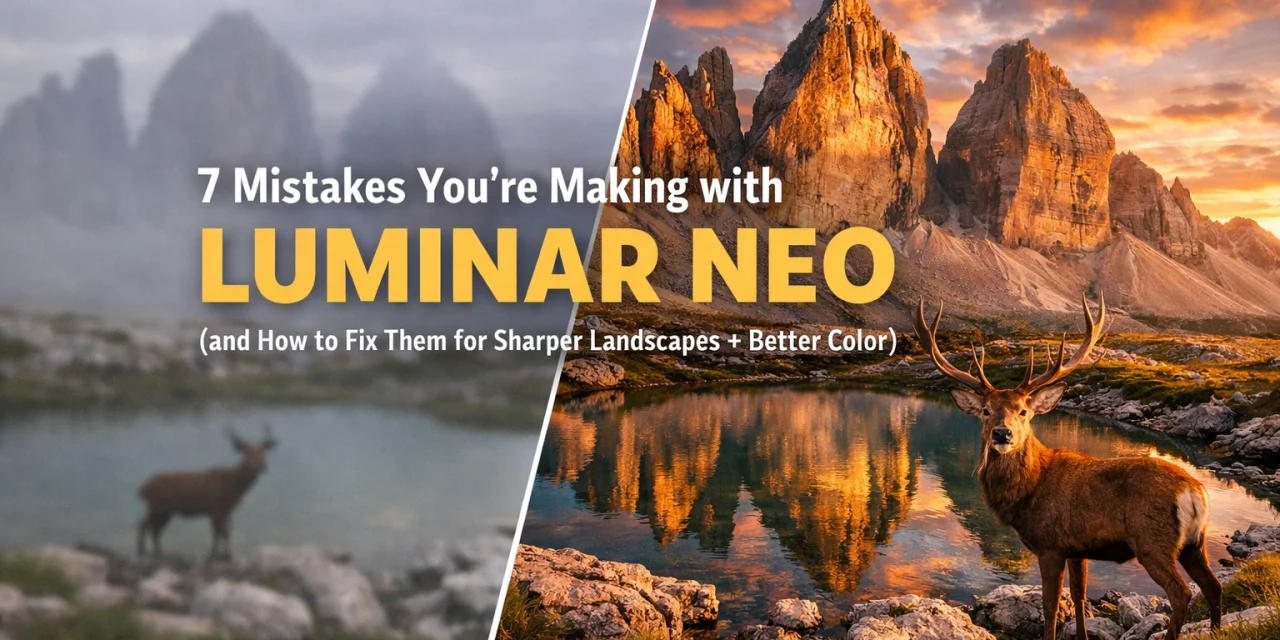
If you have been following Photoguides for a while, you know I’m a huge fan of efficiency. As a photographer, the goal is to spend less time glued to a computer screen and more time out in the field with a camera in hand. That is exactly why Luminar Neo has become such a staple in my workflow. It uses AI to handle the tedious stuff, allowing us to focus on the creative vision.
However, because Luminar Neo is so powerful and, let’s be honest, fun to use, it’s incredibly easy to go overboard. I’ve seen it a thousand times: a beautiful landscape shot that ends up looking like a neon-colored fever dream because a few sliders were pushed just a bit too far.
If your photos are looking a bit "crunchy," over-saturated, or just not as sharp as you’d like, don't worry. We have all been there. Today, I’m breaking down the seven most common mistakes photographers make with Luminar Neo and, more importantly, how you can fix them to get professional, clean, and breathtaking results every time.
1. Skipping the "Develop Raw" Tool
This is the single biggest mistake I see. Because Luminar Neo has incredible AI tools like Enhance AI and Sky AI, many photographers jump straight into those modules the moment they import a photo.
While those tools are amazing, they aren't meant to be the foundation of your edit. If you are working with a RAW file, you need to start with the Develop (or Noiseless RAW) tool. This is where you set your "digital negatives."
The Fix:
Before touching anything else, go to the Develop tool. Set your camera profile, adjust your exposure, and recover your highlights and shadows. By getting the "bones" of the image right first, you ensure that the AI tools you use later have high-quality data to work with. Think of it like building a house; you wouldn’t paint the walls before the foundation is poured.
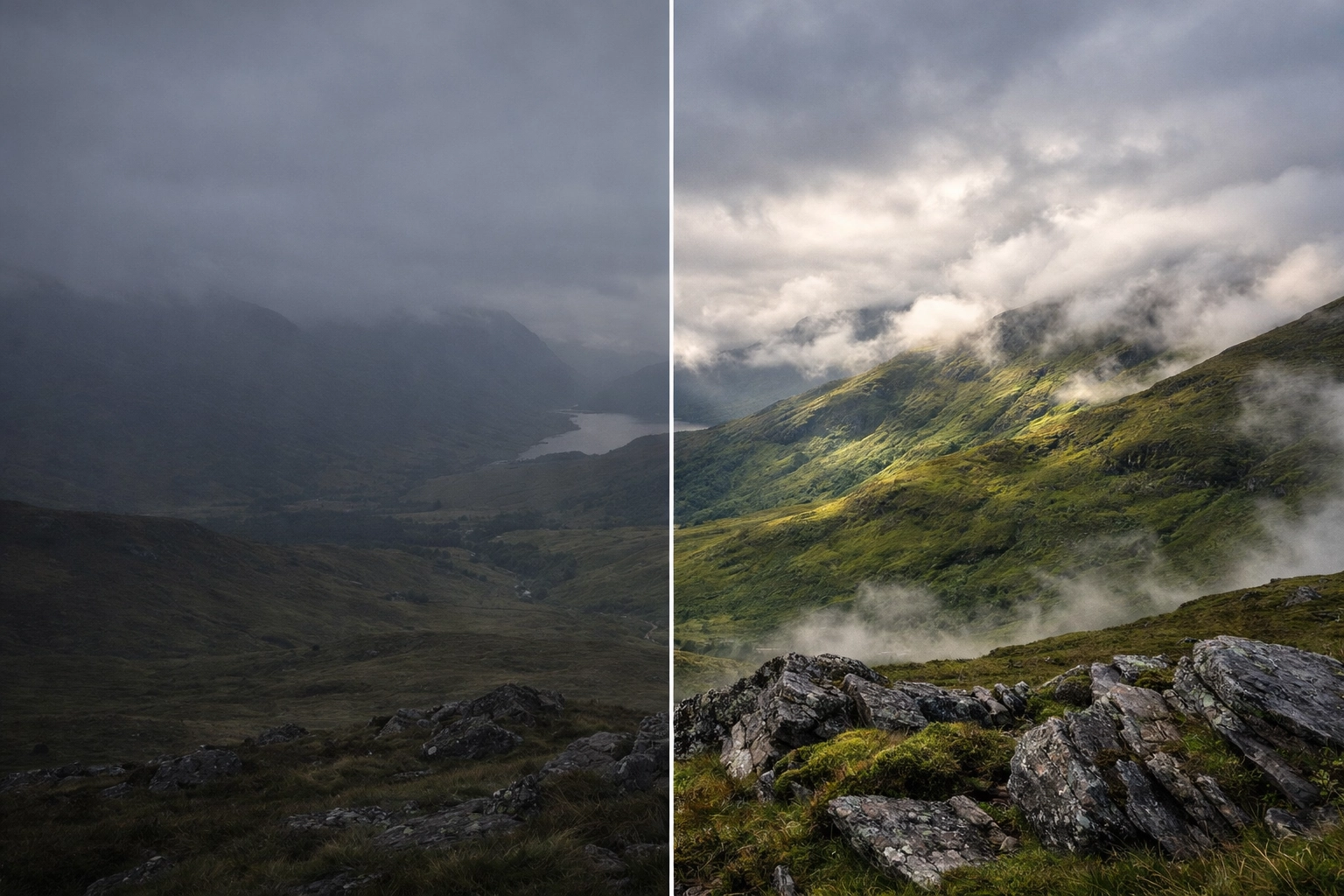
Alt text: A side-by-side comparison showing a raw landscape photo before and after using the Develop Raw tool in Luminar Neo to balance exposure and recover highlights in the clouds.
2. The Saturation Trap (and Ignoring Vibrance)
We all want our landscapes to pop, especially when we are editing shots from places like the Dominican Republic or Cancun. But there is a fine line between "vibrant" and "radioactive."
The Saturation slider is a blunt instrument, it increases the intensity of every single color in the image equally. This often leads to "color clipping," where details in your reds or blues are lost because they’ve become too intense.
The Fix:
Use the Vibrance slider instead. Vibrance is "smart" saturation; it targets the less-saturated colors first while leaving the already-vivid colors alone. If you really want to dial it in, try this pro tip: in the Develop tool, pull the Saturation slider down to zero, then slowly bring it back up while looking at the image (not the numbers) until it feels natural.
3. Over-Using Structure AI and Details
We all want sharp photos. When we see a tool called "Structure AI," the temptation is to crank it to 100 to get that "gritty" landscape look. The problem? Over-doing structure creates halos around trees and mountains and adds a lot of digital noise to the sky.
The Fix:
Use Structure AI sparingly, or better yet, use the Masking tool. You might want structure on a rocky foreground, but you almost never want it on a soft, moving sky. Paint the effect exactly where you need it. For a deeper dive into the technical side of image quality, check out our camera reviews 2024 to see which sensors handle these adjustments best.
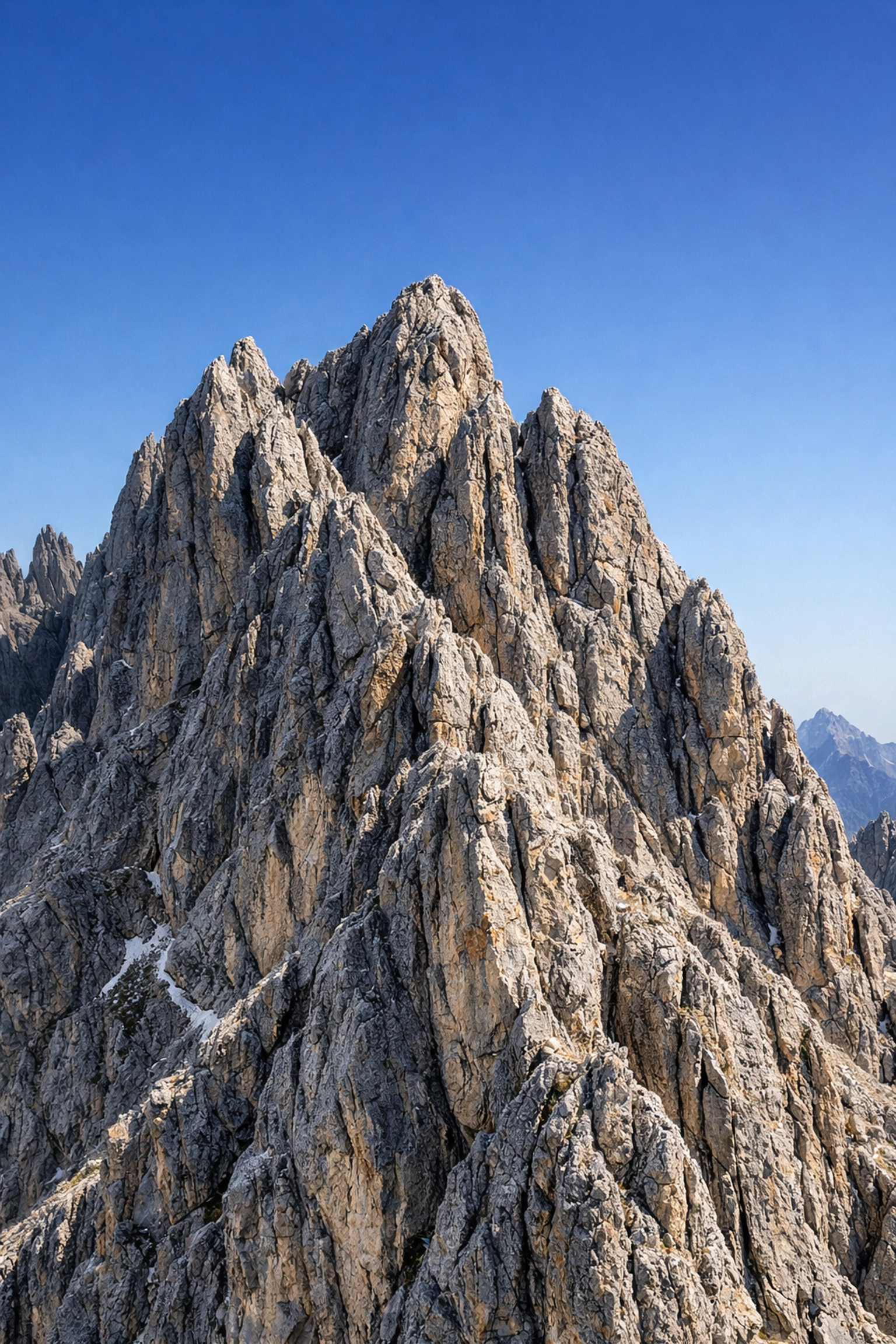
Alt text: A close-up view of a mountain ridge in Luminar Neo showing the difference between global Structure AI and masked Structure AI to avoid halos.
4. Neglecting White Balance
The "Auto" white balance on modern cameras is good, but it’s rarely perfect. A common mistake is leaving the white balance as-is, which can result in a landscape looking too cold (blue) or having an unwanted green cast from foliage.
The Fix:
In the Develop module, use the eye-dropper tool to click on a neutral gray or white area in your photo. If that doesn't work, manually play with the Temperature and Tint sliders. Warming up a sunset just a touch can make the difference between a "good" photo and a "wow" photo. If you are struggling with color accuracy, it might be time to look at your monitor or essential photography gear setup to ensure you're seeing true colors.
5. Mismanaging Sky AI and Relighting
Luminar Neo changed the game with Sky AI. It’s the premier software for sky replacements because it doesn't just cut and paste a sky: it relights the entire scene. However, the mistake people make is not matching the "direction" of light. If your landscape has shadows falling to the left, but your new sky has a sun on the right, the photo will look "off" to the human eye, even if the mask is perfect.
The Fix:
Always use the Relight Scene sliders within the Sky AI tool. Adjust the "Sky Temperature" and "Sky Exposure" to match your foreground. If the light doesn't match, use the "Flip Sky" checkbox to see if the orientation works better. Remember, the goal is to make it look like you were actually there at the perfect moment.
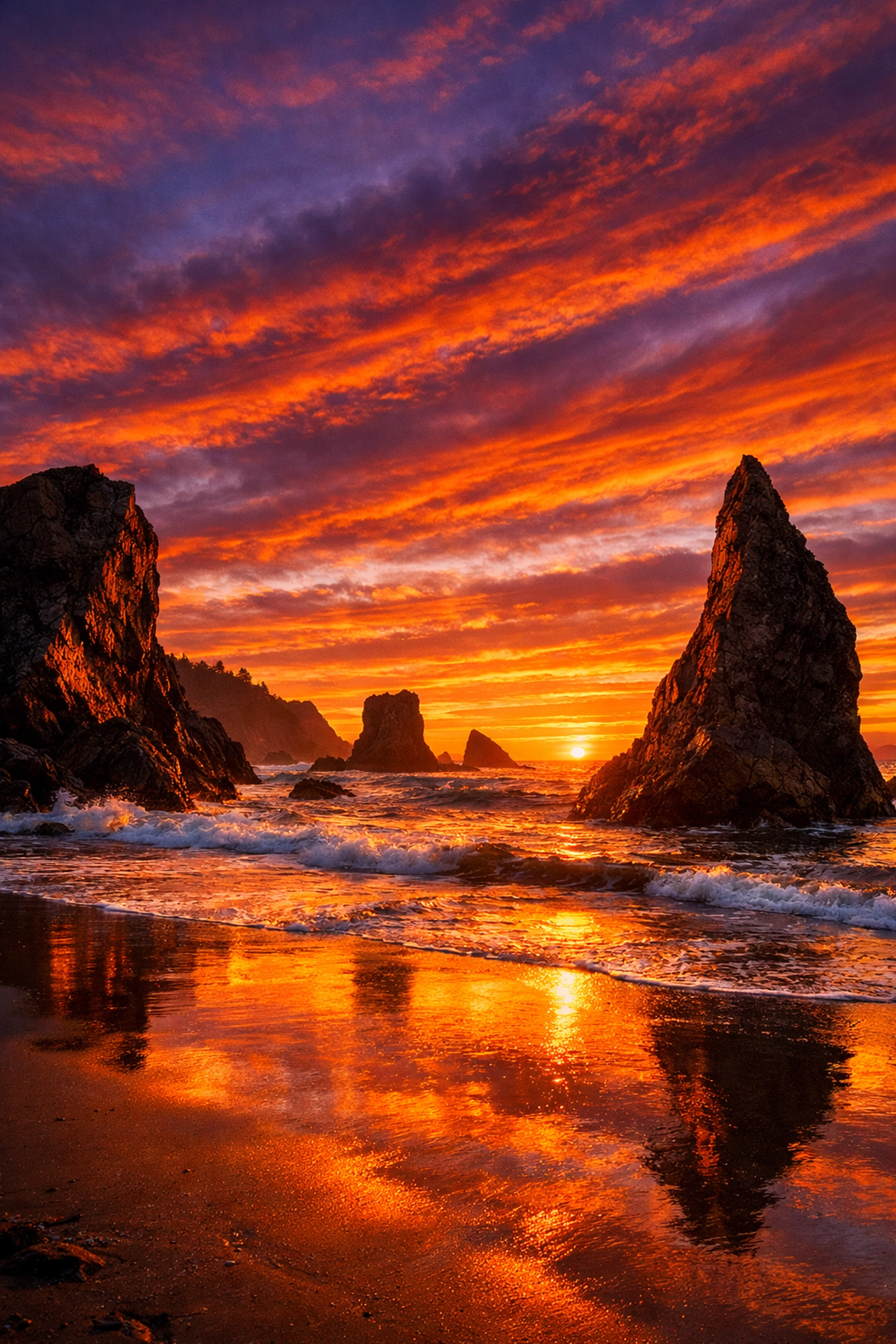
Alt text: A landscape photo where a sunset sky has been replaced using Sky AI, showing the Relight Scene settings used to match the warm glow on the foreground rocks.
6. Creating Obvious Vignettes
A vignette is a great way to draw the eye to the center of the frame, but it should be felt, not seen. A common mistake is applying a heavy, dark circle around the edges of the photo that looks like it was edited in 2005.
The Fix:
When using the Vignette tool, increase the Feather slider to 100. This makes the transition so soft that the viewer doesn't realize a vignette is even there. Also, use the "Choose Subject" button to center the vignette on your actual subject rather than just the dead-center of the frame. A good rule of thumb? Dial in your vignette, then cut the intensity in half. If you want to see how professionals handle subtle finishing touches, take a look at our wedding photography insights.
7. The "Preset First" Workflow Confusion
Luminar Neo’s Presets are fantastic starting points, but many photographers apply them at the end of their workflow, which often overrides the hard work they just did in the Edit tab.
The Fix:
The proper workflow is: Presets -> Edit.
Browse the presets first to find a vibe you like. Once applied, move over to the Edits tab. This is a crucial distinction in Luminar Neo: the "Edits" tab shows you exactly what the preset did. You can then go into each tool (like Relight AI or GenErase) and fine-tune the settings to fit your specific image.
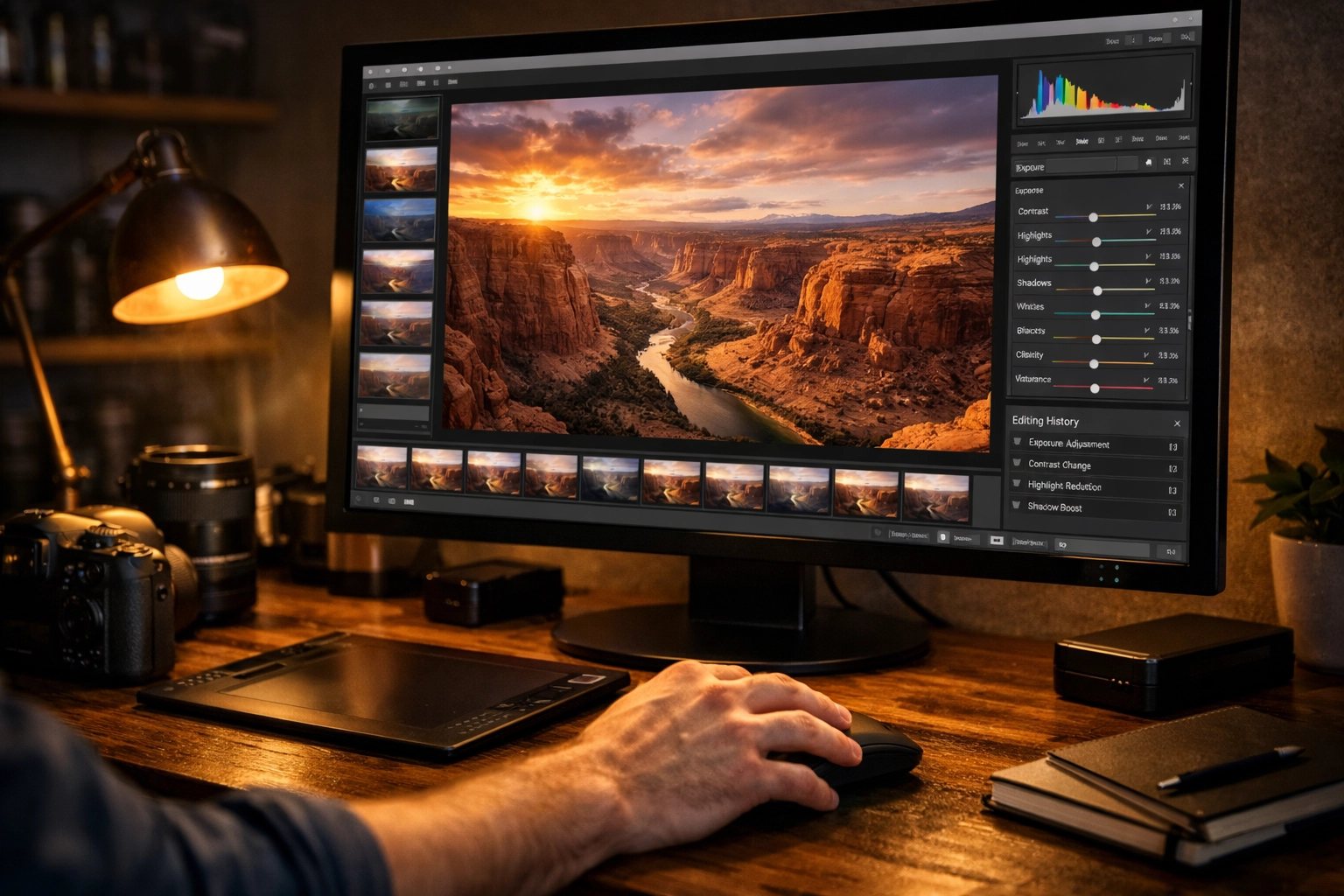
Alt text: A screenshot of the Luminar Neo interface highlighting the Edits tab and the list of active tools applied by a preset.
Why Luminar Neo Remains the Best in Class
Despite these common pitfalls, Luminar Neo remains the most powerful tool for photographers who want professional results without a steep learning curve. Whether you are using GenErase to remove distracting tourists from your shots of Miami's hidden speakeasies or using Portrait AI to touch up a headshot, the software is designed to assist your creativity, not replace it.
If you are looking to take your editing to the next level, I highly recommend checking out our educational section for more deep dives into post-processing. And if you haven't yet, you can download the software here to follow along with these tips.
Editing is a journey. It’s about finding the balance between the reality of what you saw through the viewfinder and the emotion you want the viewer to feel. Avoid these seven mistakes, and you’ll find that your landscape photos aren't just sharper: they’re more impactful.
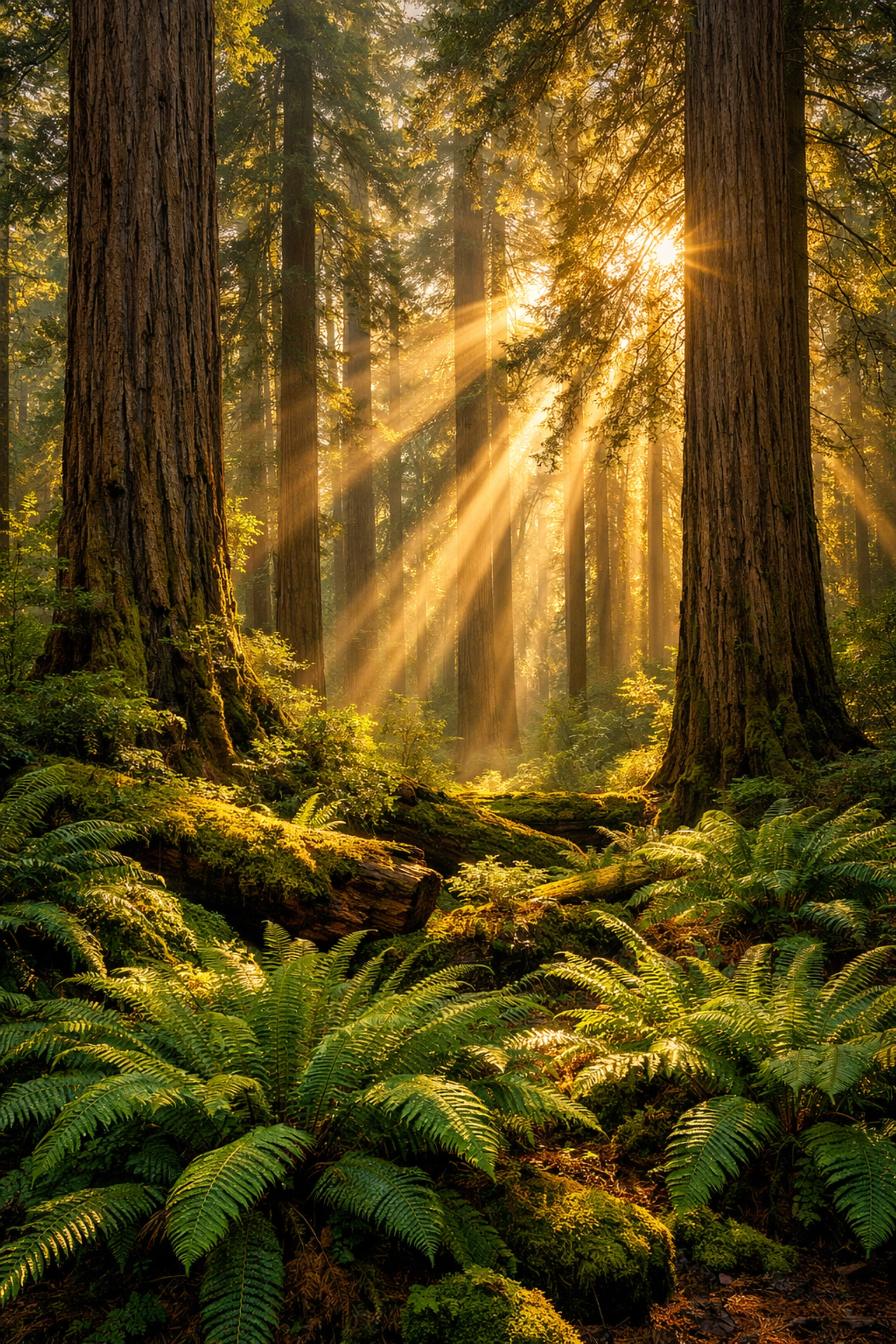
Alt text: A final, professionally edited landscape photo of a forest during golden hour, showcasing sharp details and balanced colors achieved by avoiding common Luminar Neo mistakes.
Happy shooting, and even happier editing! If you've found a specific tool in Neo that changed your workflow, drop a comment or check out our other software reviews to see how it stacks up against the competition.













