
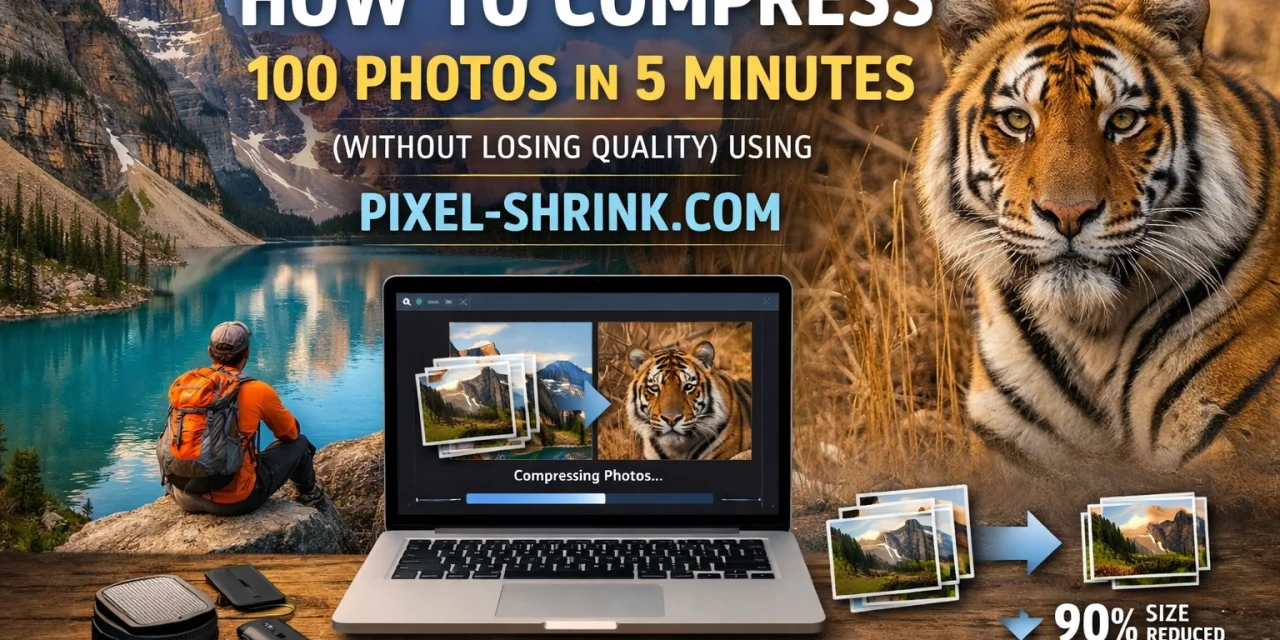
We’ve all been there. You’ve just finished an incredible shoot, you’ve spent hours in Lightroom perfecting every shadow and highlight, and now you’re ready to deliver the goods. But then reality hits: you have 100 high-resolution JPEGs that are 20MB each.
Uploading two gigabytes of data to a client gallery or a website isn't just a chore; it’s a bottleneck. It slows down your workflow, eats up your cloud storage, and: worst of all: creates a sluggish experience for your clients. As photographers, we want our work to look stunning, but we also need it to be accessible.
The good news? You don't have to choose between "huge and beautiful" and "small and blurry." Today, I’m going to show you how to compress a batch of 100 photos in under five minutes using Pixel-Shrink.com. This post is sponsored by our friends at Proshoot.io, who know a thing or two about professional photography delivery and booking.
Why Image Compression is No Longer Optional
In the early days of the digital web, we could get away with slightly pixelated images because everyone’s monitors were low-res anyway. Fast forward to today, and your clients are viewing your work on 4K Retina displays and high-end smartphones. They can see every detail: and every flaw.
If you simply "save for web" at a low quality setting in older software, you get what I call the "crunchy" look. Artifacts appear around edges, and smooth gradients in the sky turn into blocky messes.
However, ignoring compression is equally dangerous. Large files lead to:
- Slow Website Loading: Which kills your SEO and frustrates visitors.
- Storage Costs: Paying for extra terabytes on Dropbox or Google Drive adds up.
- Client Frustration: No one wants to wait 10 minutes to download a single preview gallery on their phone.

Enter Pixel-Shrink.com: The Perceptual Quality Revolution
What makes Pixel-Shrink.com different from the dozens of other tools out there? It comes down to their "perceptual quality" algorithm.
Most compression tools apply a "blind" percentage. You tell the software to compress by 50%, and it does exactly that, regardless of whether the photo is a complex landscape or a simple portrait against a white wall. Pixel-Shrink.com is smarter. It analyzes the image data to find the exact point where the human eye can no longer tell the difference between the original and the compressed version. It stops right there, ensuring you get the smallest possible file size without sacrificing a single ounce of visible quality.
This is a game-changer for professional photographers who are protective of their artistic integrity but need the speed of a modern digital workflow. If you're looking for more tips on staying efficient, check out our educational category for deep dives into photography techniques.
Step-by-Step: Compressing 100 Photos in 5 Minutes
Let’s get into the meat of it. Here is the exact workflow I use to breeze through a massive batch of files.
1. Preparation (30 Seconds)
Before you even open your browser, make sure your files are ready. While Pixel-Shrink is powerful, it’s always best to start with your final exported JPEGs. If you need to resize your images (for example, downscaling from 6000px to 2500px for web use), do that in Lightroom or your preferred editor first.
2. The Upload (1 Minute)
Head over to Pixel-Shrink.com. The interface is clean and distraction-free: no "system active" alerts or robotic pop-ups here. Simply highlight your 100 photos in your file explorer and drag them directly into the browser window. Because the tool is optimized for speed, it handles multiple concurrent uploads effortlessly.
3. The Shrink (2-3 Minutes)
This is where the magic happens. As the images upload, the perceptual algorithm starts working immediately. You’ll see a real-time display of how much space is being saved. In most cases, you’ll see reductions of 60% to 80% with zero perceptible loss in detail.
4. The Download (30 Seconds)
Once the processing is done, you don't have to download each file individually. Pixel-Shrink allows you to grab the entire batch in a single zipped folder.
Proshoot.io: Why This Matters for Your Business
This post is brought to you by Proshoot.io, a platform designed to streamline the photography booking experience. When you use a professional service like Proshoot.io to manage your clients and deliver your work, file size becomes a critical factor in the user experience.
Imagine a client trying to book a session or view a gallery while on a spotty 4G connection at a coffee shop. If your images are optimized via Pixel-Shrink, those galleries load instantly. It makes you look more professional, and it makes their interaction with your brand seamless. Efficiency isn't just about saving your time; it's about respecting your client's time.
Resize vs. Compress: Know the Difference
One common point of confusion I see in our reviews section is the difference between resizing and compressing.
- Resizing changes the pixel dimensions. If you take a 6000×4000 image and make it 2000×1333, you are resizing. This naturally reduces file size because there is less data, but you are also losing the ability to print large.
- Compressing (what Pixel-Shrink does) keeps those pixel dimensions the same but rearranges the data more efficiently.
For the best results, you should do both. Resize your images to the maximum size they will ever be displayed (usually 2500px wide for most high-end websites), and then run them through Pixel-Shrink to shave off the unnecessary metadata and redundant color information.

The SEO Advantage
If you're a local photographer: say, an Atlanta event photographer: your website's speed is a massive ranking factor. Google’s "Core Web Vitals" specifically measure how fast your page becomes usable.
Heavy images are the #1 reason websites fail these tests. By using Pixel-Shrink.com to handle your batch processing, you are effectively giving your SEO a shot in the arm. Every millisecond you shave off your load time increases the chance that a potential client stays on your page long enough to hit the "Book Now" button.
Best Practices for Batch Compression
To get the most out of your five minutes, keep these tips in mind:
- Never Re-Compress: Only compress your original high-quality exports. Compressing a file that has already been heavily compressed by another tool can lead to those nasty artifacts we discussed earlier.
- Format Matters: For photographs, JPEG is still the king of compatibility, but WebP is catching up fast. Pixel-Shrink supports the latest formats to ensure you’re future-proofing your work.
- Keep Your Backups: Always keep your uncompressed, high-res originals on a physical drive or a secure cloud service. The compressed versions are for delivery and web display, not for your permanent archives.
Final Thoughts
Photography is an art, but running a photography business is a science. Tools like Pixel-Shrink.com take the technical headache out of the equation so you can get back to what you love: shooting.
By integrating batch compression into your workflow, you’re not just saving disk space: you’re improving your SEO, enhancing your client’s experience, and speeding up your entire professional life. And when you pair that efficiency with a platform like Proshoot.io, you’re setting your business up for serious growth.
Don't let massive files hold you back. Take five minutes today, head over to Pixel-Shrink, and see the difference for yourself. Your clients (and your hard drive) will thank you.
If you’re looking to upgrade more than just your software, don't forget to check out our guide on essential photography gear to make sure your hardware is keeping up with your new, faster workflow.













