
Category: Photo Guides
We’ve all been there. You’ve just finished an incredible session: maybe a sunset shoot at one of Miami’s hidden speakeasies or a high-stakes wedding. You’ve spent hours in post-production, getting the colors just right, the shadows perfect, and the sharpness tack-on. But then comes the export. Suddenly, you’re looking at a folder of 25MB JPEGs.
While that quality is great for my Fine Art prints, it’s a total nightmare for your website, your client galleries, and your SEO. Big files slow down your site, frustrate your clients, and make Google’s ranking bots very unhappy.
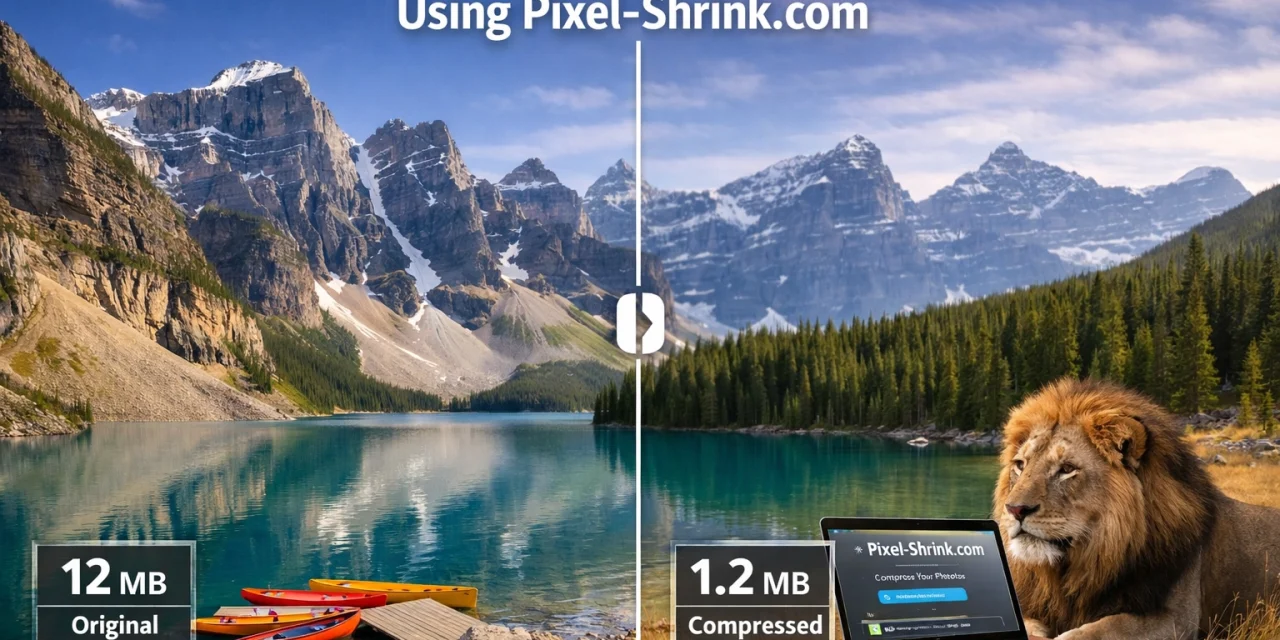
The good news? You don’t have to choose between quality and speed anymore. Today, I’m walking you through how to use Pixel-Shrink.com to compress your professional photos in seconds without losing that crisp, high-end look we all work so hard to achieve.
The Big File Headache (and Why It’s Killing Your Business)
As photographers, we are obsessed with detail. We buy the latest cameras in 2024 and the sharpest lenses because we want every pixel to count. But here’s the reality: if your portfolio takes more than three seconds to load, half of your potential clients have already clicked away.
Slow loading times are the silent killers of a photography business. If you’re trying to build a premium photography booking experience, the last thing you want is a clunky, lagging interface. High-resolution files are essential for printing, but for the web, they need to be lean.
The problem with most compression tools is that they’re "dumb." They apply a blanket quality reduction across the whole image, which usually results in muddy skin tones or artifacts in the sky. That’s where Pixel-Shrink.com changes the game.
What Makes Pixel-Shrink.com Different?
Most of the compression tools I’ve used in the past feel like a gamble. You move a slider, hope for the best, and usually end up with a photo that looks like it was taken on a flip phone from 2005.
Pixel-Shrink.com uses intelligent compression. Instead of just lowering the overall bitrate, its algorithm analyzes the image strategically. It looks for textures and colors that the human eye doesn’t perceive as sharply: like a blurred background or a soft sky: and compresses those areas more heavily. Meanwhile, it preserves the data in high-detail areas like a subject’s eyes or the fine texture of a bridal gown.
It’s sponsored by our friends over at proshoot.io, who know a thing or two about professional workflows. They understand that for a pro, time is money, and quality is reputation.
Key Benefits for Pros:
- 60-80% File Size Reduction: It’s not uncommon to see a 10MB file drop to 2MB with zero visible difference.
- Maintains Metadata: This is huge. Your EXIF data and color profiles stay intact.
- Zero Software to Install: It’s all browser-based, which is perfect for when you’re editing on the go or using a secondary laptop.
How to Compress Your Photos in Seconds
Using the tool is actually faster than it took you to read this paragraph. Here is the simple three-step process to get your images web-ready.
1. The Drag and Drop
Navigate to Pixel-Shrink.com. You’ll see a clean, simple interface. You can drag and drop your JPEGs or PNGs directly into the browser window. Whether it’s one hero shot for a blog post or a dozen images for a gallery, it handles them with ease.
2. The Intelligent Scan
Once you drop the files, the algorithm gets to work. It’s not just shrinking the file; it’s optimizing it. It identifies the areas of the image that need the most protection and applies the compression where it won't be noticed. This process usually takes just a few seconds per image.
3. The Download
You’ll see a comparison of the original size versus the new size. Usually, you’ll see a massive drop (often around 70%). Click download, and you’re ready to upload to your site or client portal.
Integrating Pixel-Shrink into Your Workflow
If you want to stay efficient, you need a workflow that doesn’t feel like a chore. I’ve written extensively about educational photography tips and efficiency is always at the top of my list. Here is how I recommend integrating this tool into your daily grind:
- Cull and Edit: Do your usual thing in Lightroom or Capture One.
- Export at Full Res: Don’t worry about the file size during export. Export at 100% quality so you have the best possible starting point.
- The Pixel-Shrink Pass: Take those high-res exports and run them through Pixel-Shrink.com.
- Upload: Now, take those optimized files and put them on your website or send them to your client.
By doing this, you ensure that your client gets a file that looks stunning but doesn't take twenty minutes to download on their mobile device. If you’re looking for more tips on the business side of things, I highly recommend checking out some of my deeper dives on my personal blog.
Why Photographers Love This (Especially for SEO)
We all know that Google loves speed. If you are a wedding photographer or an Atlanta event photographer, you are competing in a crowded market. SEO is one of the best ways to get ahead without spending a fortune on ads.
When you use compressed images, your page speed scores skyrocket. A fast site means a lower bounce rate. A lower bounce rate tells Google your content is valuable. It’s a win-win.
Beyond just the technical SEO, there’s the human element. Imagine a potential client browsing your portfolio while they’re on a train or waiting for coffee. If your images pop up instantly, you look like a pro. If they see a loading spinner for ten seconds, they’re gone.
A Pro Tip for Client Deliveries
When delivering galleries, I like to provide two folders: one for "Print" and one for "Social Media/Web."
For the Print folder, I keep the files as large as possible. But for the Social Media folder? I run everything through Pixel-Shrink.com. This prevents clients from accidentally trying to upload a 30MB file to Facebook (which usually results in Facebook’s own terrible compression ruining the image) and ensures their mobile experience is seamless.
Since this tool is sponsored by proshoot.io, it fits perfectly into a modern, streamlined business model where providing a fast, high-quality experience for the client is the number one priority.
Maintaining Your Sharpness
The biggest fear every photographer has when they hear the word "compression" is losing sharpness. We spend thousands on glass to get that edge-to-edge clarity.
Pixel-Shrink handles this by focusing its "lossy" efforts on areas of low frequency: think out-of-focus backgrounds or flat colors. It keeps the "high frequency" areas (the details) untouched. If you’ve ever used a standard "Save for Web" export in Photoshop and noticed your images look a bit soft, you’ll be pleasantly surprised by how much punch Pixel-Shrink maintains.
Final Thoughts
At the end of the day, your gear and your talent are only half the battle. The other half is how you present your work to the world. Using a tool like Pixel-Shrink.com allows you to showcase your high-end photography without the technical baggage of massive file sizes.
It’s fast, it’s free to try, and it’s become an essential part of my toolkit for everything from blog posts to portfolio updates. Whether you’re shooting essential photography gear reviews or traveling the world for fine art, your images deserve to be seen: and they deserve to load fast.
Give it a shot on your next export. I think you'll be pretty blown away by how much space you save without sacrificing a single bit of your artistic vision. And if you’re looking for more ways to level up your photography business, keep an eye on the Photoguides download section for more tools and overlays to speed up your process!













