

Category: Photo Guides
We’ve all been there. You just finished an incredible shoot, you’ve spent hours in post-processing, and you’re looking at a gallery of 500 high-resolution images that are absolutely stunning: and absolutely massive. Your client is waiting, your website’s storage limit is screaming, and you know that uploading these 25MB files to your portfolio will make your page load slower than a dial-up connection in the 90s.
The struggle is real. As photographers, we want the highest possible quality. We want every detail, every texture, and every color to pop. But the reality of the web is that large files are the enemy of SEO and user experience. If your site takes more than three seconds to load, your potential clients are clicking away before they even see your best work.
That’s where Pixel-Shrink.com comes in. This tool has honestly changed my workflow, allowing me to take an entire gallery and shrink it down to size in about five minutes. Today, I’m going to walk you through exactly how to do it without losing that professional edge.
This post is sponsored by our friends at proshoot.io, the ultimate platform for photographers looking to streamline their business.
Why Image Compression is No Longer Optional
In the world of modern SEO, speed is everything. Google uses page load times as a significant ranking factor. If you’re trying to rank for terms like "best wedding photographer" or "professional headshots," your site needs to be lightning-fast.
When I’m reviewing the camera reviews 2024 list or looking at my own essential photography gear, I’m always thinking about the final output. What good is a 60-megapixel sensor if you can’t display the images efficiently? Heavy images lead to high bounce rates. By using a tool like Pixel-Shrink.com, you’re ensuring that your photography booking experience is smooth from the very first click.
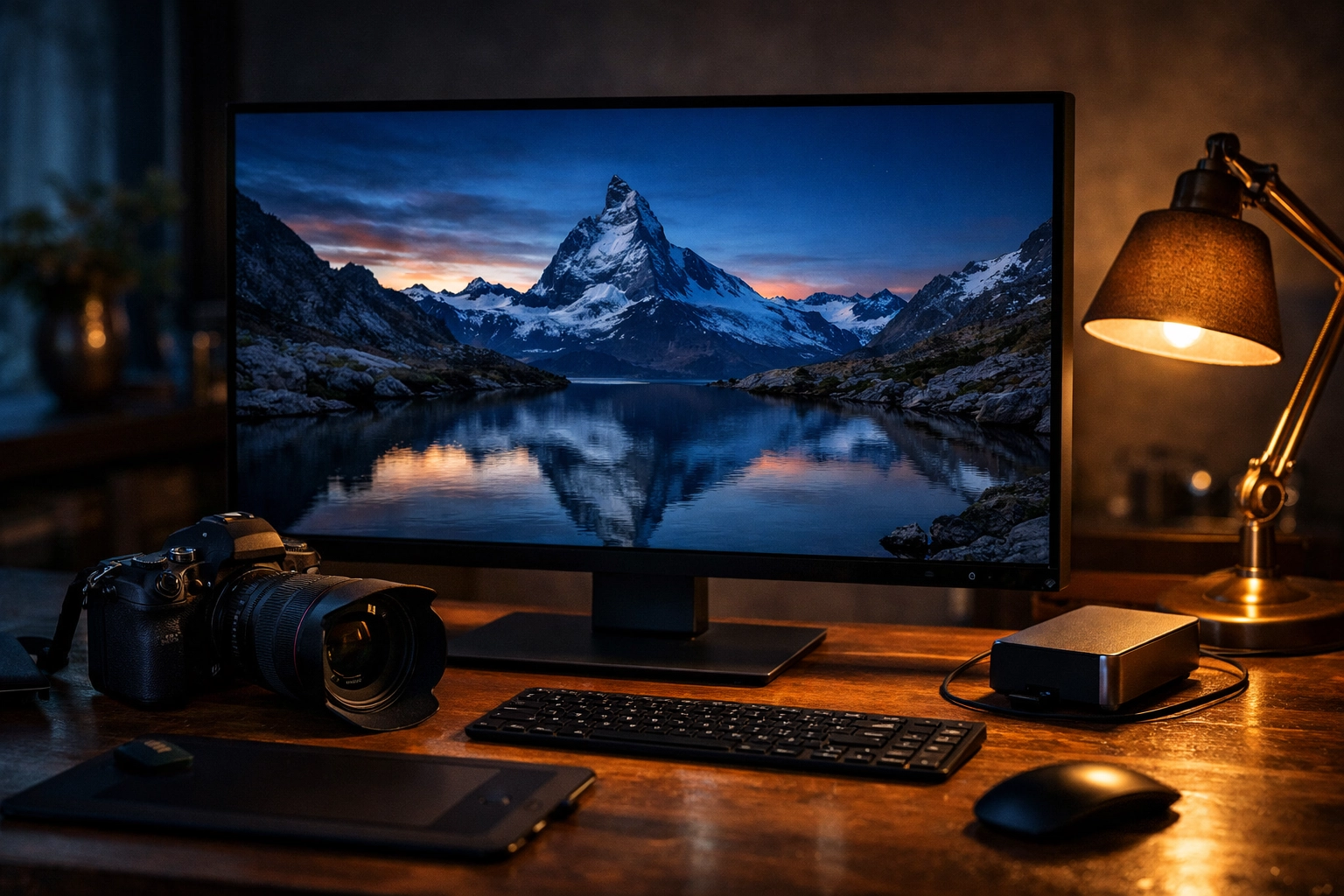
The 5-Minute Gallery Workflow
Efficiency is the name of the game. I don’t want to spend my afternoon watching a progress bar. Here is the exact workflow I use to compress a full gallery: from a wedding in the Dominican Republic to a commercial shoot in Atlanta: in five minutes or less.
1. The Pre-Shrink Export
Before you even touch a compression tool, you need to export correctly from Lightroom or Capture One. I usually export my high-quality JPEGs at about 90% quality with a long edge of 2500px. This gives the compression algorithm plenty of data to work with while keeping the starting file size somewhat reasonable.
If you’re looking for more tips on the technical side of post-processing, check out our educational category for deeper dives.
2. Drag, Drop, and Relax
Once your images are exported, head over to Pixel-Shrink.com. The interface is refreshingly simple. You don’t need to create an account or navigate through twenty different menus. Just grab your folder of images and drag them directly into the browser.
The tool handles batch processing like a champ. Whether you have 10 images or 200, the "shredding" begins instantly. Because Pixel-Shrink uses an advanced algorithm that analyzes colors and textures, it knows exactly which bits of data are redundant and which are essential for quality.
3. Choose Your Compression Level
Pixel-Shrink offers a few different settings. For most of my work on edinfineart.com, I use the "Balanced" setting. It offers the perfect middle ground: dramatic file size reduction (often 60-80%) with zero noticeable loss in quality.
If I’m preparing images for a platform that I know will compress them even further (like Instagram or Facebook), I might opt for the "High Quality" setting to ensure the image stays as clean as possible through multiple rounds of optimization.
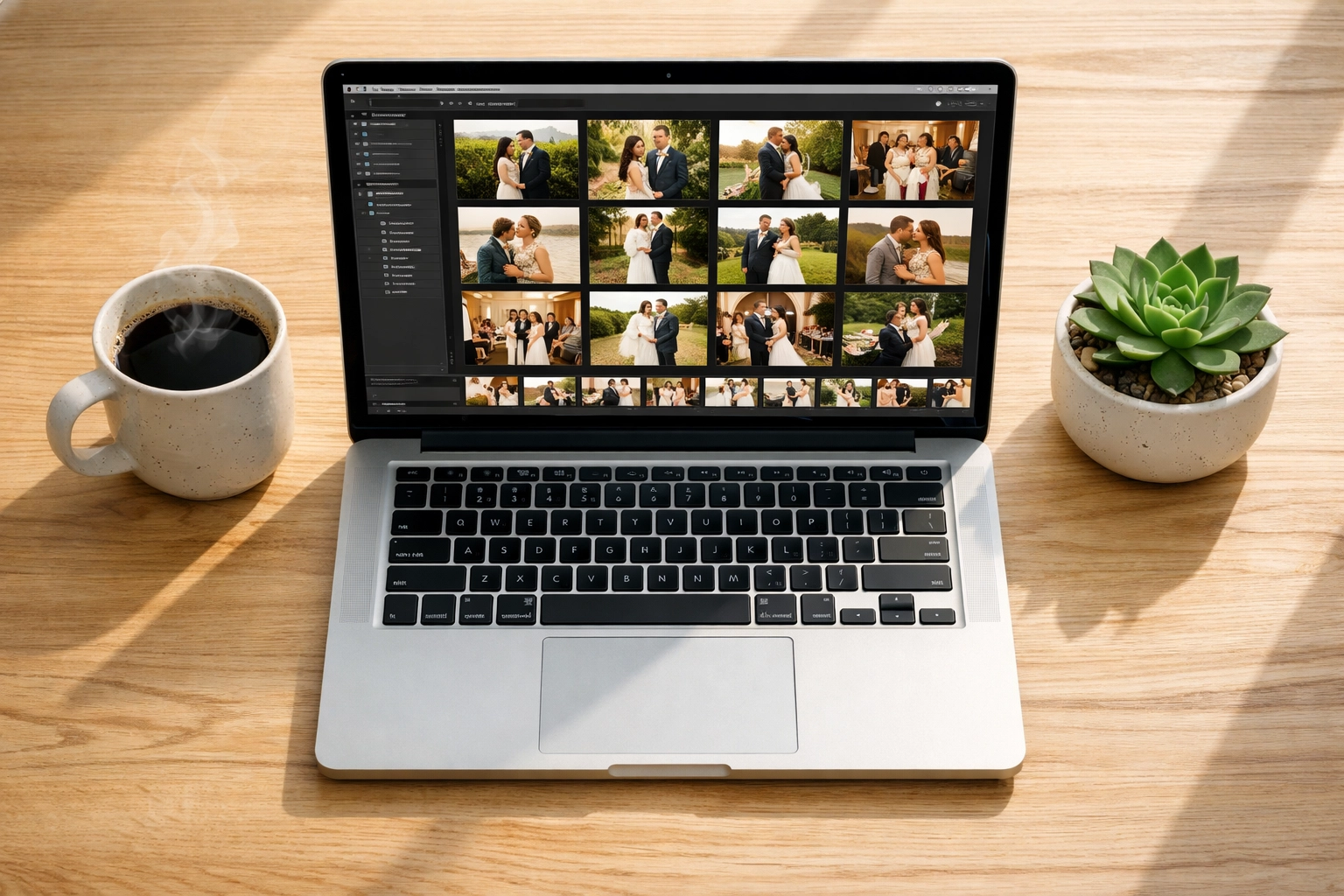
Maintaining the Professional Standard
The biggest fear every photographer has with compression is "pixelation." We’ve all seen what happens when an image is over-compressed: ugly artifacts in the shadows and a loss of sharpness in the highlights.
What makes Pixel-Shrink.com different is its "visually lossless" approach. It focuses on the areas of the image where the human eye is less likely to notice data reduction. This means the bokeh in your background stays creamy, and the sharp details of your subject’s eyes remain tack-sharp.
I’ve tested this by doing side-by-side comparisons on a calibrated 5K monitor, and I’m telling you, it’s nearly impossible to tell the difference between the original 15MB file and the compressed 2MB file. This level of quality is why I frequently recommend it over at shutyouraperture.com.
Real-World Speed: A Case Study
Let’s talk about a real scenario. Imagine you’ve just finished a beautiful day shooting at some laguna-beach-breakfast-restaurants for a local lifestyle piece. You have 150 images.
- Uploading to Pixel-Shrink: 45 seconds (depending on your internet).
- Processing Time: 2 minutes. The algorithm works incredibly fast in the cloud.
- Downloading the Zip: 1 minute.
- Total Time: Under 5 minutes.
While your images are processing, you could be checking out some reviews or planning your next shoot. It’s that quick. By the time you’ve finished your coffee, your entire gallery is optimized and ready for your client delivery platform or your WordPress media library.

Pro Tips for Maximum Optimization
To get the most out of your five minutes, keep these tips in mind:
- Don't double-compress: If you’ve already used a heavy compression setting in Lightroom, let Pixel-Shrink do the heavy lifting instead. Export at a higher quality first, then let the specialized tool optimize it.
- Naming matters: Keep your file names clean before uploading. It helps with your SEO when those images eventually hit your site.
- Use Proshoot.io for delivery: Once those images are shrunk down, use proshoot.io to deliver them to your clients. The combination of small file sizes and a professional delivery platform makes you look like a total pro.
Why Photographers Trust Photoguides
At Photoguides, we’re all about making your life as a creator easier. Whether you're looking for sky overlays to save a blown-out sunset or you're trying to decide between the Dominican Republic vs Cancun for your next destination wedding, we’ve got your back.
We know that technical hurdles like "file size management" are the least fun part of the job. But by mastering tools like Pixel-Shrink.com, you free up more time to actually be behind the lens. I’ve personally found that the less time I spend managing files, the more time I spend finding inspiration on my blog.edinchavez.com.
Wrapping Up the Workflow
If you’ve been putting off updating your portfolio because you dread the upload times, this is your sign to stop waiting. Take five minutes, head over to Pixel-Shrink.com, and see the difference for yourself. Your website will be faster, your SEO will improve, and your clients will appreciate the quick loading times on their mobile devices.
Don’t forget to check out our other guides, like our deep dive into Atlanta event photography or where to find the best breweries in Williamsburg VA after a long day on location.
Photography is about more than just a great camera; it’s about the entire ecosystem from the click of the shutter to the final digital delivery. Make sure your ecosystem is as efficient as possible. Happy shooting, and even happier shrinking!













