
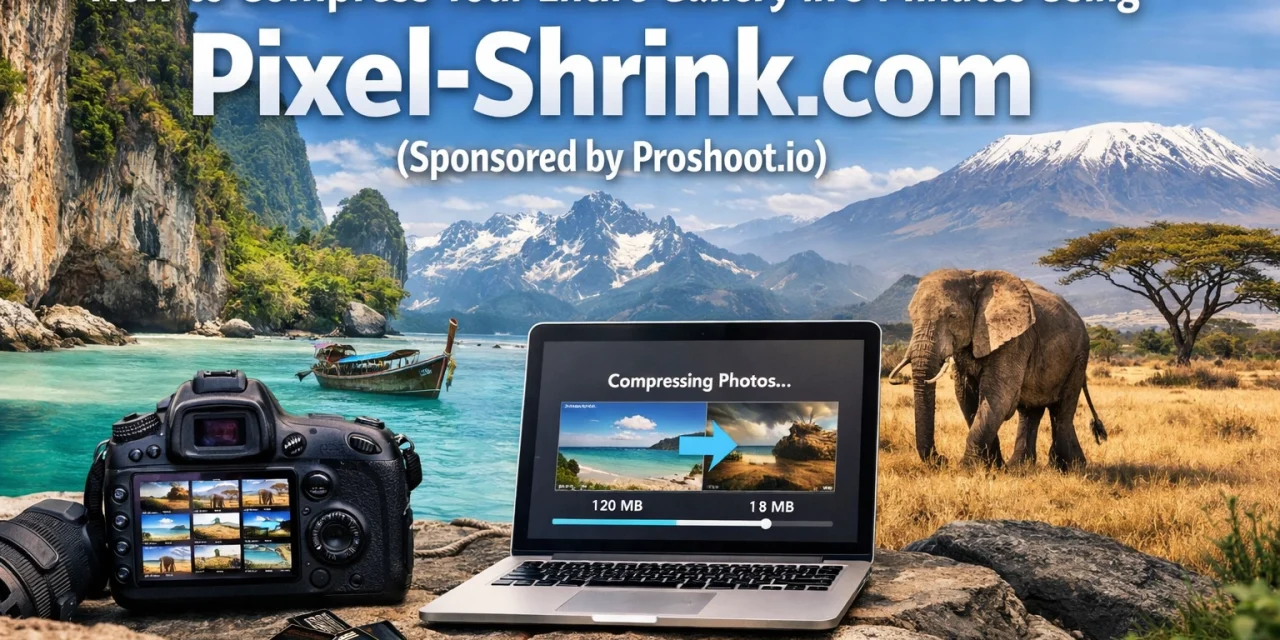
We’ve all been there. You’ve just finished an incredible shoot: maybe it was a high-end wedding or a stunning landscape session in one of the National Parks: and you’re staring at several gigabytes of high-resolution RAW files and massive JPEGs. You want to get these images to your client or up on your portfolio as fast as possible, but the upload speeds are crawling, and you know that large files will kill your website’s performance.
As photographers, we often feel like we have to choose between file size and image quality. We want our work to look crisp and professional, but we also need our websites to load in the blink of an eye. This is where high-efficiency compression comes in. Today, I’m going to show you how to compress your entire gallery in under five minutes using Pixel-Shrink.com, a tool that has become a staple in our workflow here at Photoguides.
This post is proudly sponsored by Proshoot.io, the ultimate platform for photographers looking to streamline their booking and delivery process. When you combine the speed of Pixel-Shrink with the professional management of Proshoot, you’re not just a photographer; you’re a high-efficiency business machine.
Why Compression is No Longer Optional
In the modern digital landscape, speed is everything. Google prioritizes fast-loading websites, and users will bounce if a page takes more than a couple of seconds to load. If your portfolio is filled with 10MB images, you’re essentially asking your visitors to wait while their browser struggles to render your art.
However, "compression" used to be a dirty word in the photography community. It conjured up images of "crunchy" artifacts, weird color banding, and lost detail. Thankfully, technology has caught up. Tools like Pixel-Shrink.com use intelligent algorithms to identify the "perceptual quality" of an image. This means the tool understands what the human eye actually sees and trims the hidden data that doesn't contribute to the visual experience.
Step 1: Prepare Your Gallery for Batch Processing
Before you jump into the tool, a little preparation goes a long way. To hit that five-minute mark, you want your files organized. I usually export my final edits from Lightroom or Capture One as full-sized JPEGs.
One mistake many photographers make is trying to compress an image that has already been heavily compressed. Always start with your highest quality exports. If you’re looking for more tips on the best export settings for different platforms, check out our educational guides where we dive deep into post-processing workflows.
Once your folder is ready, head over to Pixel-Shrink.com. The interface is clean and straightforward, which is exactly what you want when you're in a rush.
Step 2: The 5-Minute Compression Workflow
The beauty of Pixel-Shrink.com is its batch-processing capability. You don’t have to upload images one by one. Here is how you do it:
- Drag and Drop: Select your entire gallery folder and drag it directly into the browser window.
- Set Your Dimensions: Before hitting the compress button, take a second to look at the settings. Pixel-Shrink allows you to set specific dimensions. If you are uploading to a web gallery, you probably don’t need images wider than 2500 pixels. Resizing while compressing is the secret sauce to massive file size savings.
- Choose Your Format: While JPEG is the old reliable, Pixel-Shrink also supports WebP. WebP offers significantly better compression than JPEG at the same quality level. If your website supports it, I highly recommend making the switch.
- Execute: Hit the process button. The intelligent algorithm goes to work, analyzing each image to find the optimal compression point.
While the tool is working, it’s a great time to think about how you’re going to deliver these images. For professional delivery that looks as good as your photos, we always recommend Proshoot.io. It handles the client-facing side of things so you can focus on the creative work.

Step 3: Quality Control (The Human Eye Test)
Even with the best algorithms, I always recommend doing a quick spot check. Open a few of the compressed files and zoom in on high-detail areas: eyes in a portrait, or fine textures in a landscape.
What you’ll notice with Pixel-Shrink is that the "perceptual quality" remains remarkably high. You might see a file size drop from 15MB to 1.2MB, but to the naked eye, the images are indistinguishable. This is critical for maintaining your brand's reputation for high-end quality. If you want to see examples of high-resolution work that maintains its integrity even after optimization, take a look at the fine art prints over at Edin Fine Art.
The Role of Proshoot.io in Your Workflow
Efficiency isn't just about how fast you can shrink a file; it’s about how all your tools work together. Proshoot.io is the sponsor of this guide because they understand that a photographer’s time is their most valuable asset.
By using Pixel-Shrink to optimize your images, your uploads to Proshoot.io will be lightning-fast. Your clients won't have to wait for large galleries to load on their mobile devices, making the photography booking experience seamless from start to finish. It’s about creating a professional impression at every touchpoint.

Technical Deep Dive: Lossy vs. Lossless
If you're a gear-head or a technical nut like me, you might be wondering about the "lossy" nature of this compression.
- Lossless compression is great for things like logos or icons where you need every single pixel to be mathematically identical to the original.
- Lossy compression is the standard for photography. It removes data that is redundant or invisible to the human eye.
Pixel-Shrink uses a "smart lossy" approach. It’s much more sophisticated than just lowering the "quality" slider in Photoshop. It looks for patterns and gradients, ensuring that you don't get that ugly "banding" in the sky of your sunset shots. If you're interested in the gear that produces these high-detail files to begin with, our essential photography gear guide is a great place to start.

Why Speed Matters for SEO
As I mentioned earlier, site speed is a major factor for SEO. If you're a local photographer trying to rank in your city, having a fast website is one of the easiest ways to beat the competition.
When you use Pixel-Shrink to cut your page weight by 70% or 80%, your site's "Time to Interactive" drops significantly. This makes the search engines happy and keeps your potential clients on the page longer. I've written more about the intersection of business and photography over on my personal blog, where I share insights on how to scale your creative business.
Putting It All Together
Optimizing a full gallery doesn't have to be a chore that takes up your entire evening. By integrating Pixel-Shrink.com into your post-processing routine, you can handle hundreds of images in the time it takes to make a cup of coffee.
Here is the quick recap of the ultimate workflow:
- Shoot & Edit: Capture your vision and do your final color grading.
- Export: High-quality, full-size JPEGs.
- Pixel-Shrink: Drag, drop, resize, and compress.
- Deliver: Upload those beautiful, lightweight files to Proshoot.io for your client to admire.

Photography is about capturing moments, but running a photography business is about managing data efficiently. Don't let massive file sizes hold you back or slow down your growth. Whether you are reviewing the latest camera reviews for 2024 or looking for wedding photography insights, always keep efficiency at the forefront of your mind.
Give Pixel-Shrink.com a try on your next gallery. Your website, your clients, and your hard drive will thank you. And a huge thanks again to Proshoot.io for making this guide possible: go check them out and see how they can transform your professional workflow.













