

Category: Photo Guides
Let’s be honest: as photographers, we spend an incredible amount of time perfecting every pixel. We obsess over the dynamic range, the color grading, and the sharpness of a lens. But the moment we hit "Export" in Lightroom, we face a new, much less artistic challenge: file size.
A single wedding gallery can easily push several gigabytes. Uploading that to a client portal or your website isn’t just a drain on your bandwidth; it’s a drain on your time. And for your clients? Waiting twenty minutes to download a preview gallery on their phone isn't exactly the high-end photography booking experience we want to provide.
That is where image compression comes in. But I’m not talking about the kind of compression that leaves your shadows blocky and your gradients banded. I’m talking about professional-grade optimization. Today, we’re looking at how to use Pixel-Shrink.com to squeeze your galleries down to a fraction of their size in under five minutes, without losing the quality you worked so hard to capture.
Why Compression is No Longer Optional
If you are running a photography business in 2026, speed is your best friend. Google loves fast-loading websites, and clients love instant gratification. If you’re uploading full-resolution, unoptimized JPEGs to your portfolio, you’re likely hurting your SEO and frustrated by slow site performance.
When I’m working on my own projects at Edin Fine Art, I need the absolute highest quality for prints. However, for digital delivery and web display, those 50MB files are overkill. By using a tool like Pixel-Shrink, you can maintain the visual integrity of your work while making the files "web-light." This balance is essential for maintaining a professional edge in an industry where everyone is fighting for attention.
Step 1: The Proper Export (The "Pre-Game")
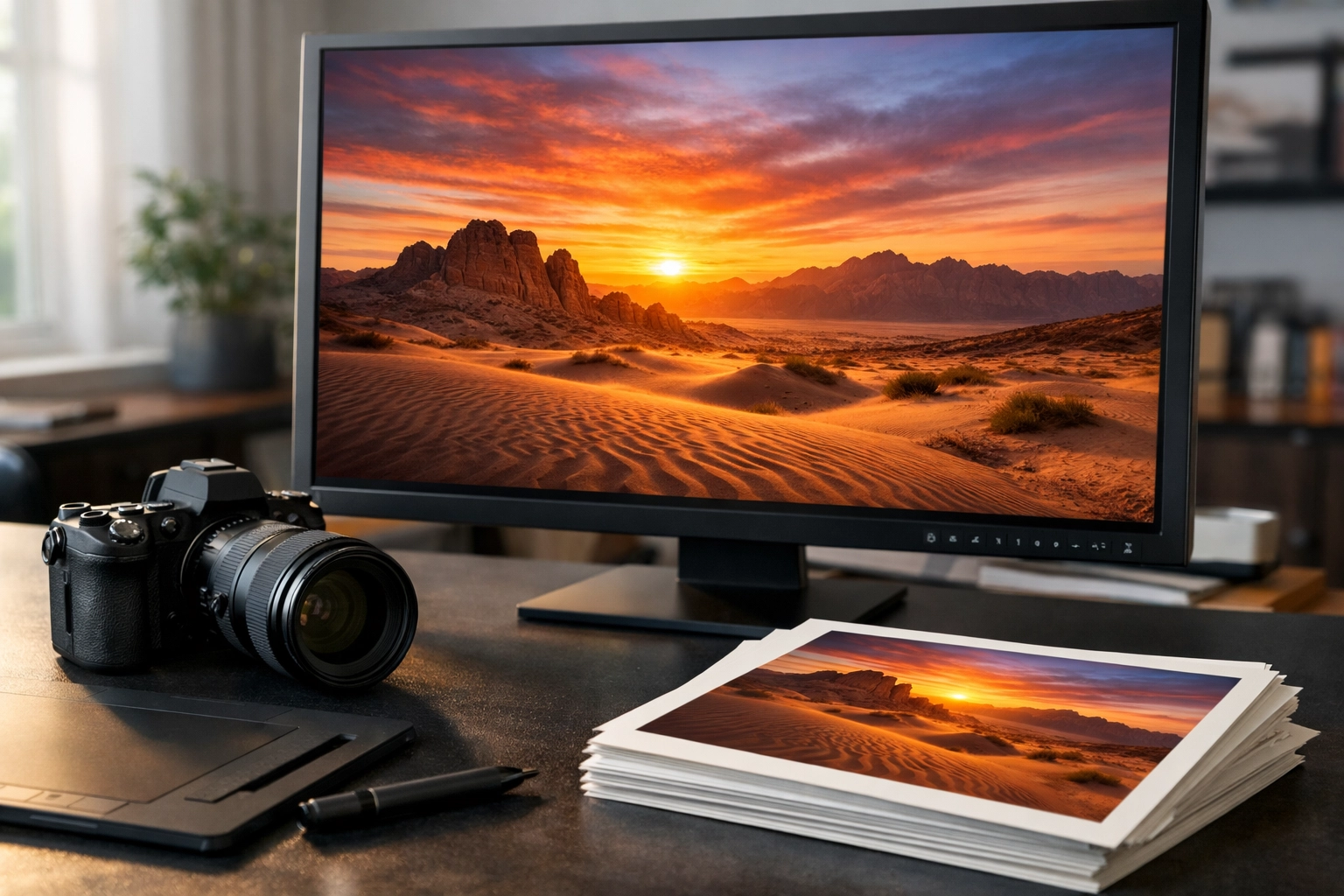
The secret to a 5-minute workflow starts inside your editing software. Whether you use Lightroom, Capture One, or any of the tools mentioned in our camera reviews 2024 section, your export settings matter.
To get the best results from Pixel-Shrink, don't give it a file that is already falling apart. Export your images at a high quality: typically around 80% to 90%. For most online galleries and social media, a long edge of 2500px is the sweet spot. This provides enough data for the Pixel-Shrink algorithm to analyze textures and colors effectively. If you export at 10% quality first, no amount of AI magic can bring that detail back.
Step 2: The Pixel-Shrink Workflow
One of the reasons we recommend Pixel-Shrink.com over other tools is the sheer lack of friction. There are no accounts to create, no monthly subscriptions to manage, and no confusing "pro" versus "free" tiers that hide the best features.
- Head to the Site: Open Pixel-Shrink.com.
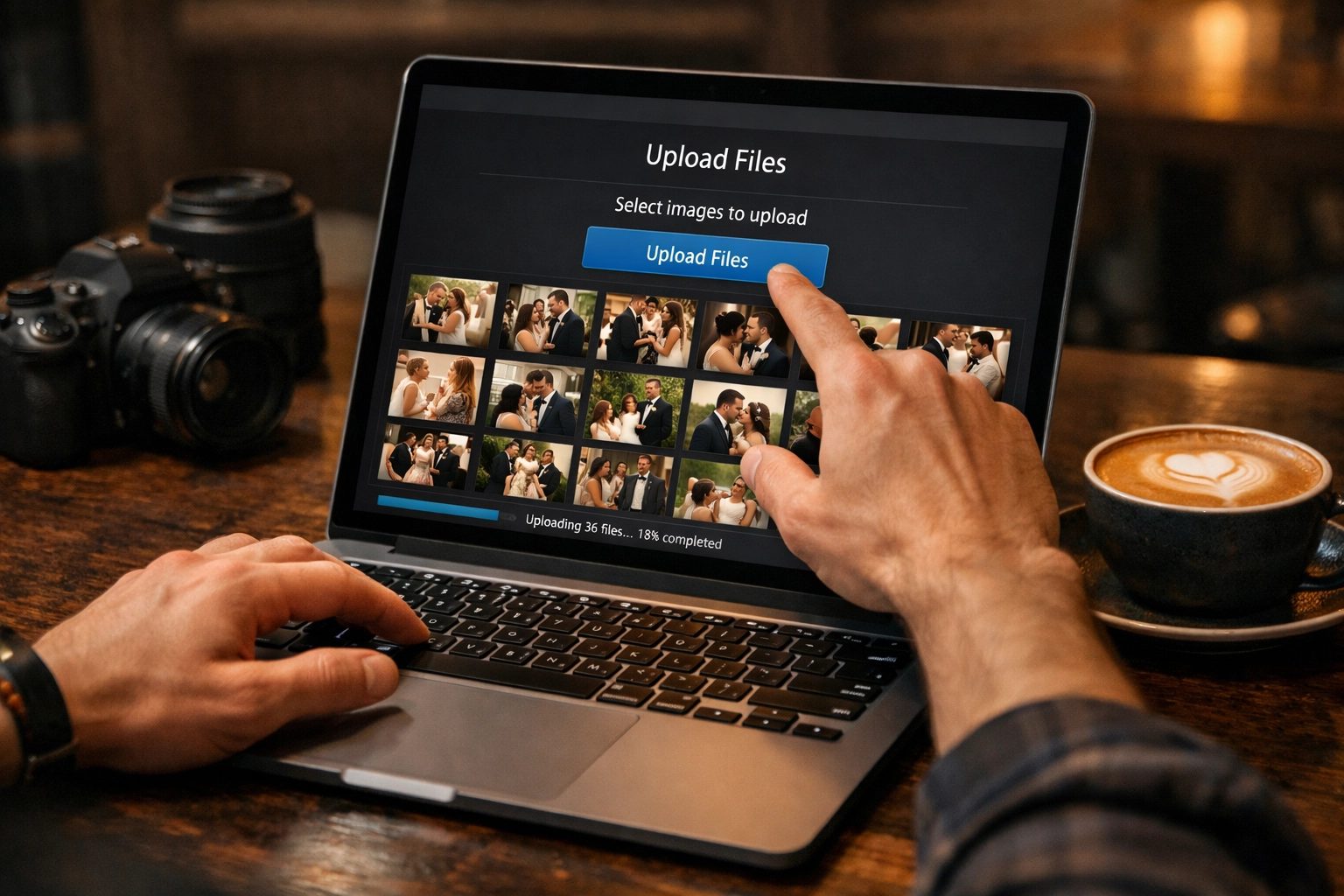
- Drag and Drop: You don't have to upload files one by one. You can grab your entire "Final Exports" folder and drop it directly into the browser window.
- Batch Processing: The tool is built for volume. Whether you have 10 images from a quick headshot session or 300 images from an Atlanta event photographer gig, the engine processes them simultaneously.
The algorithm used here is actually quite fascinating. It identifies redundant data within the file: stuff the human eye can't even perceive: and strips it away. It looks at the specific textures in a bride’s veil or the fine grain in a landscape and ensures those areas remain untouched while the "empty" data in the blue sky is compressed.
Step 3: Choosing Your Compression Level
Pixel-Shrink offers a few different settings to suit your specific needs. Choosing the right one is key to that 5-minute turnaround.
- Balanced: This is the "Goldilocks" setting. It’s what I use for 90% of my work. It typically achieves a 60-80% reduction in file size. If your file was 10MB, it’s now 2MB, and if you put them side-by-side, you wouldn't be able to tell the difference.
- High Quality: Use this if you know your images are going to be re-compressed by other platforms. If you’re uploading to Instagram or Facebook, they will apply their own (often harsh) compression. Using the "High Quality" setting on Pixel-Shrink ensures your image has enough "structural integrity" to survive the second round of squeezing.
The Real-World Timeline: 5 Minutes or Less
Is it actually possible to do this in five minutes? Let’s look at the math for a standard gallery of 150 images:
- Uploading: 45 seconds (assuming a decent high-speed connection).
- Processing: 2 minutes. Pixel-Shrink’s servers are optimized for multi-threading, meaning it doesn't just do one image at a time.
- Downloading: 1 minute. The tool packages everything back into a neat ZIP file for you.
- Total Time: 3 minutes and 45 seconds.
That leaves you over a minute to go grab a coffee or check the latest gear tips on Shut Your Aperture.
Professional Delivery with Proshoot.io
Once your images are shrunk and ready to go, the final step is delivery. This blog post is sponsored by Proshoot.io, which is a platform we genuinely love for client delivery.
When you use Pixel-Shrink in tandem with Proshoot.io, you’re creating a seamless experience. Your upload to Proshoot becomes lightning-fast because the files are smaller. Your client then receives a beautiful, responsive gallery where the images load instantly on their mobile device.
Think about the psychology of a client. If they are out at dinner and receive an email saying their photos are ready, they’re going to open them on their phone. If each photo takes 5 seconds to load because the file is 15MB, they get frustrated. If they load instantly because you used Pixel-Shrink, the emotional impact of your photography is much higher.
SEO Benefits for Photographers
If you’re a photographer who blogs: which you should be: image compression is your secret weapon for ranking on Google. Large images are the number one cause of slow "Page Speed" scores. By optimizing your images before uploading them to your WordPress or Squarespace site, you are signaling to search engines that your site provides a good user experience.
I talk about this often on my personal photography blog; the technical side of photography is just as important as the creative side when it comes to getting paid. If you want people to find your work, your website needs to be fast.
Final Thoughts: Reclaim Your Time
At Photoguides, our goal is always to make your life as a creator easier. We know that the "business" side of photography: the culling, the exporting, the uploading: can often feel like it’s sucking the joy out of the craft.
Using tools like Pixel-Shrink.com isn't just about saving hard drive space; it’s about reclaiming your time. Instead of sitting at your desk watching a progress bar crawl across the screen, you could be out shooting, spending time with family, or planning your next adventure.
Compression doesn't have to be complicated, and it certainly shouldn't take all day. Give Pixel-Shrink a try on your next gallery. Your bandwidth, your website, and your clients will thank you. For more tips on streamlining your workflow and keeping your business running smoothly, check out our essential photography gear guide to see what else we’re using in the field this year.













