
Category: Photo Guides
We’ve all been there. You just finished an incredible shoot, maybe capturing the vibrant street life in Miami or a stunning sunset over the Pacific. You get home, load those RAW files into Lightroom, and spend hours perfecting the colors and contrast. But then comes the moment of truth: you need to upload them to your portfolio, send them to a client, or share them on social media.
Suddenly, those gorgeous 45-megapixel files become a massive headache. They are too heavy for email, they make your website crawl like a snail, and let’s be honest, nobody has the patience to wait for a 20MB image to load on their phone.
The good news? You don’t have to sacrifice your hard-earned image quality just to save some disk space or speed up your site. Today, I’m going to show you how to shrink your high-res photos in seconds using pixel-shrink.com, a tool that has honestly changed the way I handle my web exports. This guide is sponsored by our friends at proshoot.io, who understand that for professional photographers, speed and quality are everything.
The High-Res Headache: Why We Need to Compress
As cameras get better, file sizes get bigger. While having all that data is fantastic for large-format prints: which you can see examples of over at edinfineart.com: it’s a nightmare for the digital world.
If you are a working pro, your photography booking experience needs to be seamless. Part of that experience is delivering images that clients can actually open and view without their computer freezing up. Furthermore, if you’re running a blog or a portfolio site, image size is a direct ranking factor for SEO. Google loves fast websites, and nothing slows a site down faster than unoptimized, "heavy" images.
Introducing Pixel-Shrink.com
When it comes to thinning out your files, you want something that is "set it and forget it." I’ve used a lot of tools over the years, but pixel-shrink.com stands out because of its pure focus on speed and maintaining that professional crispness we photographers obsess over.
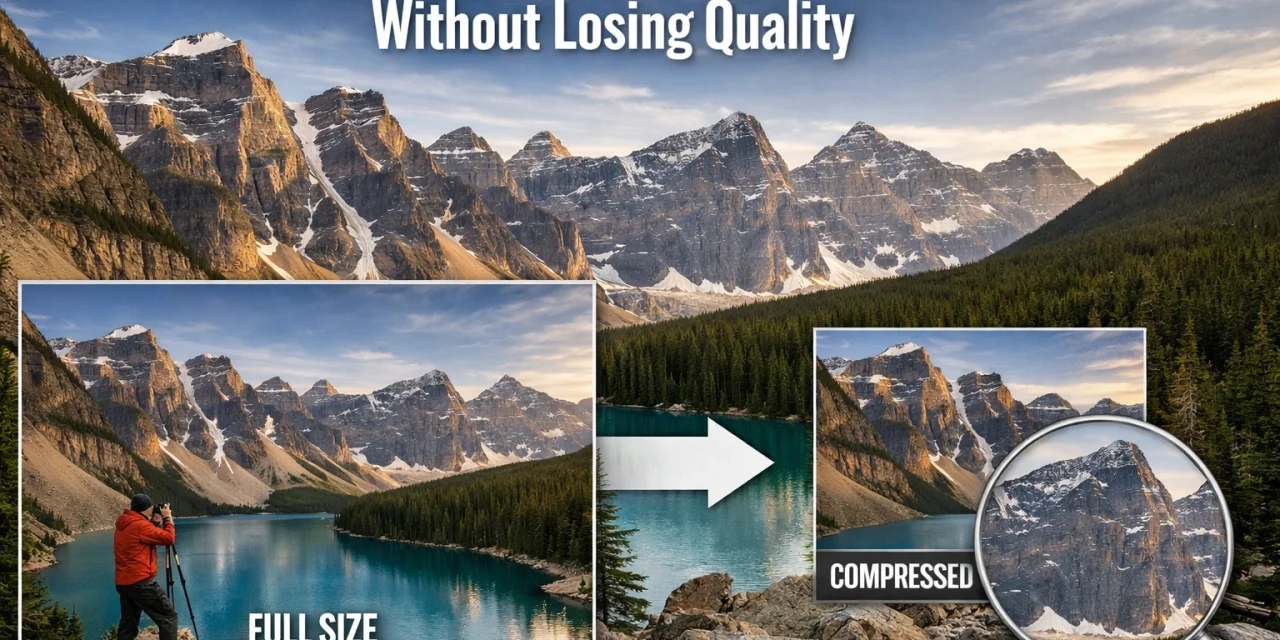
It’s an online tool that uses smart lossy compression algorithms. Now, don't let the word "lossy" scare you. In the past, lossy compression meant your images would end up looking blocky and pixelated. But modern technology has evolved. Smart compression analyzes the textures, patterns, and colors in your photo and only strips out the data that the human eye can’t actually perceive. The result? A file that is 80% smaller but looks identical to the original on a screen.
Why Speed and Quality Must Coexist
As photographers, we are often our own worst critics. We zoom in to 400% to check for noise or sharpness. But for the web, that’s just not how people consume media. Whether you are browsing essential photography gear or looking at wedding galleries, you want the images to pop immediately.
Using a tool like pixel-shrink.com allows you to maintain that professional edge while ensuring your workflow doesn't get bogged down. This is especially important for event photographers or those working in high-volume environments, like an Atlanta event photographer, where delivering hundreds of optimized images quickly is the name of the game.
The Technical Side: Choosing the Right Format
When you’re shrinking your photos, the format you choose is just as important as the compression tool itself. Here’s a quick breakdown of what you should be looking at in 2026:
- JPEG: The old reliable. It’s compatible with everything. However, if you don't compress it correctly, the file sizes remain stubbornly high.
- WebP: Developed by Google, this is the modern standard for the web. It achieves significantly higher compression than JPEG at the same quality level. If you’re looking to boost your site’s SEO, this is usually the way to go.
- AVIF: This is the new kid on the block. It offers even better compression than WebP and supports transparency. Most modern browsers support it now, and it’s a fantastic option for keeping your portfolio looking high-end.
Pixel-shrink.com handles these transitions smoothly, often showing you which format will give you the smallest file size without a visual penalty.
Step-by-Step: How to Shrink Your Photos in Seconds
Using the tool is incredibly straightforward. You don't need a degree in computer science to get this right.
- Select Your Files: Head over to pixel-shrink.com and drag your high-res JPEGs or PNGs right into the browser window.
- Let the Algorithm Work: The tool automatically analyzes your images. It looks for areas of flat color where it can save data and maintains the detail in the complex areas of the photo.
- Check the Savings: You’ll usually see a percentage of how much space you’ve saved. It’s not uncommon to see a 15MB file drop down to 2MB or less.
- Download: Hit download and you’re ready to upload to your site or send to your client via a platform like proshoot.io.

Impact on SEO and User Experience
If you’ve spent any time reading our educational category on Photoguides, you know we talk a lot about the "user journey." If a potential client clicks on your link and has to wait more than three seconds for your hero image to load, you’ve likely lost them.
By shrinking your photos, you improve your "Core Web Vitals." This is a set of metrics Google uses to determine how healthy your website is. Smaller images mean a faster "Largest Contentful Paint" (LCP), which is a fancy way of saying your main content shows up faster. This leads to lower bounce rates and higher rankings.
If you want to dive deeper into how to optimize your entire photography business, I highly recommend checking out blog.edinchavez.com for more business-centric tips.
Pro Tips for the Ultimate Workflow
To get the most out of your compression, your workflow should start before you even hit the compression tool.
- Export at the Right Size: If your website’s maximum display width is 2500 pixels, don't upload a 6000-pixel image. Resize it in Lightroom first, then run it through pixel-shrink.com.
- Check Your Sharpness: Sometimes, heavy compression can slightly soften an image. I like to add a tiny bit of "Output Sharpening" for Web in Lightroom before I compress. It keeps the edges crisp even at smaller file sizes.
- Batch Process: Don't do one by one if you have a hundred images. Use tools that allow for batch uploads to save your sanity.
For those of you looking for the best gear to capture these high-res shots in the first place, our camera reviews 2024 is a great place to start your research.
Quality You Can Trust
The biggest fear photographers have is that their work will look "cheap" once compressed. We take pride in our art. Whether you are shooting fine art or commercial work, you want the viewer to see exactly what you saw through the viewfinder.
The reassuring part about modern smart compression is that it’s designed by people who understand pixels. It’s not a blunt instrument; it’s a surgical tool. When I’m posting updates or gear reviews on shutyouraperture.com, I always run my images through a shrinker first. The community there expects high-quality visuals, and I've never had anyone complain that an image looked compressed. In fact, most people can't tell the difference even when doing a side-by-side comparison.
Conclusion: Don't Let Large Files Hold You Back
In the fast-paced world of digital photography, being bogged down by massive file sizes is a choice, not a necessity. By integrating pixel-shrink.com into your routine, you’re not just saving space: you’re improving your website performance, enhancing your client's experience, and boosting your SEO.
Remember, the goal is to spend less time staring at progress bars and more time out in the field shooting. Thanks to the support from proshoot.io, tools like this are making the professional photography world more efficient than ever.
So, go ahead and take those 60-megapixel shots. Capture every detail of that landscape or portrait. Then, when it’s time to share your vision with the world, shrink it down with confidence. Your website, your clients, and your hard drive will thank you.

If you're looking for more ways to improve your photography or find some inspiration for your next shoot, feel free to browse through our category reviews or download some of our free resources like sky overlays to take your editing to the next level. Happy shooting!













