
Category: Photo Guides
Welcome to 2026, where the line between "taking a photo" and "creating a masterpiece" has never been thinner. If you’ve been following my work at Edin Fine Art, you know I’m a huge advocate for spending more time behind the lens and less time chained to a computer desk. But let’s be real: raw files are just the starting point.
For years, the learning curve for photo editing felt like climbing a mountain without a rope. Then came Luminar Neo. It changed the game by putting complex, high-end AI tools into a package that actually makes sense. Whether you are a hobbyist or looking to go pro, this guide is your roadmap to mastering the software that is currently dominating the industry.
Why Luminar Neo is the Go-To in 2026
In the past, you needed to master layers, masks, and complex frequency separation just to fix a distracting power line or soften skin. Today, Luminar Neo handles the heavy lifting. The beauty of Neo isn't just that it's "automatic": it’s that it’s intelligent. It understands depth, light, and subjects.
If you’re just starting out, check out our educational category for more foundational tips. But if you're ready to dive into the software, let’s break down the interface and the tools that will make your photos pop.
First Steps: Navigating the Interface
When you first open Luminar Neo, it’s refreshing. It’s clean, dark, and focused. Unlike other software that buries tools in endless sub-menus, Neo organizes everything into three logical sections: Catalog, Presets, and Edit.
- Catalog: This is your library. It’s where you organize your shoots, from your latest weekend getaway to your professional client galleries.
- Presets: Perfect for when you need a quick look or a starting point. They are AI-powered, meaning they analyze your specific photo before applying adjustments.
- Edit: This is the heart of the engine. Here, you’ll find the Essentials, Creative, Portrait, and Professional tools.
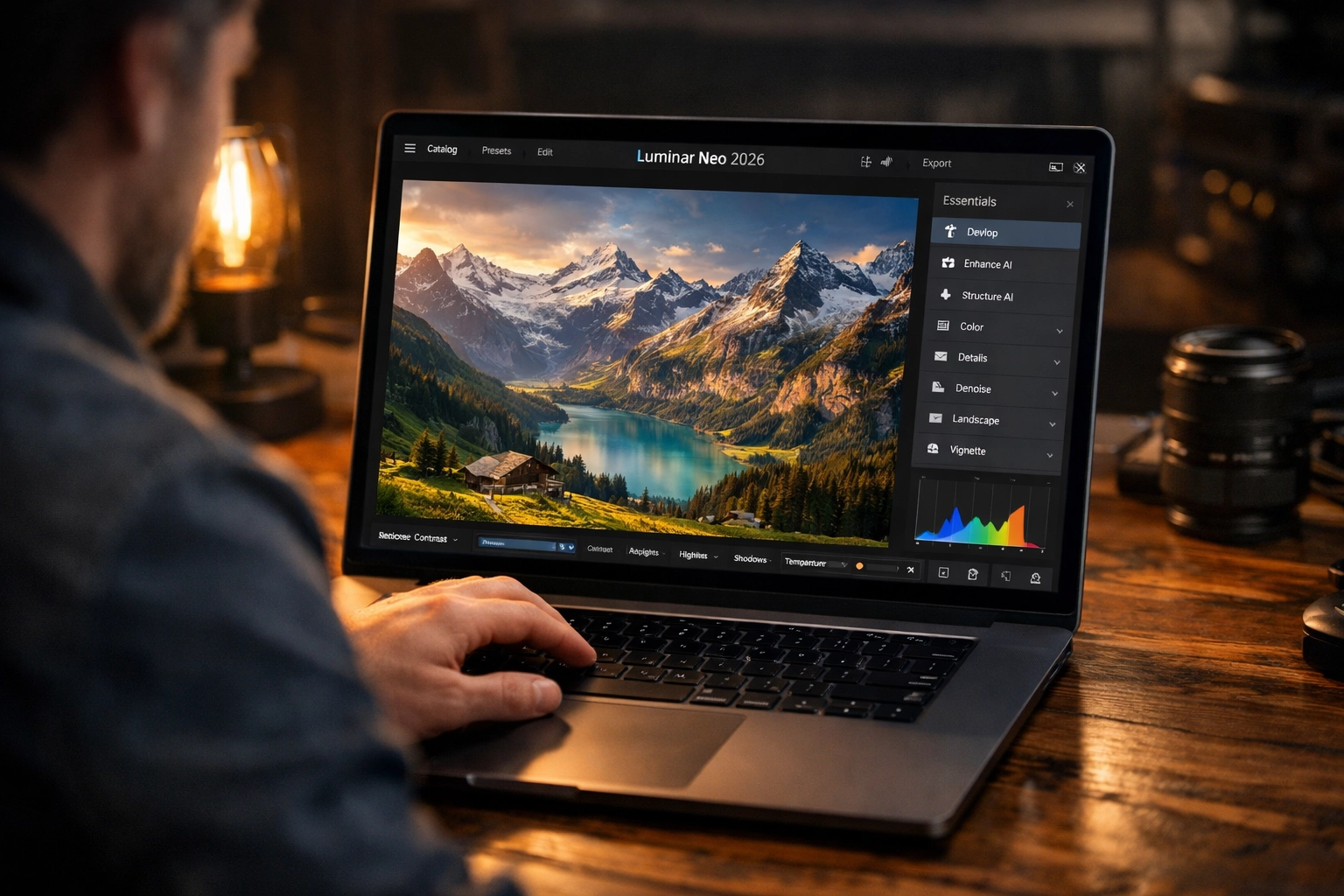
Alt Text: A high-resolution screenshot of the Luminar Neo 2026 interface showing a clean workspace with a landscape photo being edited, highlighting the 'Essentials' and 'Creative' toolbars on the right-hand side with a dark, modern UI aesthetic.
The "Magic" Sliders: Enhance AI
If you only have thirty seconds to edit a photo, Enhance AI is your best friend. It’s essentially a "make it better" button, but with nuance. The Accent AI slider replaces a dozen manual adjustments: shadows, highlights, contrast, and tone: by analyzing the scene. It knows if it’s looking at a sunset in the Dominican Republic or a moody street scene in Miami.
For landscapes, the Sky Enhancer AI is a miracle worker. It adds depth and texture to the sky without affecting the foreground. It’s the first step I take in almost every edit.
Sky AI: The Industry Leader
Let’s talk about the tool that put Skylum on the map. We’ve all been there: you find the perfect composition, but the sky is a flat, boring gray. In 2026, you don't have to settle for that. Sky AI doesn’t just "cut and paste" a new sky; it relights the entire scene to match the new light source.
If you’re looking to expand your library of skies, we have a great collection of sky overlays you can experiment with. When you swap a sky, pay attention to the reflections in the water: Luminar Neo handles this automatically, creating a believable, professional result.
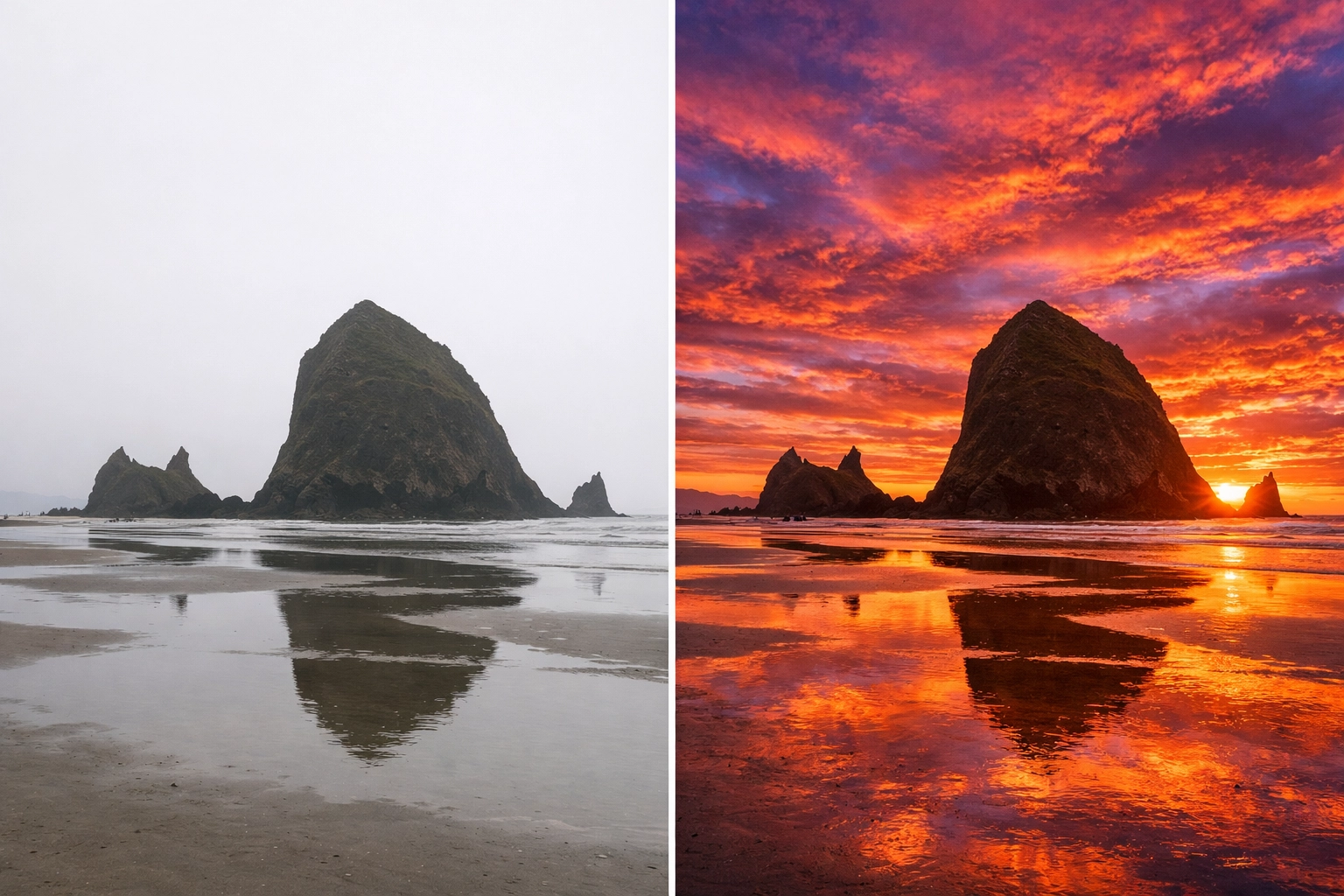
Alt Text: A dramatic before-and-after comparison of a coastal landscape. The 'before' shows a dull, overcast sky over a rocky beach. The 'after' shows a vibrant, fiery sunset sky replaced using Luminar Neo’s Sky AI, with realistic orange and purple light reflecting perfectly on the wet sand and tide pools.
Generative AI: GenErase and GenSwap
This is where 2026 tech really shines. We’ve moved beyond simple "healing" tools. GenErase uses generative AI to remove unwanted objects: like a tourist walking through your frame or a trash can in a pristine park: and fills the space with texture that actually belongs there.
I recently used this for an Atlanta event photography gig where a stray cable was ruining a perfect shot of the stage. Two clicks, and it was gone. It saves hours of cloning and stamping.

Alt Text: A close-up demonstration of the GenErase tool in Luminar Neo. A busy city street scene with a distracting yellow fire hydrant is being selected with a red brush, and a secondary frame shows the hydrant completely removed and replaced with a seamless, realistic sidewalk texture and brick wall pattern.
Portraits Made Easy with Portrait AI
Editing people can be intimidating. You want them to look their best without looking like they’ve been "photoshopped" into a plastic doll. The Portrait AI suite is incredibly reassuring for beginners.
- Face AI: Brighten eyes and enhance lips subtly.
- Skin AI: Remove blemishes while keeping the natural skin texture. It even has a "Studio Light" feature that mimics expensive lighting setups.
- Body AI: Helps with posture and slight adjustments that make a huge difference in how a subject feels about their photo.
Whether you're doing wedding photography or just taking shots of friends at one of those hidden speakeasies in Miami, these tools ensure your subjects look natural and radiant.
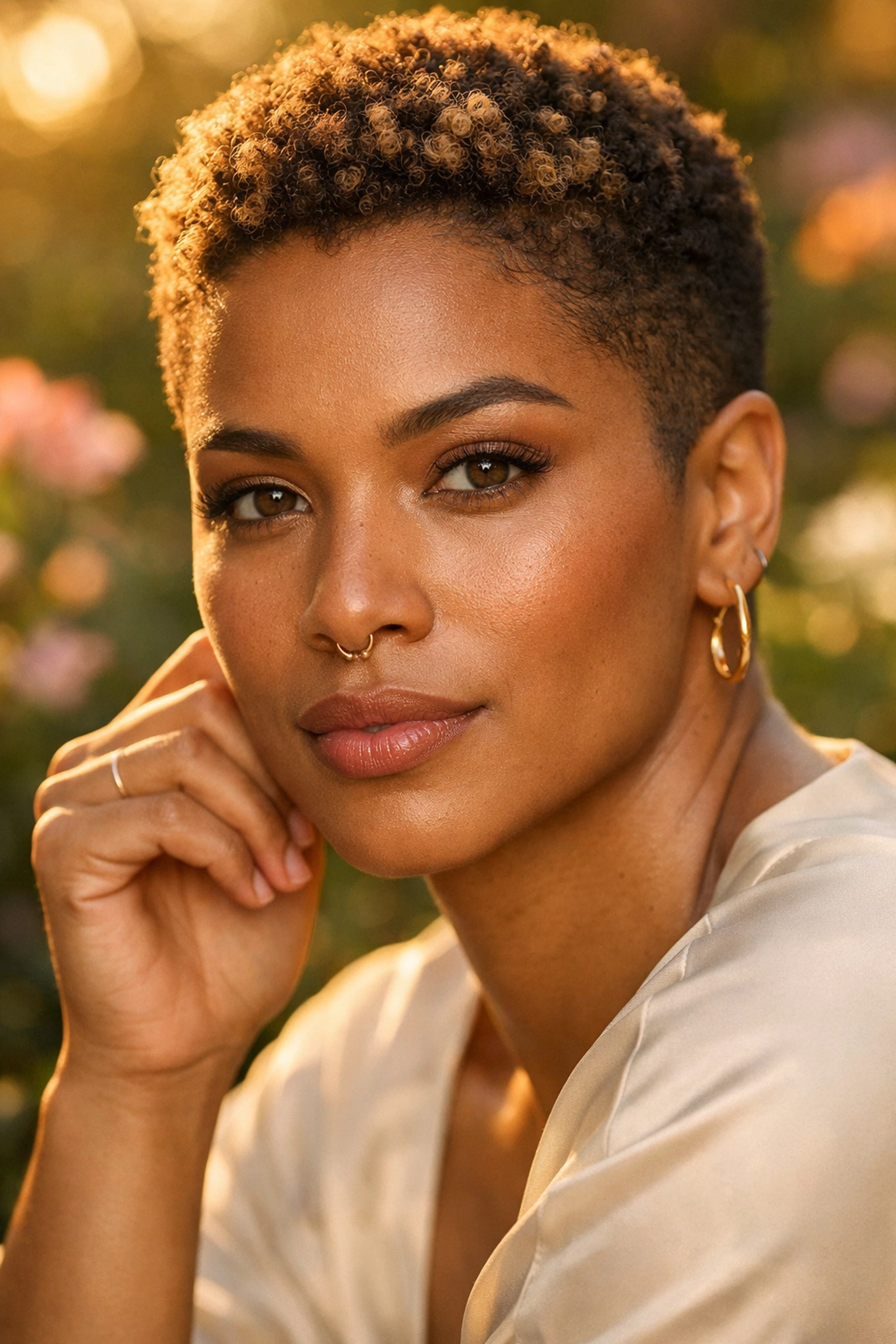
Alt Text: A split-screen portrait of a woman. The left side is the raw image with slight shadows under the eyes. The right side shows the result of Luminar Neo’s Portrait AI, featuring subtly brightened eyes, smoothed skin that retains natural pores, and a soft 'Studio Light' glow applied to the side of the face.
Mastering Light: Relight AI
One of the most common issues beginners face is a subject that is too dark against a bright background. In the old days, you’d have to mess with complicated masking. Relight AI maps your photo in 3D. It understands what is close to the camera and what is far away.
You can brighten the foreground while darkening the background (or vice versa) with simple sliders. This is a lifesaver for travel photos where you can't control the sun. If you’re out exploring breweries in Williamsburg or grabbing breakfast in Laguna Beach, and the lighting isn't cooperating, Relight AI is your secret weapon.
Layer-Based Workflow
For those who want to get a bit more advanced, Luminar Neo supports layers. This allows you to stack different edits, textures, or even multiple photos on top of each other. It’s non-destructive, meaning you can always go back and change your mind.
I often use layers to add a subtle "glow" or to blend in light leaks for a vintage feel. It’s about building a look that is uniquely yours. You can read more about my personal editing philosophy over at my blog.
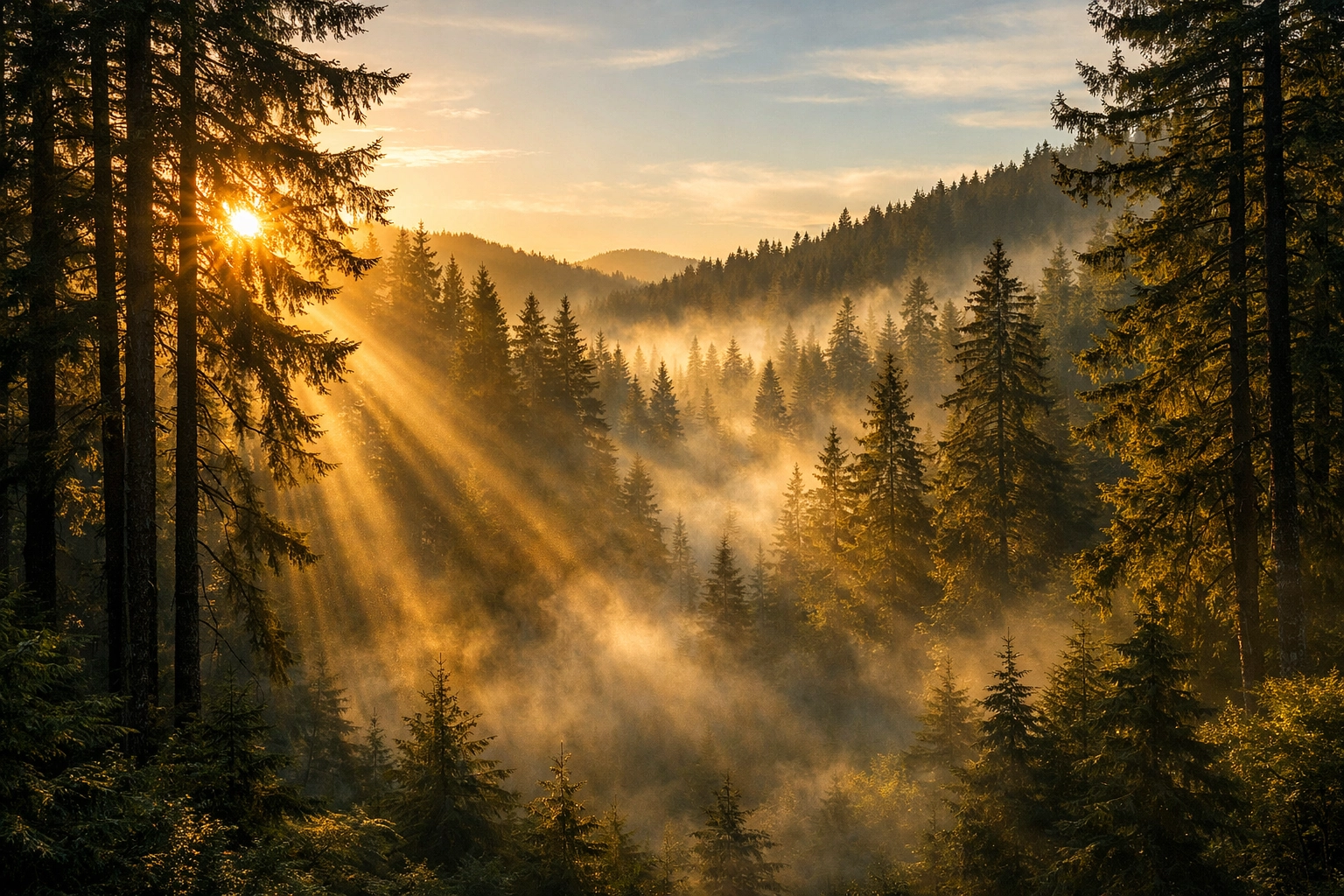
Alt Text: A creative landscape edit using multiple layers in Luminar Neo. The image shows a misty forest at dawn with a layer of added light rays (Sunrays AI) and a subtle texture overlay that gives the photo a fine-art, painterly quality, with the layers panel visible on the left side.
Final Thoughts: Just Start Creating
The best way to learn Luminar Neo is to play with it. Don't be afraid to push the sliders to 100 just to see what they do, then pull them back to where they look "just right." Photography should be fun, and the technology we have in 2026 is designed to keep it that way.
If you haven't picked up your copy yet, you can get Luminar Neo here and start transforming your images today. And if you’re still deciding on what gear to use, take a look at our 2024 camera reviews (which are still surprisingly relevant!) or our guide to essential photography gear.
Remember, the tool is there to serve your vision. Whether you're shooting the neon lights of a club in Palm Beach or a quiet morning in downtown Golden, the goal is to tell a story. Luminar Neo just helps you tell it a little more clearly.
Happy shooting!













