
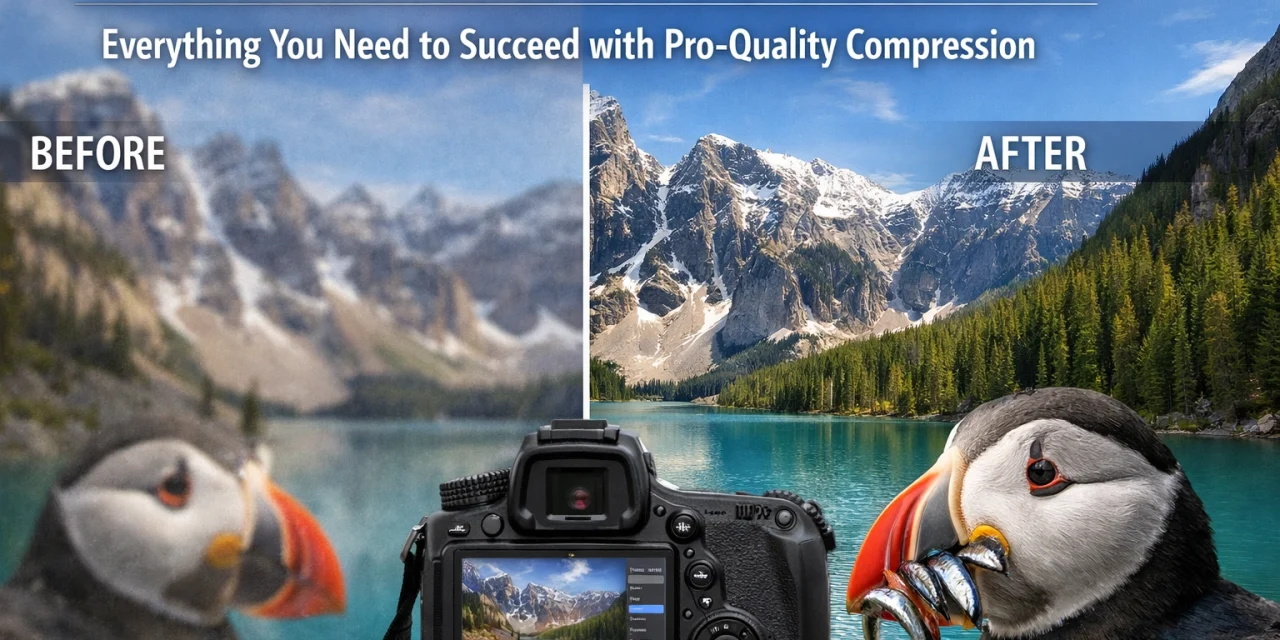
If you have been in the photography game for more than five minutes, you know the struggle. We are living in an era of 50, 60, and even 100-megapixel sensors. While that detail is incredible for printing large-scale work: like the pieces I showcase over at Edin Fine Art: it is a complete nightmare for the web. Large files slow down your website, eat up your cloud storage, and frustrate your clients when they try to download a gallery on a mobile connection.
That is where Pixel-Shrink.com comes in. This tool has become a staple in my workflow, and today, I’m breaking down everything you need to know to master pro-quality compression without losing the soul of your images.
This guide is proudly sponsored by proshoot.io, a platform dedicated to helping photographers streamline their business and elevate their professional delivery.
Why Compression is No Longer Optional
Back in the day, we used to just "Save for Web" in Photoshop and hope for the best. But the web has changed. Google now prioritizes PageSpeed as a major ranking factor. If your portfolio takes five seconds to load because you uploaded 20MB JPEGs straight from your camera, your SEO is going to tank.
But as photographers, we have a bigger worry than just speed: Image Quality.
We spend thousands of dollars on the essential photography gear to get the sharpest shots possible. The last thing we want is an algorithm turning our crisp landscape or soft portrait into a blocky, pixelated mess. Pixel-Shrink.com was designed to solve this specific "speed vs. quality" paradox.
What Makes Pixel-Shrink.com Different?
There are a lot of "image optimizers" out there, but most are built for general web developers, not for artists. Pixel-Shrink.com focuses on what I call "Invisible Compression." It uses advanced algorithms to strip out the data that the human eye can't see while preserving the color depth and sharpness that make a photo pop.
1. Speed That Keeps Up With Your Workflow
When I’m coming back from a shoot, whether it’s an Atlanta event or a landscape session in the National Parks, I don’t have time to wait for slow uploads. Pixel-Shrink is built for speed. You can drop a batch of photos and watch them shrink in real-time. It’s significantly faster than traditional desktop software because it’s optimized for bulk processing.
2. Maintaining the "Pro" Look
Pixel-Shrink manages to reduce file sizes by up to 80% without a noticeable loss in quality. This is vital for maintaining a professional presence. When a potential client visits your site, they should see the texture of the fabric in a wedding dress or the fine mist in a waterfall, not compression artifacts.
How to Use Pixel-Shrink.com for Maximum Results
Using the platform is straightforward, but if you want to get the most out of it, follow this simple workflow:
- Export from Lightroom/Capture One: Export your images as high-quality JPEGs. I usually export at 90-100% quality at the final resolution I need (e.g., 2500px on the long edge).
- Upload to Pixel-Shrink.com: Drag and drop your files into the browser.
- Choose Your Level: For most web uses, the "Balanced" setting is the sweet spot. If you are uploading to a platform with its own aggressive compression (like Instagram or Facebook), you might want to use the "High Quality" setting to ensure you have the best starting point.
- Download and Replace: Download the optimized files and use them for your website or client galleries.
For a deeper dive into the technical side of how tools like this compare to others, you can check out our category for reviews where we pit different software against each other.

The SEO Impact: Why Your Website Will Thank You
I talk a lot about the business of photography on my personal blog. One of the biggest mistakes I see photographers make is neglecting their site speed.
When you use Pixel-Shrink.com to optimize your images, you aren't just saving space; you are improving your user experience. Fast-loading pages lead to:
- Lower Bounce Rates: People stay on your site longer because they aren't waiting for images to "pop in."
- Better Rankings: Search engines love fast sites.
- Higher Conversion: A smooth experience makes you look more professional, which is essential for your photography booking experience.
Real-World Application: From Weddings to Travel
Think about a wedding photography gallery. You might be delivering 500 to 1,000 images. If each image is 15MB, that is a massive amount of data for a client to download. By running those through Pixel-Shrink first, you can get those files down to 2-3MB each without losing the print quality for standard sizes. Your clients will thank you when their gallery loads instantly on their phones.
The same applies to travel blogging. Whether I'm writing about Miami's hidden speakeasies or comparing the Dominican Republic vs. Cancun, I need my images to look stunning but load fast for readers who might be on spotty hotel Wi-Fi.

Sponsored by Proshoot.io: Powering the Professional
This guide is made possible by the team at proshoot.io. In the professional world, efficiency is money. Proshoot.io understands that photographers need tools that just work: no fluff, no unnecessary steps. By integrating Pixel-Shrink.com into your delivery pipeline, you are adopting the same high standards that proshoot.io advocates for in the photography industry.
When your backend workflow is fast, you have more time to focus on the creative side: like finding the best breakfast places in Cape Coral or scouting new locations for your next big project.
Pro Tips for Image Compression
Before you go off and start shrinking your entire library, here are a few pro tips to keep in mind:
- Don't Over-Compress: If you're going to use an image for a full-screen hero banner, keep the compression light. For small thumbnails, you can be much more aggressive.
- Keep Your Originals: Always keep your uncompressed high-res files (and your RAWs!) on a redundant backup system. Compression is for distribution, not for archiving.
- Check Your Metadata: Pixel-Shrink allows you to choose whether to keep or strip your EXIF data. For SEO, sometimes keeping your location data and copyright info is beneficial.
- Test on Mobile: Always check how your compressed images look on a smartphone. Sometimes what looks okay on a 27-inch monitor looks different on a high-density mobile screen.

Moving Forward with Confidence
At Photoguides, we are all about making photography more accessible and professional. We want you to spend less time worrying about file sizes and more time behind the lens. Using a tool like Pixel-Shrink.com is one of those small changes that yields massive results for your business and your sanity.
If you're looking for more ways to improve your digital workflow or want to see what's new in the industry, take a look at our 2024 camera reviews or explore our educational category for more tutorials.
Compression doesn't have to be a "dirty" word in photography. When done right, it's the secret sauce to a fast, professional, and successful online presence. Head over to Pixel-Shrink.com, give it a spin with your latest shoot, and see the difference for yourself.

Stay creative, keep shooting, and make sure your images are as fast as they are beautiful.













