

As photographers, we live for the details. We spend thousands of dollars on high-resolution sensors and sharp glass just to capture every single eyelash, every ripple in the water, and every nuance of a sunset. But there is a silent enemy that every modern creator faces: the file size.
If you’ve ever tried to upload a full-resolution gallery to a client portal or tried to optimize your portfolio website only to have it crawl at a snail's pace, you know the frustration. This is where professional compression comes in, and specifically, why Pixel-Shrink.com has become an essential tool in my workflow.
Sponsored by our friends at proshoot.io, Pixel-Shrink.com is designed with a very specific goal in mind: helping photographers maintain incredible image quality while drastically reducing the weight of their files. In this guide, we’re going to dive deep into how to use this tool to your advantage and why it’s a game-changer for your photography business.
Why Every Photographer Needs Professional Compression
In the early days of digital photography, a 10-megapixel file was considered "huge." Today, with cameras regularly pushing 45, 60, or even 100 megapixels, a single RAW file can easily exceed 100MB. Even after exporting them as JPEGs, you’re often left with files that are 20MB or larger.
While that resolution is great for large-format printing, it’s a nightmare for the web. Large files lead to slow loading times. Slow loading times lead to frustrated clients and, perhaps even worse, a penalty from Google. Search engines prioritize speed. If your portfolio takes five seconds to load because of uncompressed images, you’re losing potential clients before they even see your work.
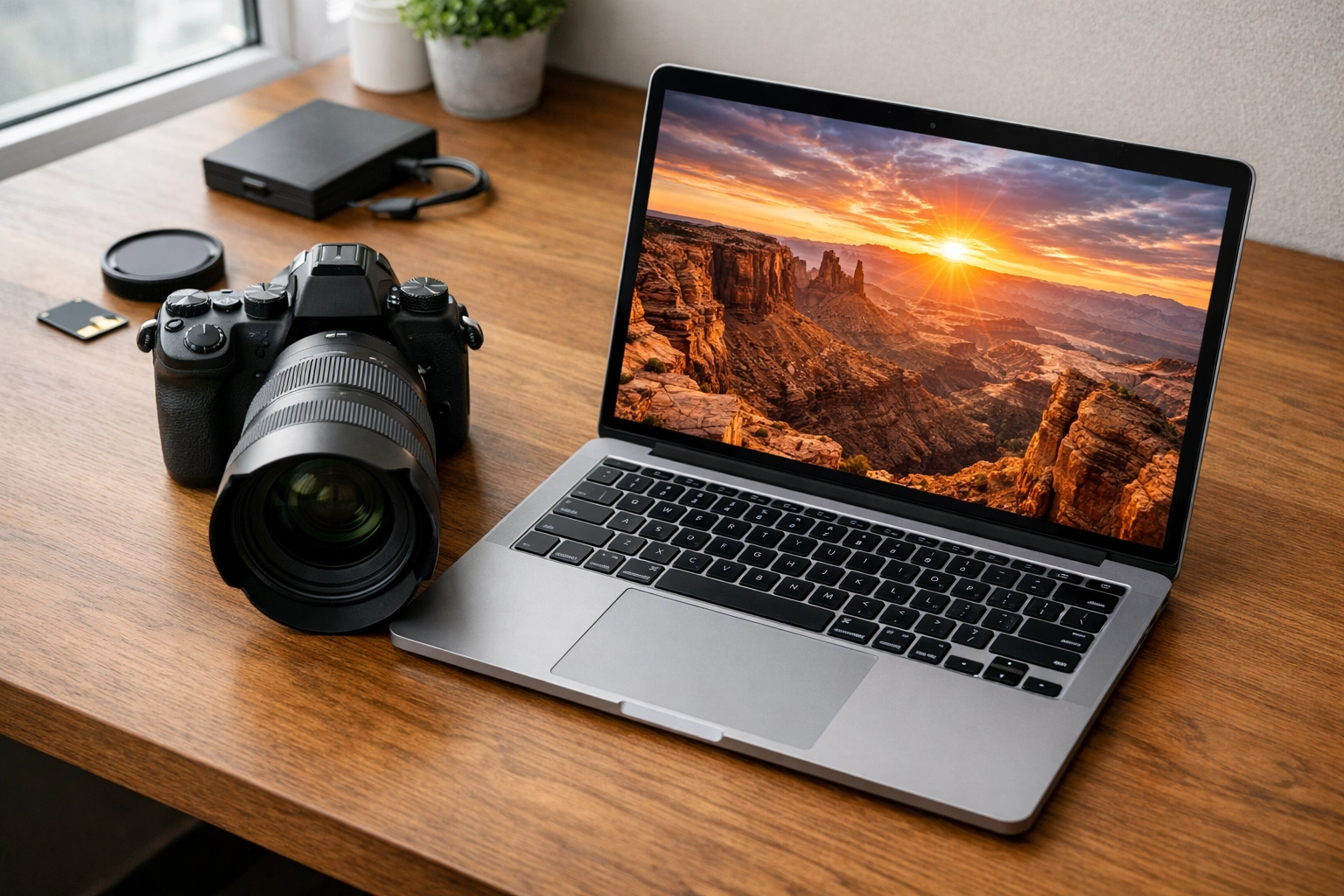
Using a tool like Pixel-Shrink.com allows you to strip away the unnecessary data that doesn’t contribute to the visual "look" of the photo. It’s about being lean without being low-quality. To learn more about how speed impacts your business, check out our photography booking experience guide to see how a seamless digital presence translates into more gigs.
Getting Started with Pixel-Shrink.com
The beauty of Pixel-Shrink.com lies in its simplicity. You don’t need to be a software engineer to figure it out. It’s built for photographers who want to get back to shooting, not spend hours tweaking export settings in complex software.
- The Upload: You can drag and drop your JPEGs or PNGs directly into the browser.
- The Algorithm: Pixel-Shrink uses an advanced algorithm that analyzes the colors and textures of your image. It identifies areas where data can be reduced without the human eye noticing a difference.
- The Result: You get a file that looks identical to your original but is often 60-80% smaller.
This isn’t just about making things smaller; it’s about "Professional Compression." This means the metadata remains intact, the color profiles don't shift, and the sharpness stays exactly where you put it.
Speed: The Secret to SEO and User Experience
If you’re running a photography blog or a fine art gallery like Edin Fine Art, image optimization is your best friend. Every millisecond you shave off your page load time improves your SEO ranking.
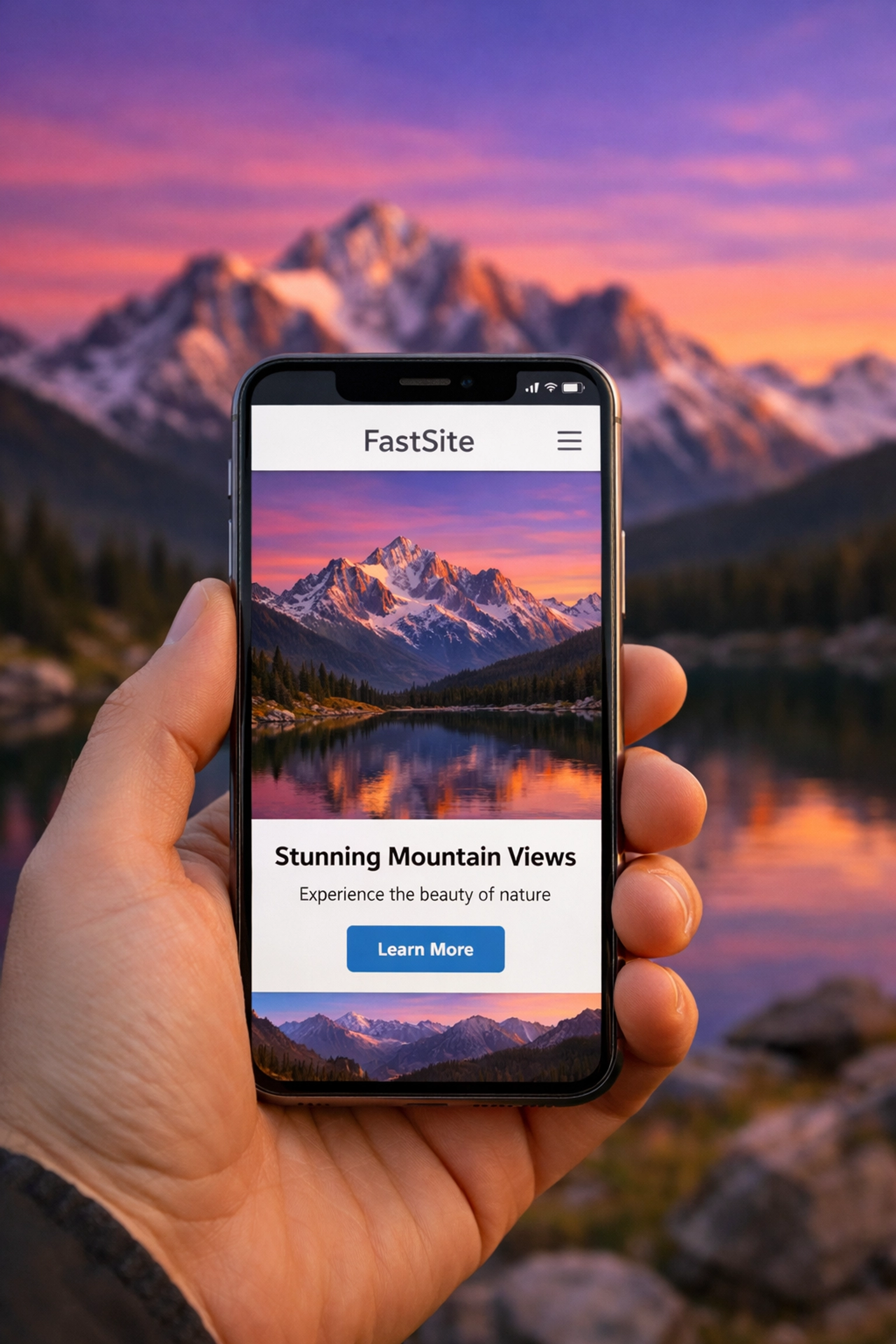
When Google crawls your site, it looks at how quickly your images render. If you use Pixel-Shrink.com to optimize your blog posts, you’re telling search engines that your site is healthy and user-friendly. This is especially important for high-traffic articles like my National Parks series, where readers expect to see dozens of high-quality images without waiting for a loading bar.
Maintaining Quality: The Photographer’s Fear
The biggest hesitation photographers have with compression is "artifacting." We’ve all seen it: those weird blocky patterns in the shadows or the "banding" in a clear blue sky. It’s the stuff of nightmares.
The reason Pixel-Shrink.com is highly recommended (and why it’s backed by proshoot.io) is its ability to compress intelligently. It doesn’t just apply a blanket "Level 5" quality reduction across the whole image. It treats a flat blue sky differently than it treats a textured brick wall.
By preserving the "perceptual quality," you can confidently send these compressed files to clients for proofing or use them on your homepage. If you’re still worried about gear and resolution, take a look at our essential photography gear list to see how we balance high-end capture with smart digital management.
Integration Into Your Workflow
How should you actually use Pixel-Shrink.com in your daily life? Here is a simple workflow I recommend:
- Cull and Edit: Do your usual magic in Lightroom or Capture One.
- Export: Export your images at full resolution or your desired web-size (e.g., 2500px on the long edge).
- Shrink: Run those exports through Pixel-Shrink.com.
- Upload: Post them to your website, blog, or social media.
This extra step takes seconds but saves you hours of storage management in the long run. If you’re a wedding photographer dealing with thousands of images, the space you save on your cloud storage or hosting plan can literally save you hundreds of dollars a year. For more insights on the business side of things, our wedding photography insights page goes into more detail on managing large-scale projects.
Pixel-Shrink vs. Standard Export Settings
You might be wondering, "Can’t I just lower the quality slider in Lightroom to 60?"
While you can, the results are rarely as good. Standard export sliders are blunt instruments. They apply a uniform compression to the entire file. Pixel-Shrink.com uses a more surgical approach. It understands the "weight" of different parts of the image. It allows you to keep the crispness of a portrait subject’s eyes while being more aggressive with the out-of-focus background. It’s the difference between using a sledgehammer and a scalpel.
Practical Applications: From Portfolios to Gear Reviews
Whether I’m writing camera reviews for 2024 or showcasing a new gallery of Miami’s hidden speakeasies, I never upload a raw export.
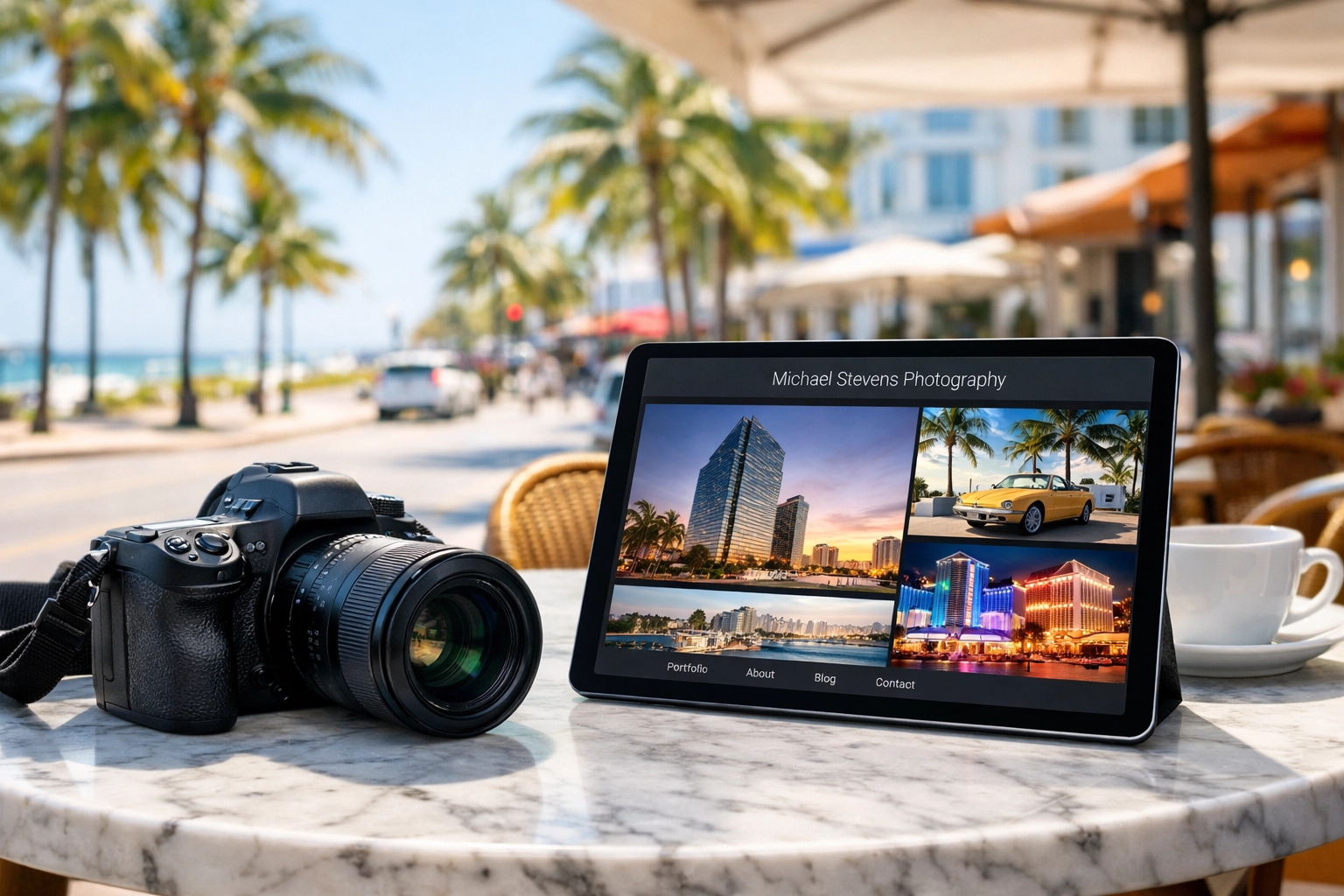
Think about your mobile users. Over 50% of web traffic is now on mobile devices, often on cellular connections that aren't as fast as home Wi-Fi. If your "Ultimate Guide" has 20 images and each one is 5MB, that’s a 100MB page load. Most users will click away before the third image appears. Pixel-Shrink.com brings that total page weight down to 15-20MB without sacrificing the "wow" factor of your photography.
A Reassuring Final Thought
I know that "compression" can feel like a dirty word to someone who prides themselves on image quality. But in the modern digital landscape, professional compression is actually a form of respect for your audience. It shows you value their time and their data plan, and it ensures that your work is actually being seen rather than stuck behind a loading icon.
Pixel-Shrink.com makes this transition easy. It’s fast, it’s reliable, and it’s built for the high standards of professional photographers. Give it a try on your next set of exports: your website, your SEO, and your clients will thank you.
For more educational resources on improving your craft and your business, feel free to browse our educational category. We’re here to help you navigate the technical side of photography so you can spend more time behind the lens.













