
Category: Photo Guides
If you’ve been in the photography game for more than five minutes, you know the struggle. We live in an era where cameras are pushing 45, 60, and even 100 megapixels. While those massive files are a dream for large-scale prints at Edin Fine Art, they are a total nightmare for everything else. Whether you’re trying to upload a gallery for a client, post to your portfolio, or keep your website’s SEO from tanking, those giant JPEGs are holding you back.
Enter Pixel-Shrink.com. Sponsored by our friends at proshoot.io, this tool has become a staple in my professional workflow. It’s not just another "resize" tool; it’s a professional-grade image optimizer built specifically for those of us who refuse to compromise on quality but desperately need to save on bandwidth and storage.
In this guide, I’m going to break down why Pixel-Shrink is a game-changer, how the technology actually works, and how you can integrate it into your daily routine to make your life (and your website) a whole lot faster.
The Problem with "Big" Files
Let’s be real: no one likes waiting for a website to load. If a potential client lands on your portfolio and has to wait six seconds for your hero image to render, they’re gone. They’ve clicked the back button and moved on to the next photographer.
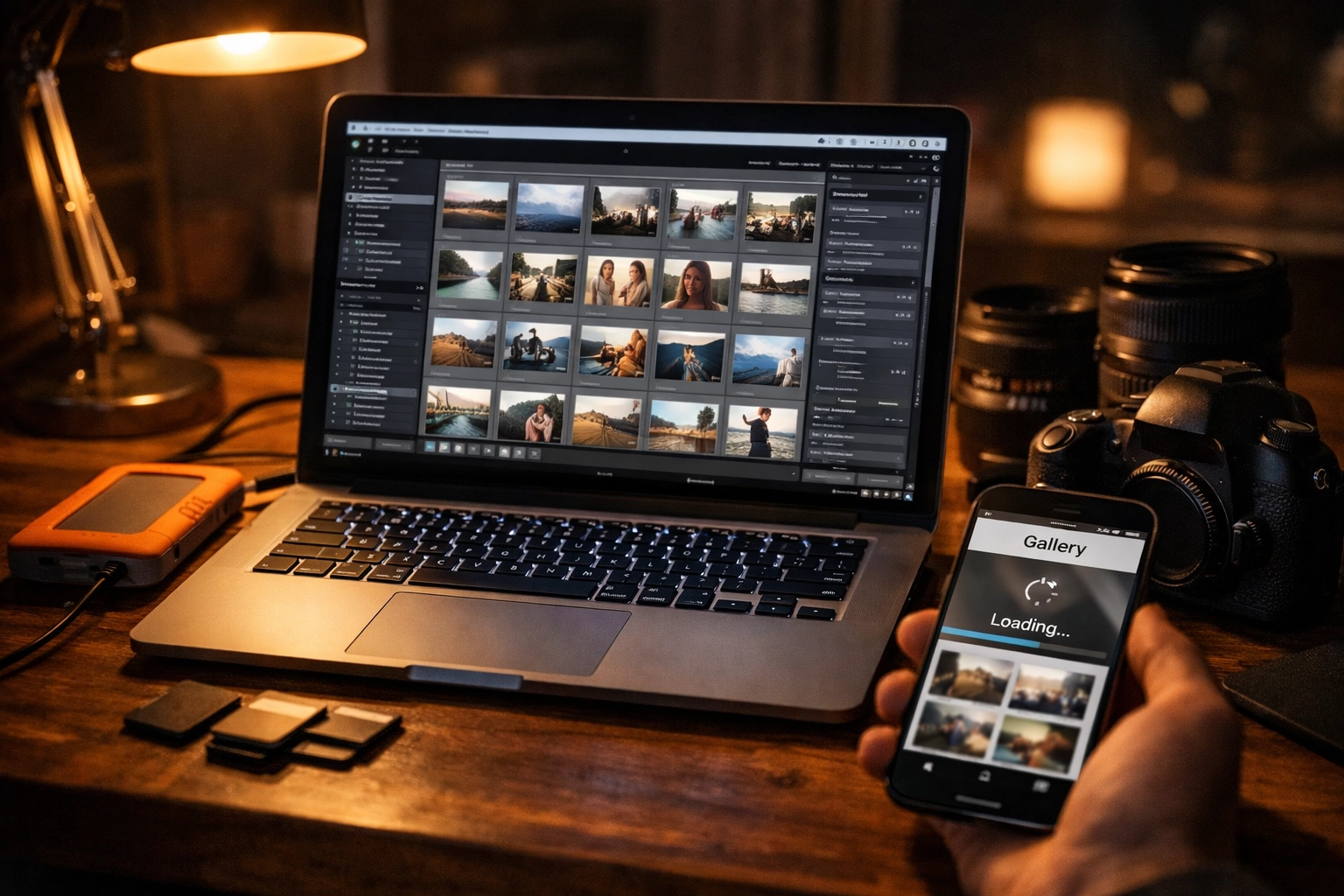
Standard export settings in tools like Lightroom or Capture One are great for printing, but even at a "70% quality" export, the files can still be massive. If you use a blanket compression setting across your entire gallery, you often end up with "banding" in your skies or "blocky" artifacts in your shadows.
Pixel-Shrink addresses this by using an intelligent algorithm that understands the difference between a textured brick wall and a smooth blue sky. It applies compression where it won’t be noticed and preserves detail where it matters most.
What Makes Pixel-Shrink.com Different?
You might be thinking, "Why can’t I just use a free online compressor?" Most of those tools are designed for general web graphics: think logos and icons. They often strip out your ICC profiles, mess with your metadata, and leave your colors looking muddy.
Pixel-Shrink was built with a photographer’s eye. Here are the three pillars that set it apart:
1. Advanced Texture Analysis
Traditional compression treats every pixel with the same level of aggression. Pixel-Shrink’s algorithm analyzes the colors and textures within your frame. It knows that a portrait subject’s eyes and eyelashes need to remain tack-sharp, while the out-of-focus bokeh in the background can handle a much higher level of data reduction. This "surgical" approach results in files that are 60-80% smaller without a visible loss in quality.
2. Metadata and Color Integrity
One of the biggest frustrations with cheap compressors is that they strip your EXIF data and shift your color profiles. If you’ve spent hours color-grading your work, the last thing you want is for a compressor to turn your warm sunset into a muddy mess. Pixel-Shrink keeps your metadata intact and ensures your sRGB or Adobe RGB profiles remain exactly as you intended. This is crucial if you're managing a photography booking experience where professionalism is key.
3. Batch Processing at Speed
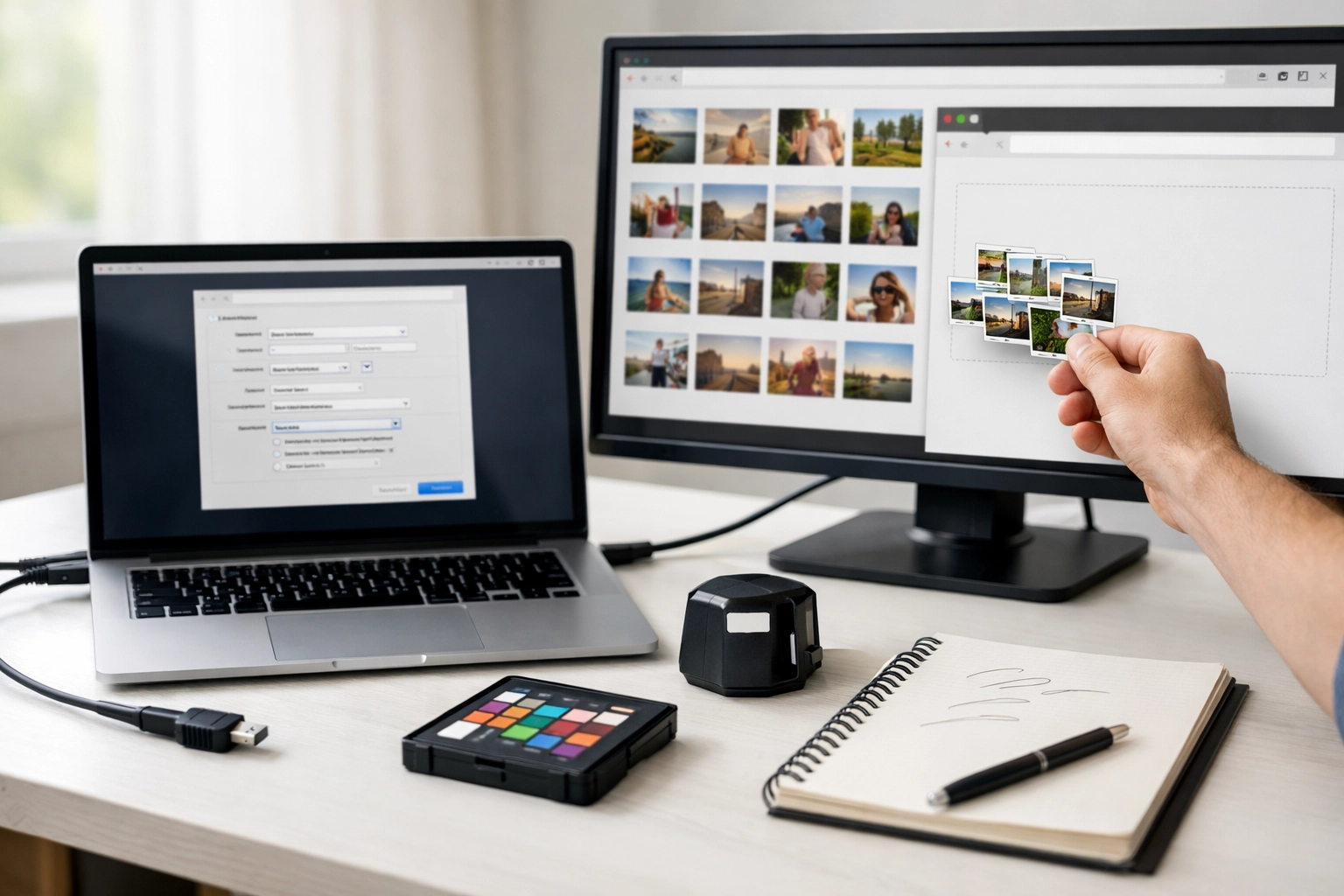
We don't have time to upload images one by one. Whether you have 20 photos for a blog post or 500 from a wedding, Pixel-Shrink is built for speed. It handles batch processing in real-time, allowing you to drag and drop entire folders and get back to shooting.
Integrating Pixel-Shrink into Your Workflow
To get the most out of this tool, you need a solid workflow. I’ve refined mine over the last year, and it looks something like this:
- Cull and Edit: Do your usual magic in Lightroom or Capture One.
- The Export: Export your images at the resolution you actually need. If it’s for a blog, 2500px on the long edge is usually plenty. For more on the gear I use to capture these shots, check out my essential photography gear list.
- The Shrink: Head over to Pixel-Shrink.com. Select your setting (usually "Balanced" for web or "High Quality" for social media).
- The Delivery: Take those optimized files and upload them to your site or client gallery.
By adding this one simple step, you can turn a 100MB gallery into a 20MB gallery. This not only saves you space on your hosting plan but also makes the download process much faster for your clients.
Choosing Your Settings: Balanced vs. High Quality
Pixel-Shrink offers a couple of different modes depending on your needs.
- Balanced: This is the "sweet spot" for 90% of your work. It offers the best ratio of file size reduction to visual quality. It’s perfect for blog posts, portfolio galleries, and general web use.
- High Quality: Use this when you’re uploading to platforms that apply their own aggressive compression, like Instagram or Facebook. By providing a high-quality, already-optimized file, you can often "trick" the social media algorithms into leaving your images alone, preventing that nasty double-compression look.
If you’re interested in more technical deep dives, I highly recommend checking out our educational category for more tips on digital asset management.
Why Speed Matters for Your Photography Business
If you’re looking for evergreen online business ideas for 2026, one of the most consistent truths is that user experience is king. Google’s "Core Web Vitals" specifically track how fast your images load. If your site is slow, your search ranking will suffer.
I’ve personally seen my SEO improve on Edin Chavez’s Blog simply by going back and optimizing old, heavy images. It’s a tedious task to do retroactively, so my advice is to start using Pixel-Shrink today so you don't have a mountain of work later.
Real-World Results
Let’s look at some numbers. A typical full-resolution JPEG from a Sony A7RIV might be 25MB.
- Lightroom Export (80% Quality): 8MB.
- Pixel-Shrink (Balanced): 1.8MB.
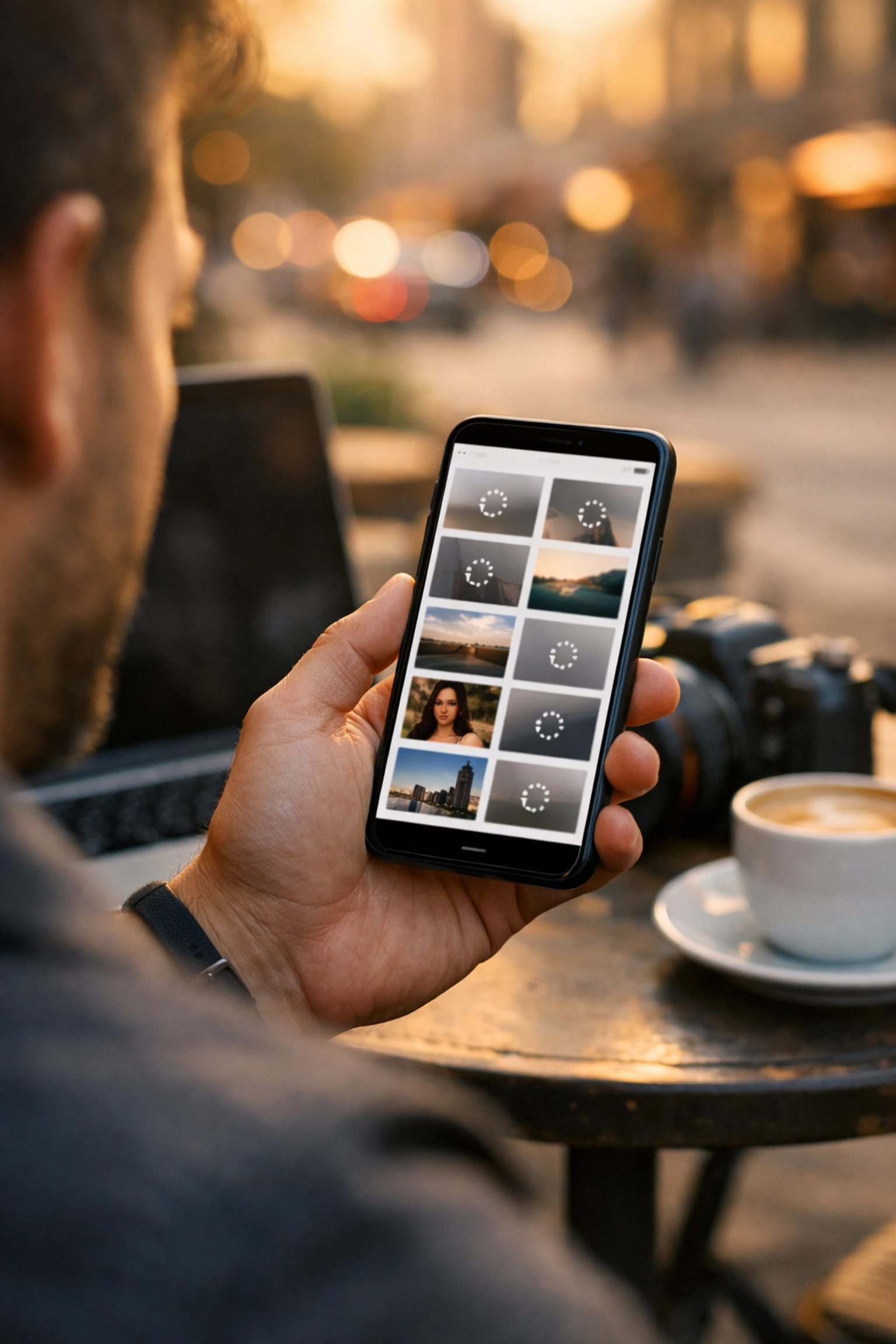
The visual difference? On a 4K monitor, you literally cannot tell them apart. But on a mobile device over a 4G connection, the difference in loading speed is night and day. As more people consume photography on their phones, being "mobile-fast" is no longer optional: it’s a requirement. For more industry news and tool reviews, keep an eye on Shut Your Aperture.
Security and Privacy
As photographers, our intellectual property is our livelihood. One of the things I love about Pixel-Shrink is their commitment to privacy. Your images are processed securely, and they aren't stored on their servers longer than necessary to complete the compression. It’s a reassuring feeling knowing your client’s private moments or your unreleased commercial work is safe.
Final Thoughts
We spend thousands of dollars on lenses and hours on editing. Don't let the final hurdle: file delivery and web display: be the thing that diminishes your work. Using a professional tool like Pixel-Shrink.com ensures that your images look as good on a client's smartphone as they did on your calibrated studio monitor.
It’s fast, it’s sponsored by the pros at proshoot.io, and it’s become an essential part of how I run Photoguides. Give it a shot on your next batch of exports; your website (and your clients) will thank you.
If you're looking for more ways to improve your business, from gear to technique, feel free to browse our reviews section or see how I handle large-scale event workflows in my Atlanta event photographer guide.
Keep shooting, keep shrinking, and keep your site fast!













