
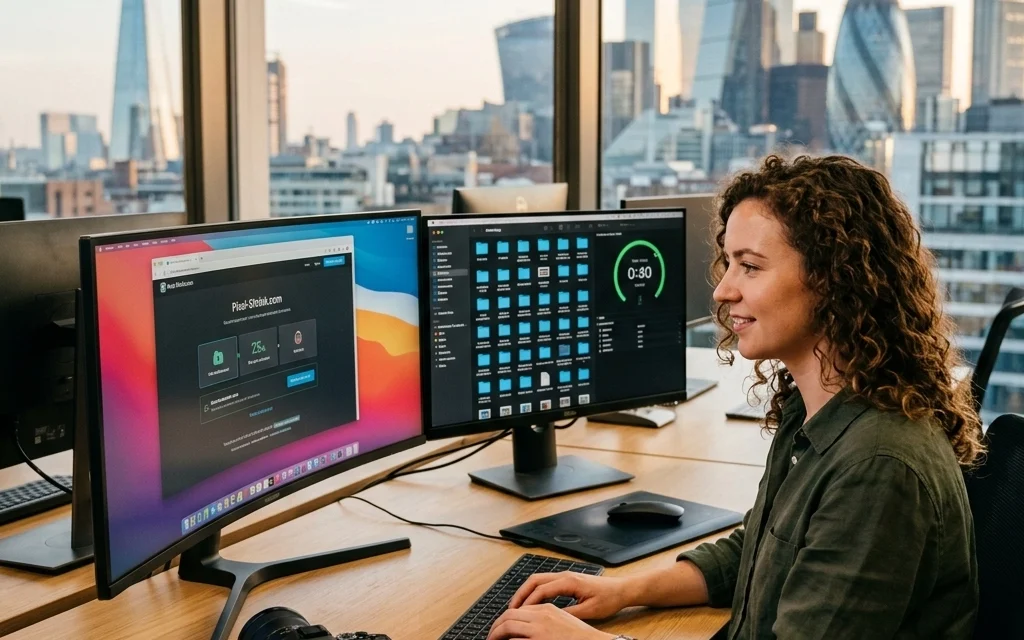
If you’ve been in the photography game for more than a minute, you know the struggle. We live in an era of 50, 60, and even 100-megapixel sensors. While that detail is incredible for printing large-scale fine art, it creates a massive logistical headache when it comes to everything else. Your hard drives fill up in a weekend, your website starts crawling like it’s 1999, and sending a gallery to a client feels like it takes a lifetime.
We often think that "professional" means keeping every single bit of data, no matter how much it slows us down. But the real pros know that efficiency is just as important as image quality. That’s where professional file compression comes in. Today, we’re looking at how you can reclaim your speed and your storage space using Pixel-Shrink.com, a tool that has become a staple in modern digital workflows.
This guide is brought to you in partnership with proshoot.io, the platform helping photographers manage their business more effectively. Let’s dive into how you can shrink your files without shrinking your reputation.
The Bottleneck: Why Large Files are Killing Your Business
As photographers, we are storytellers. But if your story takes five minutes to load on a mobile device, your audience is going to look elsewhere. High-resolution images are beautiful, but they are heavy. If you are uploading a 20MB JPEG to your portfolio, you’re essentially asking your potential clients to wait. In a world of instant gratification, they won’t.
Beyond the web, think about your internal workflow. Every time you move files to a backup drive, sync to the cloud, or export a gallery for a client via photography-booking-experience, those extra megabytes add up. If you can reduce your file sizes by 70% without losing a single ounce of perceived quality, you are literally buying back hours of your time over the course of a year.

Enter Pixel-Shrink.com: Professional Compression Defined
Many photographers are scared of the word "compression." It brings up images of blocky shadows and jagged edges. However, modern algorithms have evolved. Pixel-Shrink.com uses advanced optimization techniques that target the data the human eye can’t actually see, leaving the "soul" of the photo intact.
The beauty of Pixel-Shrink.com is its simplicity and its focus on the professional. It doesn't just strip away data; it intelligently analyzes the color space and texture to ensure that your sharpest landscapes and softest portraits remain stunning. Whether you are prepping files for a blog post or sending a final set to a commercial client, it balances the scales between file size and visual fidelity.
For those of us who spend hours perfecting a look in Lightroom, the last thing we want is a tool that messes with our colors. Pixel-Shrink is designed to maintain the integrity of your work, making it a perfect companion to the techniques you’ll find in our camera reviews 2024.
How to Integrate Compression into Your Workflow
Speeding up your workflow isn't just about using a tool; it’s about where that tool fits in your process. Here is the most efficient way to handle your files from shoot to delivery:
1. The Initial Culling and Edit
Always work with your RAW files during the creative process. You need all that data when you’re pushing shadows or adjusting white balance. Once your edit is finalized, export your high-resolution JPEGs. This is where the file size usually balloons.
2. The Pixel-Shrink Phase
Before these files go anywhere, whether it’s your portfolio, a cloud backup, or a client delivery via proshoot.io, run them through Pixel-Shrink.com. You can batch-process entire galleries, which is a lifesaver for wedding and event photographers.
3. Website Optimization
If you are running a photography blog or a portfolio site, this step is non-negotiable. Google loves fast websites. By using compressed images, your SEO rankings will likely improve because your "Time to Interactive" metric drops significantly. If you’re looking for more ways to boost your online presence, check out the educational category for more tips.
Maintaining Quality: What the Pros Need to Know
A common question I get is: "Will my prints look bad if I use Pixel-Shrink?"
The short answer is no, provided you are using it correctly. For large-format prints, you generally want to keep your original high-resolution exports. However, for 99% of digital use cases: social media, websites, and even small 4×6 or 5×7 prints: a compressed file from Pixel-Shrink.com is indistinguishable from the original.
I’ve spent years working on edinfineart.com, and one thing I’ve learned is that the digital presentation needs to be fast. If a collector is looking at a gallery of my latest work from a National Park, they need to see the images load instantly. If they have to wait, the emotional connection is lost.
Comparing Compression Types: Lossy vs. Lossless
When using tools like Pixel-Shrink, it’s helpful to understand what’s happening under the hood.
- Lossless Compression: This reduces file size by removing redundant data without losing any original information. The file size reduction is usually modest (around 10-20%).
- Lossy Compression: This is what Pixel-Shrink excels at. It discards data that is less noticeable to the human eye. When done professionally, you can see size reductions of up to 80% with zero visible loss in quality.
For a photographer, the "visual" quality is all that matters. If you can’t see the difference at 100% zoom on a professional monitor, then the compression is a success.

Case Study: The Atlanta Event Photographer
Imagine you are an Atlanta event photographer. You’ve just shot a high-profile corporate gala. You have 500 edited images to deliver. At 15MB per image, that’s a 7.5GB delivery. That’s a lot for a client to download, and a lot for you to upload on a standard hotel or studio Wi-Fi.
By running those same images through Pixel-Shrink.com, you could drop that total package down to 1.5GB or less. The client receives their images five times faster, they can preview them on their phones without lag, and they are thrilled with the quick turnaround. This is how you build a reputation for being a "pro": by making the client’s life easy.
Storage Savings and Cloud Costs
We don't often talk about the "boring" side of photography: the cost of hard drives and cloud storage. If you are a high-volume shooter, your storage costs can run into the thousands of dollars every year.
By compressing your "delivery" versions of files, you save massive amounts of space on your secondary and tertiary backups. While I always recommend keeping your original RAW files (and you can find recommendations for the best drives in our essential photography gear section), your JPEG archives don't need to be bloated.
Sponsored Spotlight: Proshoot.io
Efficiency doesn't stop at file sizes. To truly speed up your workflow, you need a central hub to manage your business. Proshoot.io is the perfect partner for Pixel-Shrink.com. While Pixel-Shrink handles the weight of your images, Proshoot.io handles the weight of your administration.
From booking to invoicing and gallery delivery, having a streamlined system allows you to focus on what you actually love: taking photos. When you combine the fast loading times of optimized images with the professional interface of Proshoot, you're providing a world-class experience to your clients.
Final Thoughts: Don't Let Your Files Weigh You Down
Photography is an art, but it’s also a digital science. Mastering the technical side of file management is what separates the hobbyists from the pros. Tools like Pixel-Shrink.com aren't just about making things smaller; they are about making your business faster, more responsive, and more profitable.
For more insights into the latest gear and software, don't forget to visit shutyouraperture.com or browse through our latest reviews.
Remember, your work deserves to be seen. Don't let a slow loading bar stand in the way of your next big opportunity. Compress your files, speed up your site, and keep shooting.

For more tips on the photography lifestyle: from the best wedding photography insights to finding cheap weekend getaways to test your new gear: keep following Photoguides. We’re here to make sure your journey behind the lens is as smooth as possible. You can also see some of my personal work and how I handle high-res galleries at blog.edinchavez.com.













