Let’s be real for a second: as photographers, we are obsessed with detail. We spend thousands on the latest mirrorless bodies and sharpest glass just to capture every single pore, every leaf, and every glimmer of light. But there is a massive catch. Those high-resolution files are absolute storage hogs. When it comes time to share a gallery with a client or upload your latest work to your portfolio, those giant files turn from assets into liabilities.
Waiting for a 2GB gallery to upload feels like watching paint dry in a rainstorm. Even worse, if you upload those massive files directly to your website, your page speed will tank, and your SEO will go right along with it. Nobody stays on a site that takes ten seconds to load an image.
I’ve spent years looking for the "sweet spot": that magical place where an image looks breathtakingly sharp but has a file size small enough to fly across the internet. That’s where Pixel-Shrink.com comes in. It’s a tool designed to solve this exact headache, and today I’m going to show you how to compress your entire gallery in about five minutes flat.
This guide is sponsored by our friends over at proshoot.io, who know a thing or two about professional workflows. If you’re looking to streamline your business even further, they are definitely worth a look.
The Speed-Quality Paradox
For a long time, we were told that "compression" was a dirty word. We thought it meant losing detail, adding artifacts, and making our professional work look like a low-res meme from 2005. But modern algorithms have changed the game.
The goal isn't just to make the file smaller; it’s to remove data that the human eye literally cannot perceive. Pixel-Shrink uses intelligent optimization to find the limit of what can be removed without touching the visual integrity of your art. Whether you are prepping a gallery for a wedding photography insight piece or just updating your personal blog, speed is your best friend.
Step 1: Pre-Compression Preparation (The "90% Rule")
Before you even head to the website, you need to set yourself up for success. You can’t turn a low-res thumbnail into a high-res masterpiece, and you shouldn’t try to compress an already "crunchy" file.
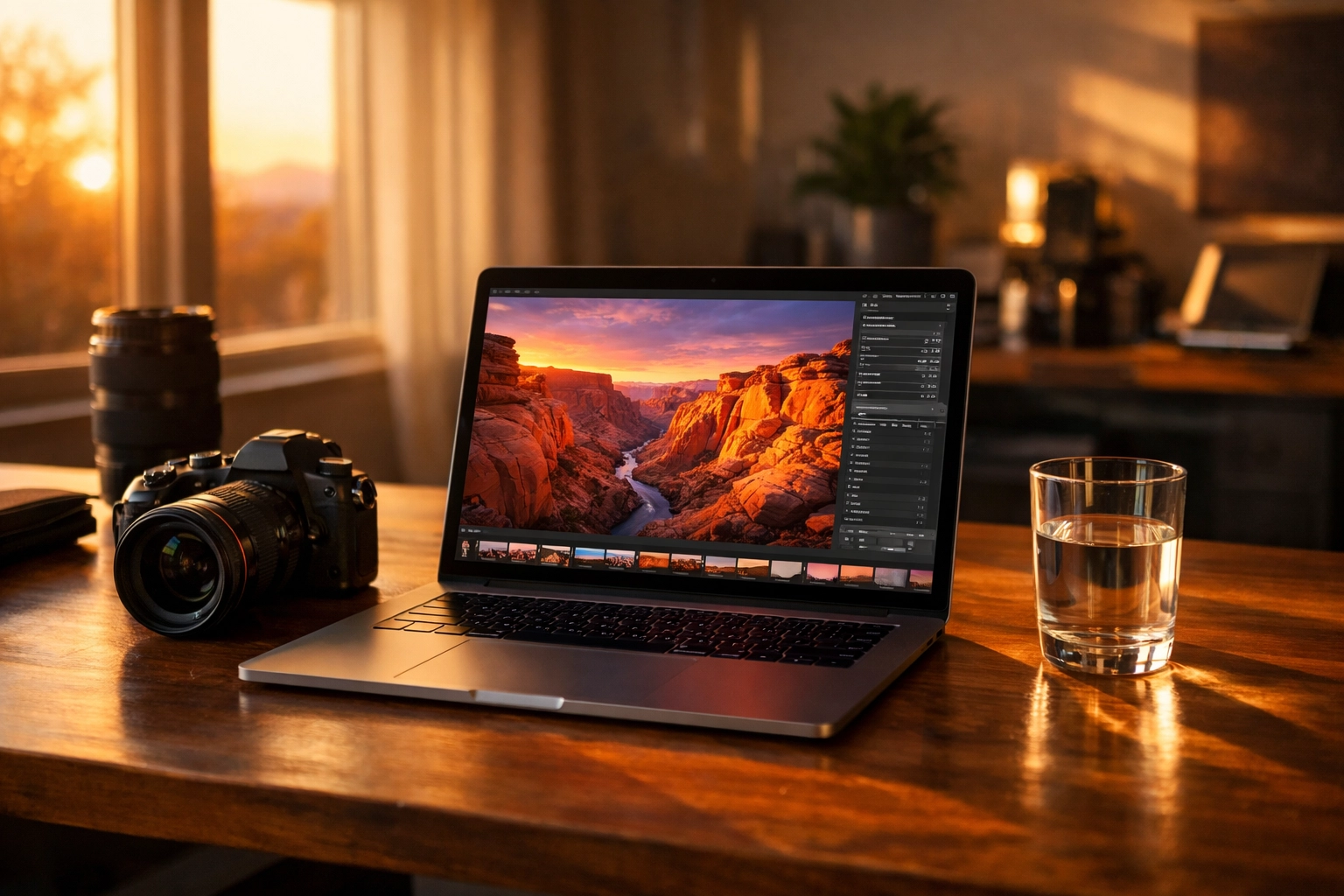
When exporting from Lightroom or Capture One, I recommend exporting your final edits as full-sized JPEGs at around 90% quality. For web use, you generally don’t need the long edge of your photo to be more than 2500 pixels. This gives Pixel-Shrink enough "meat" to work with while ensuring the final result is lean and mean.
If you’re unsure about your current gear’s output, check out our camera reviews 2024 to see how different sensors handle data. Once your folder is ready, it’s time to move to the browser.
Step 2: The Drag-and-Drop Workflow
The beauty of Pixel-Shrink.com is that it doesn’t require a 400-page manual. It’s built for photographers who would rather be out shooting than sitting behind a progress bar.
- Open Pixel-Shrink.com: The interface is clean and straightforward.
- The Batch Upload: You don’t have to upload images one by one. Highlight your entire gallery: whether it’s 10 images or 200: and drag them directly into the browser window.
- Automatic Processing: The tool starts working immediately. It handles the heavy lifting in the cloud, so your computer’s fan won’t start sounding like a jet engine.
Step 3: Choose Your Format (WebP vs. JPEG)
This is where things get interesting. While JPEG is the old reliable, WebP is the future of the web. Pixel-Shrink gives you the option to convert as you compress.
WebP files are typically 25-35% smaller than JPEGs at the exact same visual quality. If you’re building a high-end portfolio on EdinFineArt.com or a fast-loading educational blog, WebP is the way to go. Most modern browsers support it perfectly, and Google absolutely loves it for SEO.

Step 4: Set Your Dimensions
If you forgot to resize in Lightroom, don’t sweat it. Pixel-Shrink allows you to set your maximum width right there in the tool. Setting a cap of 2500px ensures that even if you accidentally uploaded a 6000px original, the tool will scale it down and compress it in one go. This double-whammy of resizing and compressing is how you get those ultra-fast load times.
For more technical tips on gear and techniques, I always recommend checking out ShutYourAperture.com. They have a great community that dives deep into the "why" behind these settings.
Real-World Timeline: 150 Images in 5 Minutes
I know "5 minutes" sounds like a marketing pitch, but let’s look at the actual numbers for a standard professional shoot (around 150 images):
- Uploading: 45 seconds (depending on your internet speed).
- Processing: 2 minutes. The algorithm analyzes each image to find the optimal balance.
- Downloading: 1 minute. The tool bundles everything into a neat ZIP file for you.
- Total Time: 3 minutes and 45 seconds.
That leaves you over a minute to grab a coffee or check out some essential photography gear for your next trip.

Why SEO Loves Compressed Images
You might be wondering, "Edin, why do I really care if my file is 500kb or 5MB?"
The answer is Google. Google ranks websites based on user experience, and "Core Web Vitals" are a huge part of that. If your site takes too long to load "Largest Contentful Paint" (usually your hero image), you’ll get pushed down in the search results.
By using Pixel-Shrink, you aren't just saving disk space; you’re actively improving your chances of being found by clients. Whether you’re an Atlanta event photographer or running a blog about Miami's hidden speakeasies, every millisecond of load time matters.
Maintaining Your Aesthetic
As photographers, we worry about our "look." We spend hours on color grading and fine-tuning contrast. The fear is that compression will shift those colors or introduce banding in the shadows.
Pixel-Shrink uses a "Balanced" setting that is specifically tuned for high-end photography. It preserves the color profile and the dynamic range while stripping out the unnecessary metadata and redundant pixel information. I’ve run side-by-side tests on my blog.edinchavez.com posts, and even on a high-res Retina display, the differences are virtually indistinguishable.
Pro-Tip: Clean Naming Conventions
While you’re using Pixel-Shrink to optimize the file size, don't forget to optimize the file names. Before you upload, rename your files to something descriptive. Instead of _DSC0421.jpg, use sunset-landscape-photography-tips.jpg. When you download the compressed ZIP from Pixel-Shrink, your clean names stay intact, making your photography booking experience much more professional for the client.
Wrapping Up
We live in a visual world, but we also live in a fast one. You shouldn't have to choose between beautiful imagery and a fast website. Pixel-Shrink.com gives you the best of both worlds without the headache of complicated software.
Next time you finish a shoot: whether it's a gallery of Laguna Beach breakfast restaurants or a professional wedding: give the 5-minute workflow a shot. Your storage space, your website, and your clients will thank you.
And remember, if you want to take your professional workflow to the next level, check out our sponsor proshoot.io. They are helping photographers stay organized and profitable, which is something we can all get behind.
Stay creative, keep shooting, and stop letting giant file sizes hold your portfolio back.