
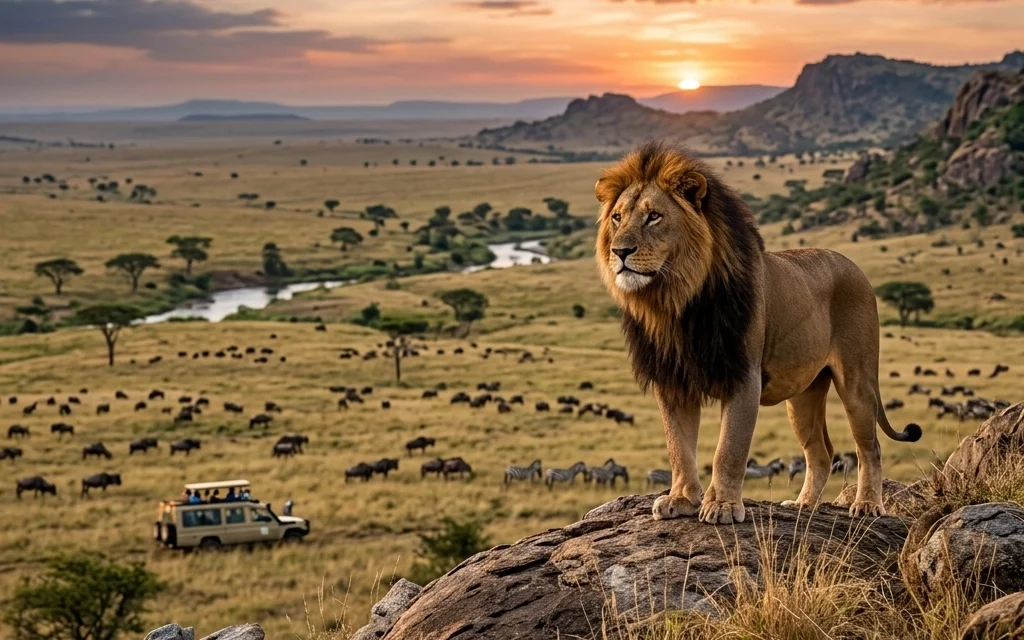
Let’s be real for a second: as photographers, we are data hoarders. We chase the highest megapixels, the sharpest lenses, and the cleanest sensors. But there’s a massive downside to that pursuit of perfection, the files are absolutely enormous.
If you’ve ever tried to upload a gallery for a client on a slow connection, or watched your website crawl to a halt because of high-res hero images, you know the struggle. We want our work to look stunning, but the internet wants things to be fast. For a long time, we’ve been forced to choose between the two.
That’s where Pixel-Shrink 101 comes in. Today, we’re diving into how you can finally stop compromising. We are talking about shrinking your files by up to 80% without losing a single ounce of visual quality. This guide is sponsored by our friends at Proshoot.io, who understand better than anyone that a seamless photography booking experience relies on speed and professionalism.
Why File Size is Killing Your Business
Before we get into the "how," let’s talk about the "why." You might think, "Storage is cheap, why do I care?"
Storage isn't the only issue. The real problem is user experience and SEO. Google hates slow websites. If your portfolio takes more than three seconds to load because you’re serving 15MB JPEGs, your potential clients are going to bounce before they even see your best work. I’ve seen incredible portfolios on Edin Fine Art and my own personal blog thrive simply because the images load instantly.
When your images are optimized, your site is snappier, your SEO rankings climb, and your mobile users don't burn through their data plans just to see your wedding gallery.

Enter Pixel-Shrink: The Science of "Smart" Compression
Most of us are used to the "Save for Web" slider in Photoshop. You move it to 60%, and suddenly your beautiful sky has weird blocks (banding) and your sharp edges look like they were drawn with a crayon. That’s traditional lossy compression, and it’s outdated.
Pixel-Shrink.com uses a different approach. It’s built on a proprietary engine that doesn't just "squish" the file. It actually analyzes the textures, colors, and gradients of your photography. It looks for the data that the human eye literally cannot perceive and removes it.
Texture and Gradient Management
The genius of Pixel-Shrink lies in how it treats different parts of an image. In a typical landscape shot, the software recognizes the difference between the sharp, high-contrast edges of a mountain and the smooth, subtle gradients of a sunset.
While old-school compressors might cause "banding" in those smooth sky gradients, Pixel-Shrink maintains that smoothness while aggressively shrinking the file size. It’s why many pros are calling it a game-changer in educational photography circles.
Lossless vs. Lossy: What Should You Use?
One of the first things you’ll see when you head over to Pixel-Shrink is the choice between Lossless and Lossy (Smart) compression.
- Lossless Compression: Think of this like a ZIP file for your photo. It finds redundant data and packs it tighter. You’ll usually save about 10-20% in file size. It’s perfect if you’re archiving files but want the peace of mind that every single bit of data is identical to the original.
- Smart-Lossy Compression: This is where the magic happens. This is the setting that can take a 400MB folder of architectural shots and drop it down to 65MB with zero visual difference. For web display, social media, and client galleries, this is the gold standard.

A Photographer's Workflow for Maximum Speed
If you want to stay ahead of the curve in camera reviews 2024, you need a workflow that doesn't eat up your entire afternoon. Here is the most efficient way to use Pixel-Shrink in your daily routine:
Step 1: Export as Usual
Do your editing in Lightroom or Capture One. Export your JPEGs at full resolution or your desired web size (I usually recommend 2500px on the long edge for retina displays). Don't worry about the file size yet.
Step 2: Batch Process in Pixel-Shrink
Upload your exported folder to Pixel-Shrink. Use the "Professional" setting for most web work. If you are doing deep-dive gear reviews where people might be pixel-peeping at 200%, use the "High Fidelity" setting.
Step 3: Handle the Metadata
Pixel-Shrink gives you the option to keep or strip EXIF data. If you’re a gear head sharing your settings on Shut Your Aperture, keep it! If you just want the smallest file possible for a fast-loading landing page, strip it to save those extra few kilobytes.
Step 4: Upload and Enjoy
Replace your bulky images with the optimized versions. You’ll notice the difference in site speed immediately.

Real-World Results: The Proof is in the Pixels
I recently ran a test with a series of high-detail shots from a recent trip. These weren't just simple snapshots; they were complex images with lots of fine detail, think fabric textures and intricate architecture.
- Original File: 18.4 MB
- Photoshop "Save for Web" (60%): 4.2 MB (Visible artifacts in the shadows)
- Pixel-Shrink (Professional): 2.1 MB (Visually indistinguishable from the original)
That is a massive difference. When you multiply that across a gallery of 50 images, you’re looking at a difference of hundreds of megabytes. For your clients, that’s the difference between a gallery that "feels broken" because it’s loading so slowly and a gallery that feels like a premium experience.
Why Proshoot.io is the Perfect Partner
We’ve partnered with Proshoot.io for this guide because they understand the backend of the photography business. Their platform helps photographers manage bookings, contracts, and payments. But as any pro knows, your booking platform is only as good as the work it showcases.
By using Pixel-Shrink to ensure your portfolio loads at lightning speed, you are feeding directly into the professional image that Proshoot.io helps you maintain. When a client lands on your page, sees your work instantly, and can book you in three clicks, that’s how you win in 2026.

Common Misconceptions About Compression
I get a lot of emails from photographers who are terrified of the word "compression." Let’s clear the air:
- "It will ruin my prints." If you are printing a 40×60 canvas, yes, use your original RAW-exported TIFF. But for 99% of what we do (web, social, small prints), Pixel-Shrink’s smart-lossy algorithm is more than enough.
- "I can just use a plugin." Many WordPress plugins are heavy and slow down your server. Compressing your images before they ever hit your website is always the superior method.
- "It takes too much time." Pixel-Shrink is designed for speed. You can drag and drop an entire wedding's worth of images and let it run in the background while you grab a coffee.
Final Thoughts
The days of choosing between quality and performance are over. Whether you are showcasing your latest landscape work on Edin Fine Art or setting up a new photography booking experience, your file sizes matter.
Pixel-Shrink.com provides the professional-grade tools we need to keep our images looking sharp while making our websites run like a well-oiled machine. Give it a shot on your next project: your SEO and your clients will thank you.
If you’re looking for more ways to level up your photography game, be sure to check out our essential photography gear list or dive into our latest camera reviews. Keep shooting, keep shrinking, and keep growing your business!













