
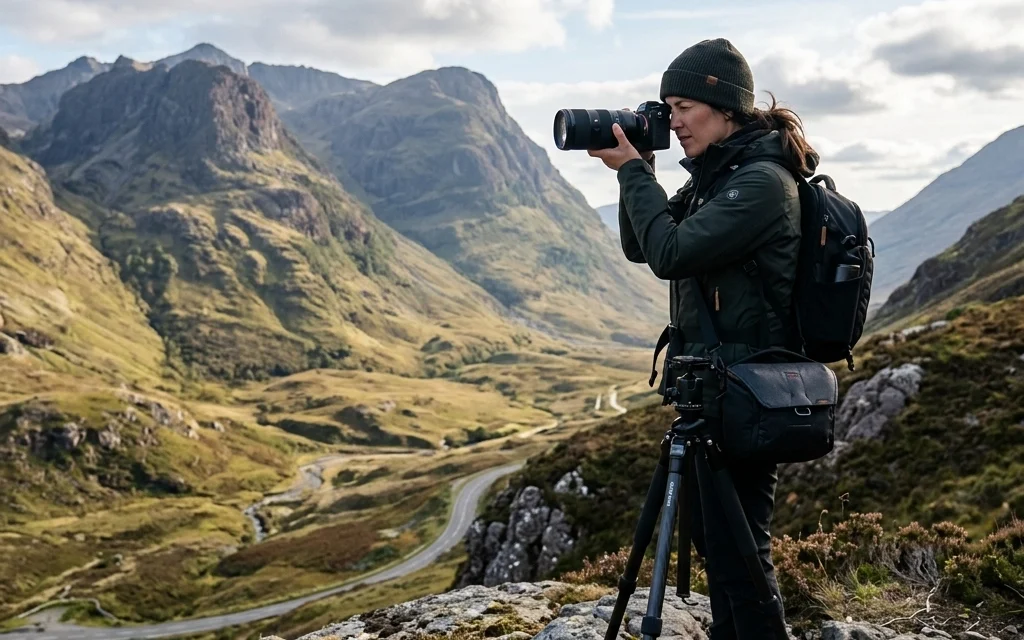
You’ve spent hours: maybe even days: meticulously editing your latest gallery. You’ve mastered the lighting, perfected the color grading, and ensured every pixel is exactly where it needs to be. But then, the moment of truth comes: you upload these masterpieces to your online portfolio, and… it crawls. The page stutters, the images load in chunks, and by the time the hero image finally resolves, your potential client has already clicked away.
It’s a heartbreaking reality in the digital age. We have cameras capable of capturing 60-megapixel files, but the internet hasn't quite caught up to the weight of those files. As photographers, we’re often caught in a tug-of-war between high-resolution quality and lightning-fast website speed.
For a long time, the "pro secret" was simply to downsize images to 1500px and hope for the best. But today, the elite are using a different weapon: Pixel-Shrink. If you’ve wondered how top-tier portfolios look incredibly sharp on a Retina display while loading instantly on a smartphone, you’re about to find out.
The Hidden Cost of "Heavy" Portfolios
We often think of our portfolios as a visual resume. While that’s true, from a technical perspective, your portfolio is a collection of data. If that data is too heavy, your website’s SEO (Search Engine Optimization) takes a massive hit. Google explicitly prioritizes fast-loading websites, especially on mobile. If your site takes more than three seconds to load, you’re essentially handing your rankings over to the competition.
Beyond SEO, there is the human element. The modern attention span is shorter than ever. When a bride or a creative director visits your site, they want to be moved by your art, not frustrated by a spinning loading icon. To keep them engaged, you need a site that feels as snappy as a physical book of prints. This is where Pixel-Shrink.com enters the frame.
What is Pixel-Shrink?
At its core, Pixel-Shrink is an AI-driven optimization platform designed specifically for photographers who refuse to compromise on quality. Most compression tools are "dumb": they simply strip out metadata or apply a blanket blur to reduce file size. Pixel-Shrink is different. It uses intelligent analysis to identify which parts of an image the human eye focuses on (like sharp eyes in a portrait or fine textures in a landscape) and which parts it doesn’t.
By protecting those "high-interest" areas and optimizing the rest, it can reduce file sizes by 60% to 80% without any visible loss in quality. It’s the closest thing to magic I’ve seen in the post-processing world.

Why Pros Are Making the Switch
I’ve spent a lot of time reviewing essential photography gear, and I’ve realized that "gear" isn't just cameras and lenses anymore; it's the software that delivers your work to the world. Pro photographers are moving away from traditional Photoshop "Save for Web" settings for a few key reasons:
1. Retention of Tonal Transitions
One of the biggest issues with standard compression is "banding." You’ve seen it before: those ugly, jagged lines in a clear blue sky or a smooth studio backdrop. Pixel-Shrink’s AI is specifically trained to maintain smooth tonal transitions, ensuring your gradients stay buttery smooth even at a fraction of the original file size.
2. Mobile-First Performance
Most of your clients are looking at your work on their phones while they’re on the go. High-resolution files can eat up data and take forever to load on a 4G connection. By using optimized files, you ensure your photography booking experience is seamless from the first click to the final deposit.
3. Storage Efficiency
Whether you’re using a dedicated portfolio site or a client gallery service like ProShoot.io, smaller files mean you can host more images without hitting storage caps or paying for expensive upgrades. Speaking of which, this post is sponsored by ProShoot.io, which is a fantastic platform for photographers who need a professional way to deliver those optimized files to clients.
The Workflow: How to Use Pixel-Shrink Like a Pro
The beauty of this tool is that it doesn’t require you to change your entire editing routine. You don’t need to learn a new complex software suite. Here is the exact workflow many pros use to keep their sites lean and mean:
- Edit as Usual: Finish your edit in Lightroom, Capture One, or Photoshop.
- Export at High Quality: Export your images as JPEGs at 100% quality or close to it. Don’t worry about the file size yet.
- The Shrink: Head over to Pixel-Shrink.com and drag your files into the interface.
- Download and Upload: Within seconds, you’ll have a version that looks identical but weighs significantly less. Upload these to your portfolio or your client galleries on ProShoot.io.

Pixel-Shrink vs. The Competition
You might be thinking, "Can't I just do this in Lightroom?" While Lightroom has a "limit file size" export option, it’s a blunt instrument. It forces the entire image to fit into a specific kilobyte bucket, often resulting in muddy shadows and loss of detail in the highlights.
When I’m working on my own fine art pieces at Edin Fine Art, I’m incredibly protective of my pixels. I’ve tested Pixel-Shrink against standard Photoshop exports, and the results are consistently superior. The AI handles the "heavy lifting" of deciding where to compress, leaving the artistic integrity of the photo intact.
Speed as a Marketing Tool
We often talk about lighting and composition as our primary tools, but speed is a marketing tool. A fast website tells the client that you are professional, tech-savvy, and respectful of their time. If you’re an Atlanta event photographer or a wedding shooter, you might have galleries with hundreds of images. Optimizing those ensures that the client's family can view the photos on their devices without the site crashing.
If you want to stay updated on the latest tech and techniques, I always recommend checking out Shut Your Aperture for community insights and gear talk. It’s a great place to see what other pros are using to stay ahead of the curve.

Practical Performance: A Real-World Example
Let’s look at the numbers. Imagine a standard portfolio page with 20 high-resolution images.
- Unoptimized: Each image is 5MB. Total page weight: 100MB.
- Standard Compression: Each image is 1MB. Total page weight: 20MB.
- Pixel-Shrink Optimized: Each image is 300KB. Total page weight: 6MB.
The difference between a 20MB page and a 6MB page is the difference between a user staying to browse or leaving in frustration. It’s the difference between landing a high-end gig and being ignored.
Taking Your Portfolio to the Next Level
Optimizing your images is just one part of the puzzle. Once your images are fast, you need to make sure they are presented beautifully. This is why many pros pair Pixel-Shrink with high-end hosting and delivery services.
If you are looking for more tips on how to improve your business, check out my personal blog at Edin Chavez Blog where I dive deeper into the business side of photography. Whether you're trying to figure out the camera reviews of 2024 or looking for wedding photography insights, staying informed is the only way to keep your edge in this industry.

Final Thoughts
The "secrets" of the pros usually aren't about some expensive lens or a hidden lighting trick; they are often about the small, technical details that improve the client's experience. Pixel-Shrink is one of those details. It’s a low-effort, high-reward step that makes your work look better because people actually get to see it.
Don't let your hard work be buried under the weight of oversized files. Give your portfolio the speed boost it deserves and watch your engagement (and your bookings) climb. Remember, in the digital world, speed isn't just a luxury; it’s a necessity.
Go ahead and try it out for yourself at Pixel-Shrink.com. Your portfolio: and your visitors( will thank you.)













