
Category: Photo Guides
We’ve all been there. You’ve just finished an incredible sunrise shoot. The light was hitting the peaks just right, the colors were vibrant, and your focus was tack-sharp. You get home, export your masterpieces, and realize that a single JPEG is topping out at 25MB.
When you try to upload those shots to your portfolio, send them over to a client, or post them to your blog, you’re met with the dreaded "spinning wheel of death." Your website slows to a crawl, your cloud storage hits its limit, and your clients are frustrated because they can’t download their gallery on their phones.
The natural instinct is to simply lower the resolution: to make the image physically smaller by stripping away pixels. But as photographers, that feels like a betrayal of our craft. Why buy essential photography gear and high-resolution sensors if we’re just going to throw those details away at the finish line?
I’m Edin Chavez, and today I want to share the simple trick to shrinking your photo files without losing a single ounce of that hard-earned detail.
The Secret: Compression vs. Resizing
The biggest mistake photographers make is confusing resizing with compression.
When you resize an image, you are literally throwing pixels in the trash. If you take a 6000×4000 pixel image and resize it to 2000×1333, you have significantly less data to work with. If someone tries to zoom in or print that file, it’s going to look like a Lego set.
Compression, specifically what we call "smart compression," is different. It’s an algorithm that looks at the image data and finds "unnecessary" information. For example, in a clear blue sky, there might be thousands of subtle variations of blue that the human eye can’t even distinguish. Smart compression groups some of those together in the file code without changing how the image actually looks to you or your client.
The result? You keep your original dimensions (pixels), but the file size drops by 60%, 70%, or even 90%.

Enter Pixel-Shrink: The Photographer's New Best Friend
If you’re looking for the fastest and most effective way to handle this, you need to check out pixel-shrink.com.
In my years of shooting everything from commercial projects to fine art (which you can see over at Edin Fine Art), I’ve tried every plugin and software under the sun. Most of them are either too slow or they muddy the shadows and highlights.
Pixel-shrink.com is different. It’s built specifically for photographers who refuse to compromise on quality. It uses an advanced optimization engine that maintains the integrity of your colors and the sharpness of your edges while drastically reducing the footprint of the file.
This tool is actually sponsored by proshoot.io, a platform that understands the high-stakes world of professional photography. They know that in our industry, speed is money. If you can deliver a gallery faster because your files are optimized, you’re providing a better photography booking experience.
Why File Size Matters for Your SEO
You might be thinking, "Edin, I have 10 terabytes of storage. Why should I care if a file is 5MB or 500KB?"
It’s not just about your hard drive; it’s about Google. Page speed is a massive ranking factor. If you are running a photography blog or a portfolio, and your homepage is trying to load 50MB of unoptimized images, Google is going to bury you in the search results.
By using a tool like Pixel-Shrink, you ensure that your site loads instantly. This keeps visitors on your page longer, reduces your bounce rate, and ultimately helps you get more eyes on your work. For more tips on the business side of things, I always recommend checking out my thoughts on evergreen online business ideas.

The 80% Rule: Finding the Sweet Spot
When you are manually exporting from Lightroom or Photoshop, you’ll see a "Quality" slider. A lot of photographers think they need to slide that all the way to 100.
Here is the truth: The difference between 100% and 80% quality is virtually invisible to the naked eye, even on a high-end Retina display. However, the difference in file size is massive. An 80% quality export is often less than half the size of a 100% export.
When you run that 80% file through pixel-shrink.com, it goes a step further by optimizing the metadata and the internal structure of the file. It’s the "double-tap" of image optimization. You get a lightweight file that still looks like a high-end masterpiece.
Real-World Application: Faster Deliveries
Imagine you’ve just shot a wedding. You have 800 images to deliver. If each image is 15MB, that’s a 12GB delivery. Even with high-speed internet, that’s a chore to upload and a nightmare for the bride and groom to download on their home Wi-Fi.
If you optimize those images to 1.5MB each (which is easily doable without losing detail), the total gallery size drops to 1.2GB. That is a game-changer. It shows your clients that you are professional, tech-savvy, and respectful of their time.
If you want to dive deeper into the technical side of how different cameras handle data, I’ve written extensively about it in our camera reviews 2024 section.
Maintaining the "Pro" Look
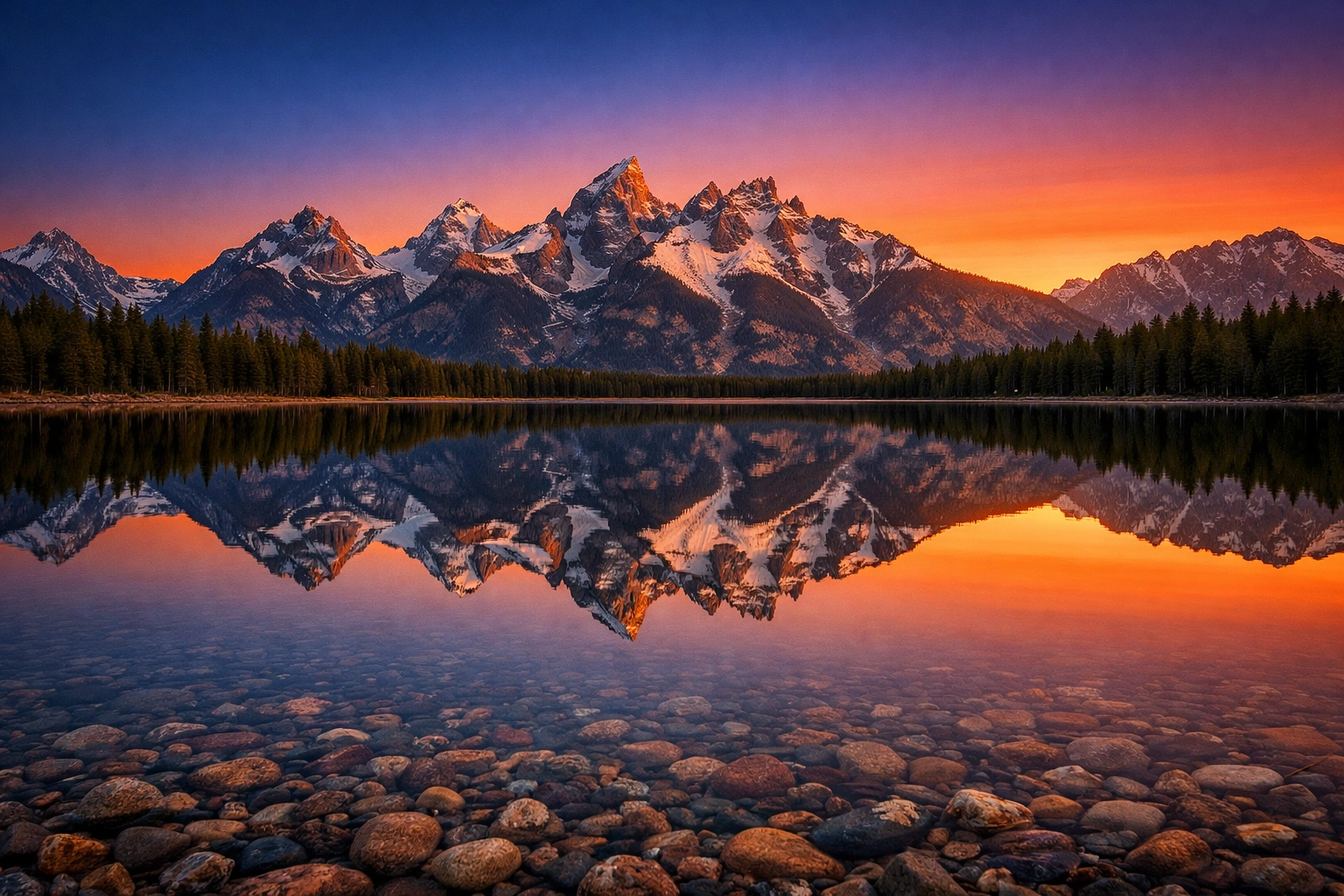
One of the biggest fears photographers have is "banding." You know those weird, blocky stripes that appear in gradients (like a sunset or a studio backdrop) when a file is compressed too much?
That’s why I’m so picky about the tools I recommend. Cheaper, generic compression tools treat a photo like a Word document: they just want it small. Pixel-shrink.com treats it like art. It identifies those sensitive gradient areas and ensures they stay smooth.
This is essential for high-end work. Whether I’m sharing gear tips on Shut Your Aperture or posting a new tutorial in our educational category, I need the images to look perfect. My reputation depends on it, and yours does too.
The Workflow: A Step-by-Step Guide
To get the best results, I recommend this simple three-step workflow:
- Export at Scale: Export your images from your editor of choice at the actual dimensions you need (e.g., 2500px wide for web) at around 80-90% quality.
- Run the Shrink: Drop those files into pixel-shrink.com. It’s incredibly fast. You can watch the file size drop in real-time.
- Upload and Relax: Post your images knowing they will load fast, look sharp, and keep your SEO rankings high.

Final Thoughts
Photography is about capturing beauty, but the business of photography is about sharing that beauty efficiently. Don't let massive file sizes be the bottleneck in your career.
You don't need to be a computer scientist to master this. You just need to stop resizing and start compressing smart. Give the simple trick a try: your website, your storage, and your clients will thank you.
For more behind-the-scenes looks at how I manage my workflow and my latest adventures, feel free to swing by my personal blog. I’m always sharing new ways to make the life of a photographer a little bit easier.
Keep shooting, keep shrinking, and I'll see you in the next guide.













